Follow Up Boss Permissions: Whose Login Does Your AI Use?
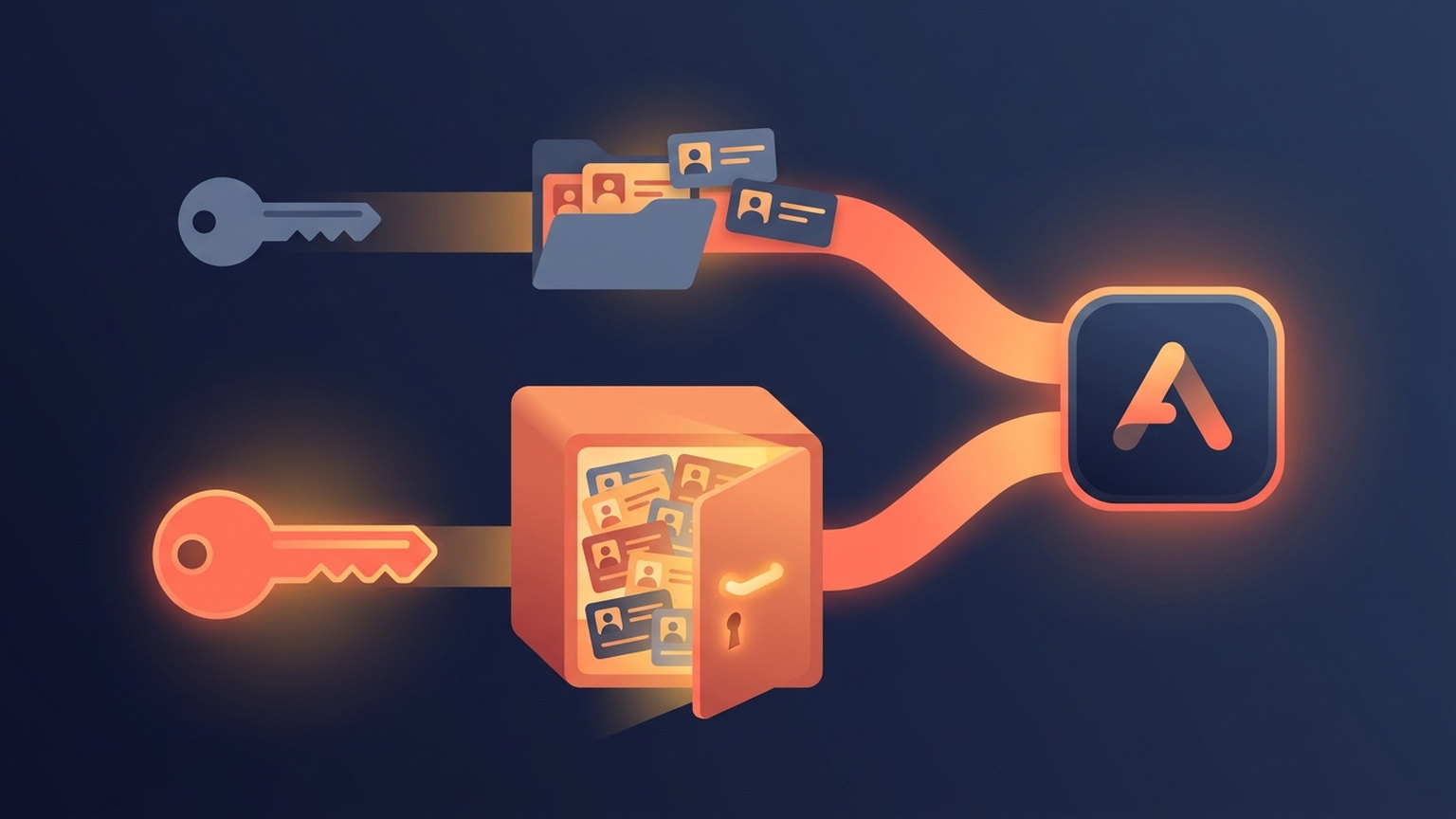
Every app connected to Follow Up Boss sees what the login behind it sees. An agent’s key reaches that agent’s contacts; an owner’s key reaches the whole account. Before an AI tool answers your agents’ questions, find out whose login it runs on, and prefer tools that sign each agent in as themselves.

In Follow Up Boss, an agent’s API key reaches only the people assigned to that agent. The broker’s key reaches every person on the account.
That is not our reading of it. It is the example Follow Up Boss gives in its own developer documentation (Follow Up Boss API docs). Plug either key into the same app and you get two very different apps. One knows a single agent’s book. The other knows the whole team’s.
For years that difference mostly mattered to whoever set up the dialer or the Zap. AI assistants change who it matters to. When an agent can type “who in my database hasn’t heard from me in 60 days?” and get a list back, the word “my” is only as true as the login underneath. This guide covers how Follow Up Boss decides who sees what, how to audit what is already connected to your account, and what to ask before you hand your team an AI tool.
Follow Up Boss already decided who sees what
Roles are the first layer. Follow Up Boss’s API documentation describes them this way:
| Role | What that login can reach |
|---|---|
| Owner | Everything in the account |
| Admin (Broker) | Most of everything, but not webhooks |
| Agent | Only the contacts they are assigned to, or are a collaborator on |
| Lender | Only the contacts they are assigned to or collaborate on, with fewer actions than an agent |
Two sentences on that same page carry most of the weight for anyone connecting tools. An API key “has the same access level as the user whom the key belongs to.” And an API key “provides the same privileges as the user’s login credentials.” Every user has their own key, under Admin → API.
So a key is a login in everything but name. If you set your roles carefully when you onboarded (our Follow Up Boss onboarding guide walks through roles and permissions in order), every key you hand out inherits that care. If you handed out the owner’s key because it was the one that worked, every tool holding it skipped your roles entirely.
The five-minute integration audit
Security people call the goal least privilege: restrict each user, and each process acting on a user’s behalf, to the minimum access the task needs (NIST glossary). You do not need a security team to apply it. You need a list of everything connected to your account and one honest answer per row.
Make a table like this and fill it in. The example rows show the kinds of answers you are looking for, not how any specific vendor works; check each one with the vendor.
| Tool | Connected with | Whose login? | Does it need the whole account? |
|---|---|---|---|
| Lead source / website | API key | Owner | Usually yes: it creates and routes new leads for everyone |
| A Zap that posts new leads to Slack | API key | Owner | Probably not: it needs new leads, not your past clients’ notes |
| Reporting dashboard for the team lead | API key or sign-in | Admin | Yes, and only the team lead reads it |
| AI assistant agents ask questions | ? | ? | No. Each agent should get their own book back |
Four questions fill in the blanks:
- Whose key or login is it? If the vendor’s setup screen asked you to paste an API key, you know: it is whoever generated that key. Our guide to connecting Zapier to Follow Up Boss shows where that key goes in one common setup.
- Who reads the output? A broker-wide key feeding a report only the broker opens is fine. The same key behind a tool every agent can ask questions of is a different decision.
- Does it write as well as read? Notes and tasks a tool creates land under the login it holds. If every note says it came from the owner, that tells you whose key is in there. Our explainer on the Follow Up Boss API covers what apps do with that access once they have it.
- What happens when that person leaves? Ask before it happens. A tool running on a departed teammate’s key is a problem you want to find on a quiet Tuesday, not during an exit.
Why AI raises the stakes on an old question
A dialer runs on whatever list you load into it. A Zap does one narrow thing. Neither one answers open questions.
An AI assistant does. Its whole value is that an agent can ask it anything about the database in plain English, and the scope of the answer is the scope of the login. On a team that keeps some books private (a top producer’s sphere, a lender’s pipeline, the leads in a pond nobody has claimed), “show me everyone who mentioned selling this spring” should return a different list for each person who asks.
That makes the audit question for an AI tool sharper than for anything else on your list. It is not only “whose login?” but “whose login, per question?” We covered the wider security picture in how AI fits into CRM data security; the per-question login is the piece most teams have not checked yet.
Three things to ask an AI vendor before you roll it out:
- Does each agent sign in to Follow Up Boss as themselves, or does the tool use one account-wide key for everyone?
- If an agent has not connected yet, does the tool ask them to connect, or does it answer from someone else’s access in the meantime?
- When the tool writes a note, whose name is on it?
How Ace answers those three questions
Ace keeps two kinds of connection to Follow Up Boss, and they do different jobs.
The first is the team connection. An admin authorizes it once, and Ace uses it for team-wide work: scores on contacts, Ace Smart Lists and the admin dashboard.
The second belongs to each agent. When Ace looks something up in Follow Up Boss for an agent, it uses that agent’s own login, so Follow Up Boss applies that agent’s own permissions. Ace sees the contacts Follow Up Boss lets that agent see. Notes and tasks Ace records for the agent are recorded as them.

On the second vendor question, Ace takes the slower path on purpose. An agent who has not connected yet is asked to connect. For their own lookups, Ace does not fall back on the team connection. Inside Follow Up Boss, that request is the screen below, and it is a one-time setup.
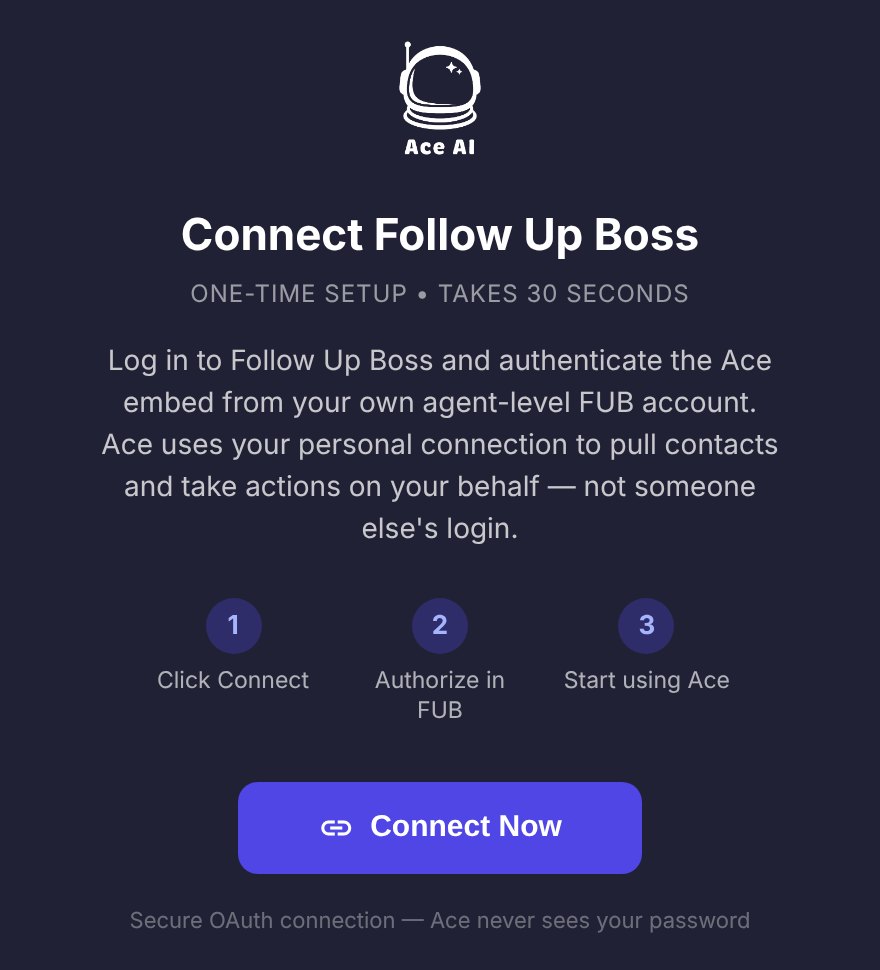
Ace also checks that the person signing in is the person the seat belongs to. If the browser is logged in to Follow Up Boss as the broker when an agent clicks Connect, Ace turns it down and asks them to sign in as themselves. Our help article on connecting Ace to your own Follow Up Boss login has the exact steps and that message word for word.
The same rule carries over to Claude and ChatGPT. The Ace connector for those assistants needs an Ace Pro seat (our guide to Ace, Ace Pro and Ace Trove covers what each includes), and each agent connects their own Follow Up Boss login, so the tools are scoped to that agent’s own permissions. If you want to confirm a connection is live and signed in as the right person, these three checks settle it.
What connecting your own login does not change
- Your roles are still the ceiling. Ace inherits whatever Follow Up Boss allows. If every agent on your account can see every lead, an agent’s own login can too. Tighten roles in Follow Up Boss; Ace cannot be stricter than the permissions underneath it.
- Admins connect the same way. An admin’s team connection is a separate thing from their own login. Connecting as yourself is the same button for an admin as for an agent, and it does not replace or disturb the team connection.
- Team-wide work stays on the team connection. Work Ace does for the whole account rather than for one agent runs on the team connection, so not every note Ace writes carries an agent’s name. What Ace records for an agent, through their own login, does.
- Old records keep their old names. Nothing is rewritten. Judge the change by the next note Ace writes for you, not the last one.
- The “Ace AI” label stays. Follow Up Boss marks anything created through a connected app with that app’s label. The name on the record becomes the agent’s; the label is Follow Up Boss’s marker and we cannot change it per person.
- It has to start inside Follow Up Boss. Ace needs to see which seat is asking, so an agent opening Ace in a separate browser tab cannot connect from there.
A message you can send your team today
If you are rolling Ace out, or any AI tool that signs agents in individually, this is the note we would send. Edit the name and paste it into your team channel:
Quick one before you use Ace this week. Open Ace from inside Follow Up Boss, click Connect Now, and sign in with your own Follow Up Boss login, not mine and not the shared one. It is a one-time setup. After that, Ace answers you from your own book, and anything Ace logs for you shows your name. If it says the login does not match, sign out of Follow Up Boss in that browser and try again. Questions to me.
For the rest of a rollout, our guide to rolling Ace out to a 30-person team picks up from here.
Frequently asked questions
Does a Follow Up Boss API key have the same access as the user?
Yes. Follow Up Boss’s developer documentation says an API key has the same access level as the user it belongs to: an agent’s key reaches people assigned to that agent, and a broker’s key reaches every person on the account.
Can agents in Follow Up Boss see each other’s leads?
Per Follow Up Boss’s documentation of its roles, an agent has access to the contacts they are assigned to or collaborate on, while owners and admins reach much more. Check your own account’s settings under Admin, because what your agents see depends on how the account is configured.
Why does Ace ask each agent to connect their own Follow Up Boss login?
So that Follow Up Boss decides what Ace can see and do for each person. Ace uses an agent’s own login for that agent’s lookups, which means it sees the contacts Follow Up Boss lets that agent see, and notes it records for them carry their name.
A question for team leads who have run this audit: what was the most surprising key you found, and which tool was holding it? We would like to know which integrations teams forget about most often.
Connect Ace as yourself
The help article has the three steps, what to do if the window closes, and what to check if you still see someone else’s name.
Read the setup steps