Read the context.
Contact history, supported activity signals, and model-grounded fields help surface the people who deserve a closer look.
Explore Ace TroveHow Follow Up Ace works
Your CRM knows the history. Ace helps you see the next move—with the context, priorities, and draft to follow through.
Built for Follow Up Boss · Keep your contacts and your workflow
A contact is looking at listings again. That activity can become a reason to reconnect.
CRM history and supported activity signals give the follow-up its context.
Team-defined queue rules combine activity, follow-up timing, and the score fields available on your plan.
Example ordering. Your team chooses the rules and priorities.
Hi Jordan—are you still looking on the west side? I can pull together a few options with a separate office. Would a quick call tomorrow help?
Review the details. Make it yours. Choose the next action.
Illustrative draft. Suggestions are prepared for agent review.
Open the contact in FUB, work a follow-up task, or use an available sending integration.
Sending options depend on your surface and connections. Administrators separately control opt-in automations.
Explore the four steps. Same contact, a clearer next move.
01 / A more intentional workday
Ace connects the intelligence in your database to the actions an agent can take. Here’s what happens along the way.
Contact history, supported activity signals, and model-grounded fields help surface the people who deserve a closer look.
Explore Ace TroveThe Dynamic Smart List ranks the Companion queue using rules your team controls. Native Ace Smart Lists offer another way to work inside FUB.
See where you workDrafts bring together the contact’s context and your voice prompt. Suggestions can surface in Ace and as notes or tasks in FUB.
Explore communicationsWork the task, review the message, and keep the contact moving. Appointment follow-up can turn a plain-language debrief into a note and next task.
Connect the team viewWin Score is a rank within your book, not a close probability. Win Score and Churn Risk are free. Ace Trove adds opportunity, buyer/seller tiers, and supported GCI estimates. Every connected eligible account is scheduled nightly for Ace Win Score and Ace Churn Risk, whether free or on a paid seat.
02 / Work where it feels natural
The embedded assistant works in the contact sidebar. Native Smart Lists keep familiar FUB workflows useful. Paid seats add a standalone Companion for the workday beyond your desk.
Context, drafts, and tools beside the contact. Available on the free tier.
Ace includes the NOW list, alerts, and tasks. Ace Pro adds the full standalone workspace.
Free to download; the mobile workspace is included with Ace and Ace Pro. Android users work in the browser.
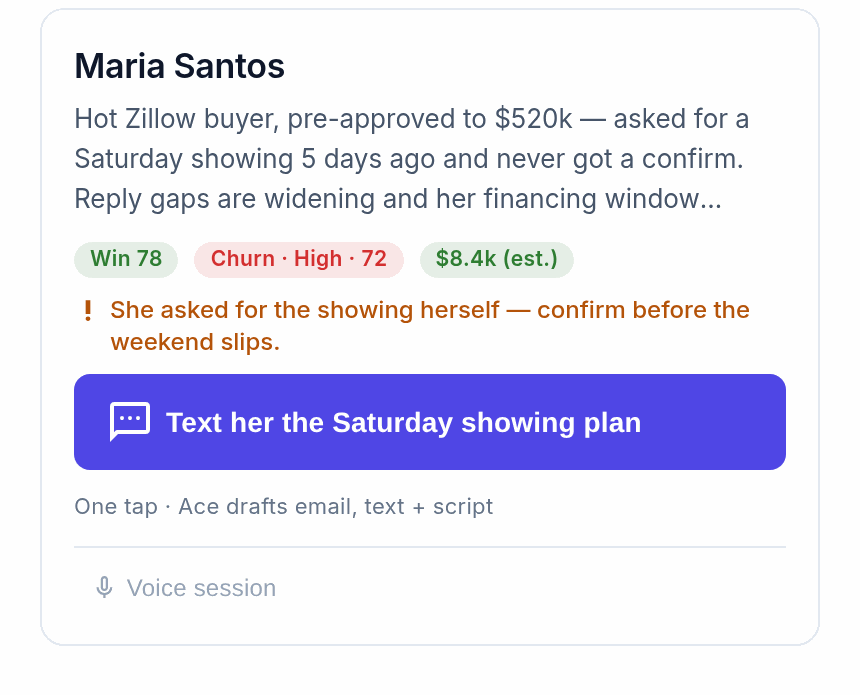
03 / The other side of the workday
Ace Trove connects individual follow-up to an account-wide view of priorities, pipeline, and team activity.
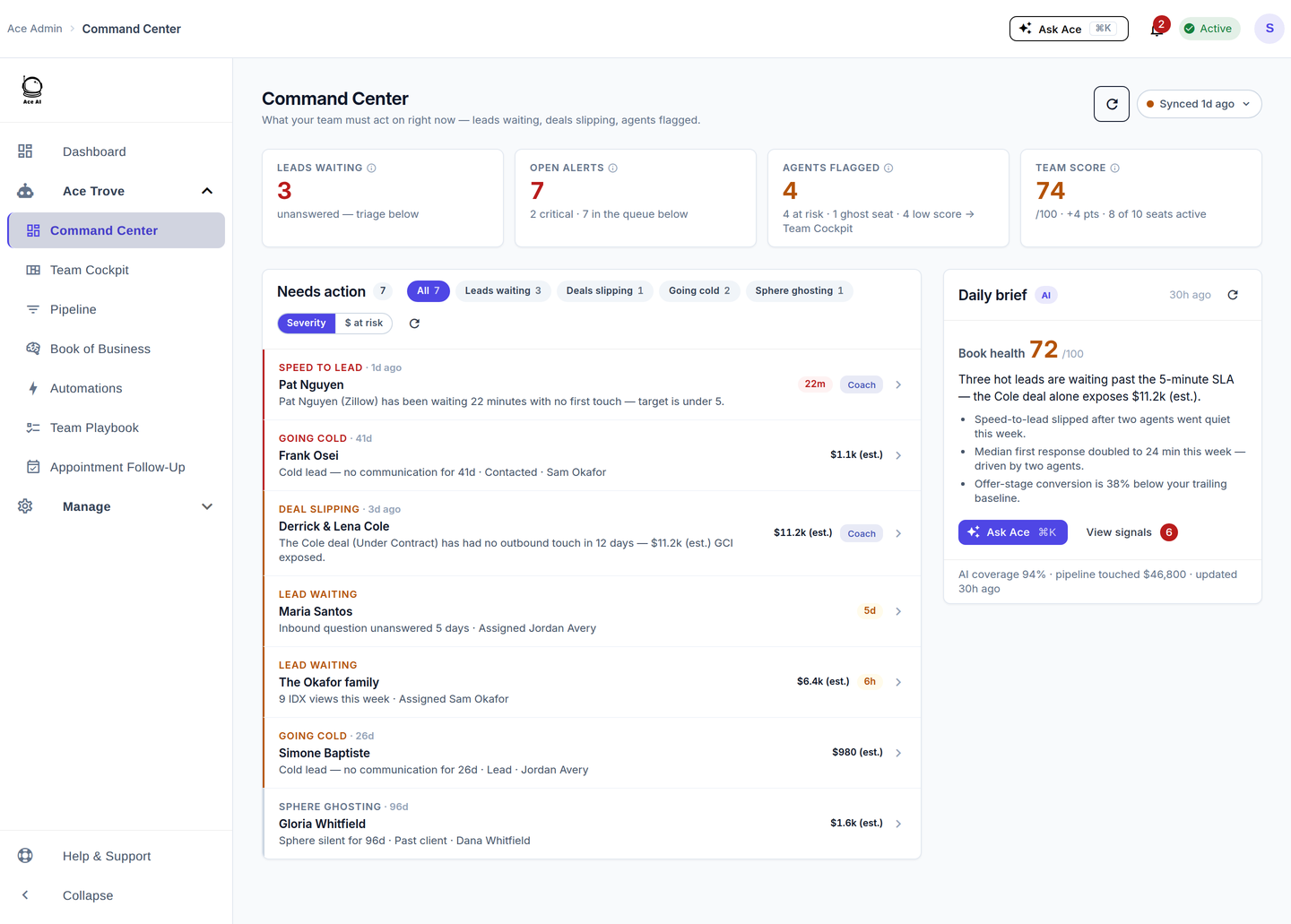
See the opportunities that need attention and the reasoning behind them. Use coaching tools to follow up with your agents.
Team Cockpit brings agent activity into view. Pipeline and Book of Business add the account and deal perspective.
Order Dynamic Smart List rules and tune their thresholds. The Companion queue follows your team’s priorities.
04 / Intentional controls
Useful automation starts with clear boundaries: the plan you choose, the connections you enable, and the workflows you turn on.
Compare plans and accessSuggestion drafts are prepared for agent review. Check the details and edit the message before taking action.
Autopilot is separately enabled by an authorized team member and starts with draft review. Autonomous sending requires explicit configuration.
See Autopilot controls ↗Sign in to Ace, then connect your own Follow Up Boss account when prompted. Available tools follow your role, seat, and enabled features.
Your next conversation starts here
Connect Follow Up Boss. Set your voice. Choose the plan and workflows that fit your team.