Follow Up Boss Claude Plugin: What to Ask, Already Written
The Follow Up Ace plugin for Claude installs the Ace connector for Follow Up Boss plus ten written playbooks: a morning plan, call prep, pipeline review, new-lead triage, drafts you approve before anything sends, and more. Upload one zip in Claude, sign in with your Ace Pro seat, connect your own Follow Up Boss login, then ask.

Picture the Monday after you connect Claude to Follow Up Boss: a blank box, a blinking cursor, and forty minutes before your first showing. The connector can read your whole book. It cannot tell you what to ask it.
So most people ask about one contact, get a decent answer, and go back to the CRM the way they always worked it. Nothing broke. The tool just never became a habit, because a habit needs a first question you would ask every day, and nobody wrote one down.
That is the job of the Follow Up Ace plugin for Claude. It bundles the same Ace connector you may already use with ten playbooks, each one written for a job agents and team leads do every week. This guide walks through three of them as one agent’s morning, then covers install, the two sign-ins, and where the playbooks stop.
What the plugin adds that the connector alone doesn’t
The connector is the plumbing. It lets Claude read and write your Follow Up Boss data, acting as you, with your own Follow Up Boss permissions (if that part is new to you, our post on whose login your AI tools use explains why it matters). What it doesn’t carry is judgment about order: which read to run first, what to do when a report is locked, how to present a contact who already told you no.
The plugin carries that judgment as written instructions. Each playbook names the reads to run and in what order, how to present the result, and what never to do. A shared set of house rules sits under all of them. The ones you will notice:
- Say only what came back. If a read fails or comes back partial, Claude is told to say so, not call it a quiet day. Estimated money (home value, home equity, GCI at risk) is labeled “(est.)”.
- Stop signs first. If a contact’s record shows a standing decline, or shows they are a lender, vendor or another agent, that is the first line of the answer, before any outreach idea.
- Drafts first. Claude shows the exact text and waits for your yes on that text. A general “go ahead” earlier in the chat doesn’t cover a new message or a new recipient.
- No texts from the plugin. Text messages are written for you to send from your own phone or from Follow Up Boss.

Three commands, one agent’s morning
These are what each playbook is written to do. We are describing the instructions, not showing you a transcript, because what comes back depends entirely on what is in your book.
7:40 a.m. — /ace:today
The start-of-day plan. It loads what Ace remembers about you, pulls the same ranked “who to contact next” list you see inside Follow Up Boss, then runs a morning triage and your pending alerts side by side. The playbook tells Claude to merge them: a person who shows up in the ranked list, an alert and the triage becomes one line, strongest reason first.
The output it asks for is short on purpose: up to five people to act on, each with the reason they surfaced in the tool’s own words; today’s calendar; deals to watch; loose ends. The playbook’s own line is “three real items beat ten weak ones.”
8:15 a.m. — /ace:prep Dana Ruiz
Call prep for one person (the name here is ours, for illustration). Claude finds the contact first and, if two people share the name, asks you which one instead of guessing. Then it builds a one-screen brief: who they are, any stop sign, what they want (only what the record says, with gaps marked “not on record”), when you last spoke on each channel, their scores, the personal facts you saved, and one opening line tied to something real in the record.
Scores come with a warning built in. The Ace Win Score is a 0–100 rank inside your own book, not a probability, and the playbook forbids turning it into “72% likely to close”. That restraint matters more than it sounds: an agent who reads a rank as odds will chase the wrong people.
9:00 a.m. — /ace:draft Dana Ruiz follow up on Saturday’s showing
A text, email or call script written from the record, in your voice if you saved one. Before showing it to you, Claude runs a Fair Housing and compliance scan on the exact text. Then it stops and waits.
If it’s an email and you say yes, it goes out through your connected Gmail (or, if you haven’t connected Gmail, the Ace email relay, with replies coming back to you). If it’s a text, you get the words and send them yourself. The connector backs this up on its side: it refuses to send an email unless the call carries an explicit confirmation, and it reviews the message again right before it goes out. If you want to test what that scan catches, our ten-sentence Fair Housing filter test works on any tool, ours included.
All ten commands
Here is the full set, as it appears in our install guide. Two of them lean on Ace Trove, the account-wide add-on; without it those reports say they are locked and everything else keeps working.
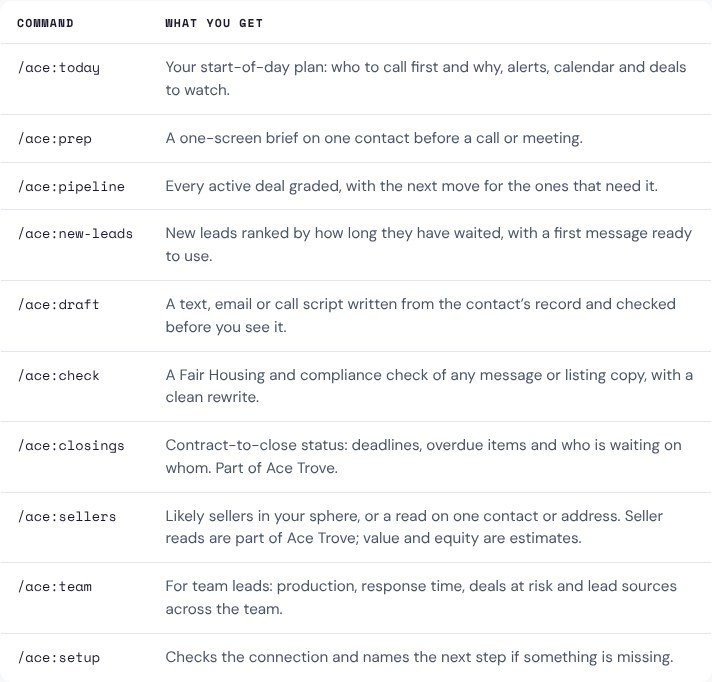
A few notes the table can’t fit:
/ace:pipelinegrades every active deal and runs the close-probability read only on the stalled deals with the most at stake. If you run your pipeline by hand today, our Follow Up Boss pipeline management guide covers the stage setup it reads from./ace:new-leadsranks new leads by how long they have waited and drafts a first message. Its speed-to-lead step previews a plan; the playbook tells Claude never to say anyone was enrolled or contacted./ace:teamis for account admins. Run it from an agent seat and Claude is told to say team reports belong to admins and offer your own numbers instead of retrying./ace:setupis the one to run first. It confirms who you are signed in as, or names the single thing left to fix.
Install it: the upload path
Before you start, two requirements. The Claude / ChatGPT connector needs an Ace Pro seat, and the plugin uses that connector, so every seat that installs it needs Ace Pro (admins included). And each agent connects their own Follow Up Boss login to Ace once, so Claude only sees what Follow Up Boss lets that agent see. Plans are on the pricing page.
- Download the plugin file from the plugin install guide.
- Upload it in Claude. In the Claude desktop app or claude.ai, open Customize → Plugins → Add → Upload plugin and choose the file. Anthropic documents this path in its plugin platform support page.
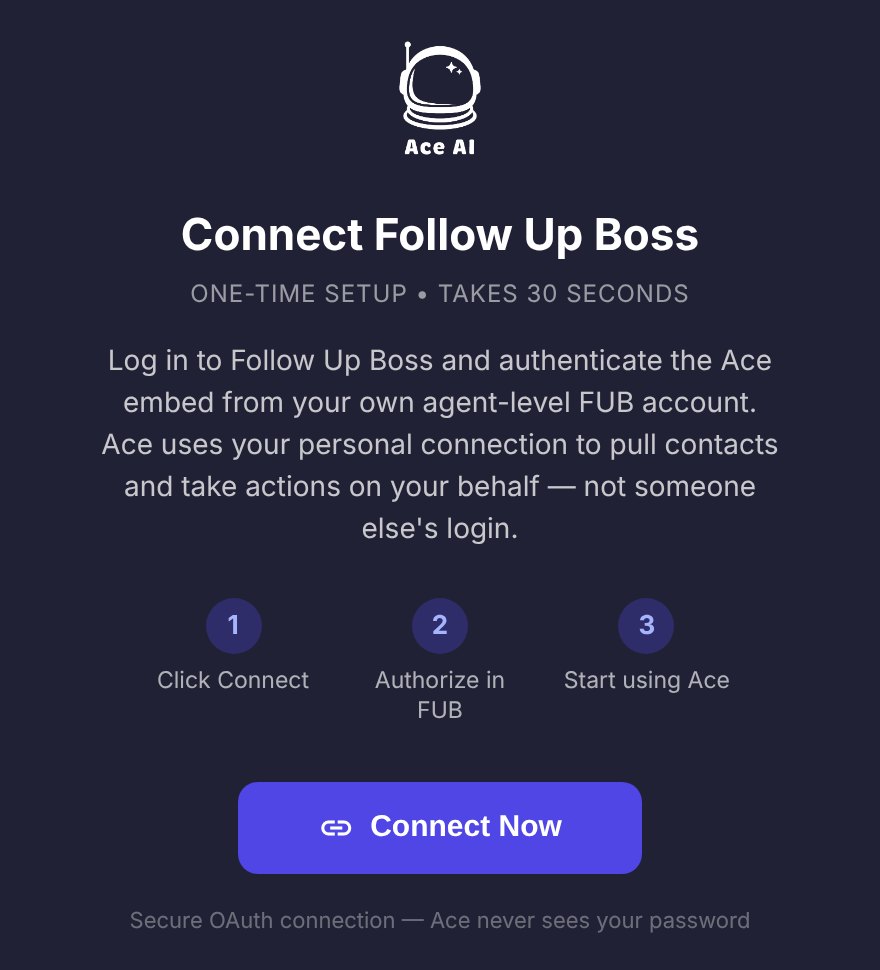
- Connect the Follow Up Ace connector from the plugin’s Connectors tab. Sign in with the email on your Ace Pro seat and the 6-digit code sent to that inbox.
- Connect your own Follow Up Boss login if you haven’t: open Ace inside Follow Up Boss, or the Ace workspace under Settings → Integrations, and choose Connect as yourself.
- Run setup. Ask Claude to check your Follow Up Ace connection, or type
/ace:setupwhere commands are supported (next section).
If you already added Ace as a custom connector, you can keep it or remove it. You only need one. To confirm the connection is real and not Claude being agreeable, run the three checks in our verification guide.
Claude Code users: the install guide also lists a two-command path; for now, use the zip. A plugin added to your claude.ai account also shows up in Claude Code as a synced plugin the next time a session starts.
Where the playbooks stop
Some limits worth knowing before you build a routine on this.
Typed commands don’t work everywhere. Anthropic’s platform table says plugin commands load as typeable commands in Claude Code and in Cowork, but in a regular claude.ai or desktop chat they load as skills that Claude applies when your request fits. In a normal chat, say it in plain words: “who should I call first today?” or “prep me for my call with Dana Ruiz.” The same playbook runs.
The confirmation is Claude’s to set. The connector won’t send an email without an explicit confirmation flag, and the playbooks tell Claude to set it only after you approve the exact text. That is a rule Claude follows, not a button only a human can press. Read the draft before you say yes.
It reads what is in Follow Up Boss. If your notes are thin, the brief is thin, and the playbook will say “not on record” rather than fill the gap. A plugin doesn’t fix data hygiene.
Your book only. An agent seat sees its own contacts and deals. If you need the whole team’s picture, that is an admin seat and, for Team Cockpit, Trove. The Trove page lists what the add-on covers.
Frequently asked questions
Do I need Ace Pro to use the Follow Up Ace plugin for Claude?
Yes. The plugin uses the Claude / ChatGPT connector, and the connector needs an Ace Pro seat. That applies to every seat, admins included. Each agent also connects their own Follow Up Boss login to Ace once.
Can Claude send texts to my leads through the plugin?
No. The plugin never sends texts: Claude writes the text and you send it from your own phone or from Follow Up Boss. Emails can go out through your connected Gmail (or the Ace email relay if Gmail isn’t connected), and only after you approve the exact wording.
Why doesn’t /ace:today work in my claude.ai chat?
In a regular claude.ai or desktop chat, plugin commands load as skills rather than typed commands. Ask in plain words, such as “what should I do today?”, and Claude picks the matching playbook. Typed commands work in Claude Code and Cowork.
I already added Follow Up Ace as a custom connector. Do I need both?
No. You only need one connection. The plugin adds the same connector, so you can keep the custom one or remove it.
Give Claude its first question
The install guide has the plugin file, the sign-in steps and the full command list, with copy buttons.
Open the install guide