Troubleshooting: Common Issues and Fixes
Updated July 3, 2026
"Could Not Connect to the Embedded App"
This message means the Ace panel loaded inside Follow Up Boss but never received the contact record you had open. Almost always the Ace embedded app in Follow Up Boss has been disabled, removed, or had its authorization revoked. Two separate pieces have to be in place, and they are restored in different places — do them in this order.
1. Re-authorize the Follow Up Boss connection. If Ace's authorization was removed on the Follow Up Boss side (Admin → Integrations), Ace has lost its CRM data connection — and your Ace dashboard can still display Connected until the next connection check runs, which hides the usual Connect button. Go straight to followupace.com/admin/fub-oauth-setup?reauth=1, choose Re-authorize Follow Up Boss, and approve the permissions. That page offers the button even while the previous connection still shows as connected. You need admin, broker, or owner access in Follow Up Boss to complete it.
2. Re-enable the Ace panel in Follow Up Boss. Once the authorization is back:
- Log in to Follow Up Boss and click Admin in the top navigation.
- Select Integrations from the dropdown menu.
- Scroll down to the Embedded Apps section.
- Find Moon Sherpa (Ace AI) and click on it.
- Click Enable.
- Reload Follow Up Boss and open any contact — the Ace panel should be back on the contact page.
After you reconnect, Ace re-registers your Follow Up Boss webhooks and refreshes your Knowledge Base on its own; no further setup is needed. Full connection guide: Connecting Follow Up Boss via OAuth.
If the panel is back but still says it cannot connect on every contact, email [email protected] with your Follow Up Boss account email and we will check the connection from our side.
"Connect Follow Up Boss" Appears Every Login
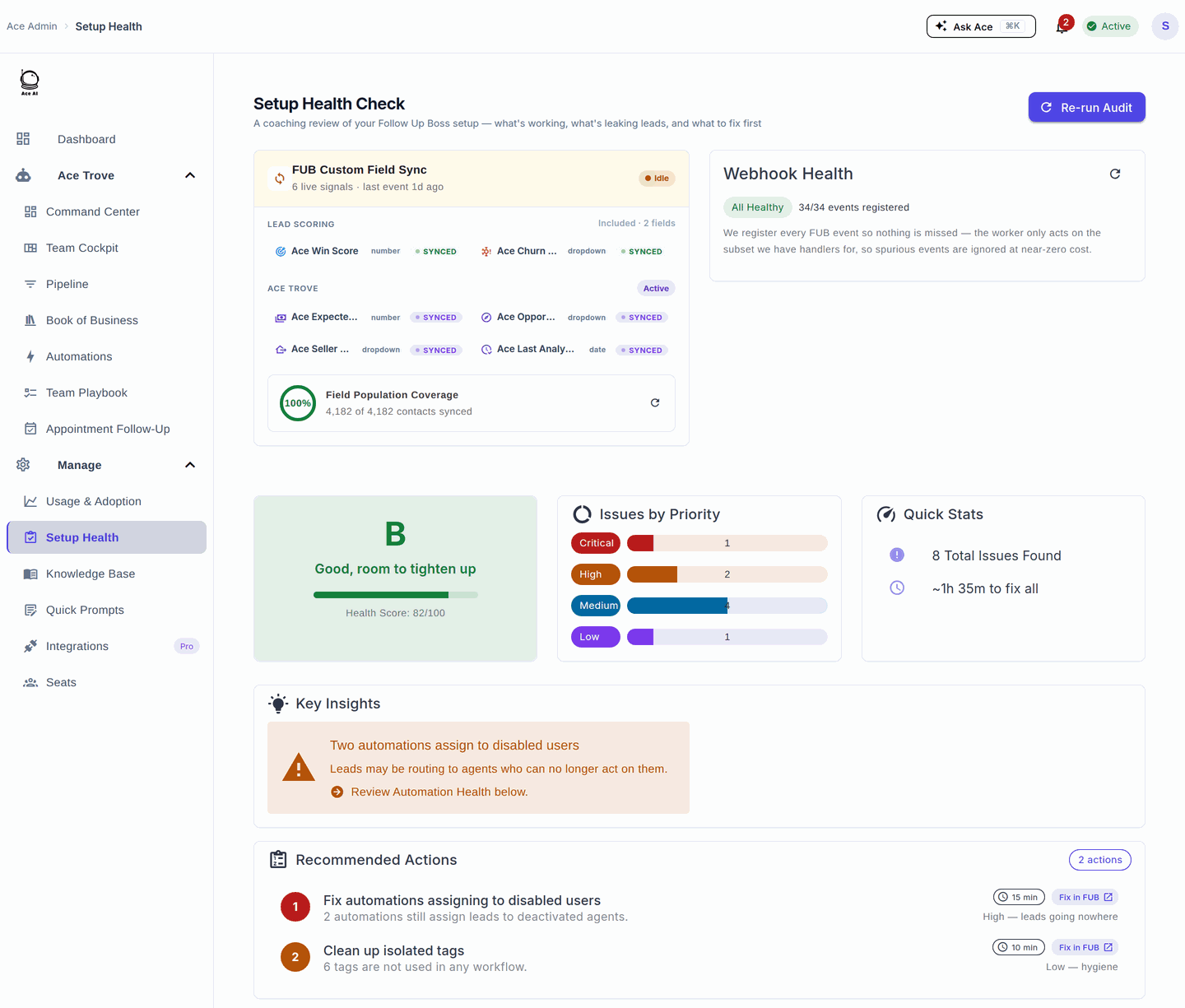
The current session may need to reconnect to Follow Up Boss. Choose Connect Follow Up Boss and complete the authorization shown. If the prompt returns repeatedly, open Manage → Setup Health to check the connection and report the error shown to support. Include your browser and whether you are using the embed or standalone Companion.
"Ace Says My Account Is Inactive"
That word can appear on a screen while your account and subscription are perfectly fine — the screens that report it are reading different things. Confirm your plan first, then work down this list in order.
1. Confirm the subscription itself. Open the profile menu in the top right of the Ace dashboard and choose Billing. If your plan and seat are shown as active there, your account is active, whatever another screen says.
2. Open the Ace panel inside Follow Up Boss. Try this before chasing anything else, particularly if it has been a few weeks since you last used Ace. Log in to Follow Up Boss, open any contact, and let the Ace panel load at the bottom of the contact page — re-opening it after a long gap clears the message on its own. Working from that panel is also how Ace is meant to be used day to day — see Cheat Sheet: Using Ace in Follow Up Boss.
3. Check whether the screen is talking about a feature, not your account. Some pages show Off or Not activated about that feature on its own. Ace Autopilot is the usual one: opting in is only the first step, and until you switch it on and choose its playbooks it correctly reports itself as off while your account is perfectly active. See Ace Autopilot.
4. Check your connection. Go to Manage → Setup Health and review what it reports. If it flags the Follow Up Boss connection, follow the re-authorization steps at the top of this article.
If the message is still there after all four, email [email protected] and tell us which screen shows it and the web address in your browser bar (a screenshot is ideal). Different screens use that word for different reasons, and that one detail is what lets us tell you exactly what is being read instead of guessing.
Ace Doesn't Know About a Contact
Possible causes:
- The contact exists in FUB but was added very recently (sync can take a few minutes)
- Your FUB OAuth connection expired — reconnect using the steps above
- The contact is in a different FUB account than the one connected to Ace
Try: Disconnect and reconnect FUB OAuth from the admin dashboard. If the contact still doesn't appear, contact support with the contact name and FUB contact ID.
Ace Gives Wrong or Outdated Information
What's happening: Ace pulls live data from FUB, but the knowledge base (KB) that informs Ace's context may not have rebuilt yet after you made changes.
Fix: Ask your admin to trigger a KB rebuild from the admin dashboard. Rebuilds typically complete in 5–15 minutes.
If information about a specific contact is wrong, verify the data in FUB directly — Ace reflects what FUB contains.
Widget Doesn't Load / Shows a Blank Screen
- Hard-refresh your browser (Ctrl+Shift+R on Windows, Cmd+Shift+R on Mac)
- Clear browser cache and cookies for followupboss.com
- Try a different browser (Chrome recommended)
- Disable browser extensions temporarily — ad blockers sometimes interfere with the widget
If the blank screen persists after all steps, contact support with your browser version and a screenshot.
Voice Mode / Microphone Issues
Voice mode is a Pro plan feature, used from the Ace Companion.
| Symptom | Likely cause | Fix |
|---|---|---|
| No mic icon in the Companion | Seat is on Ace (Regular), not Ace Pro | Ask your admin to upgrade your seat to Ace Pro from the Seats page. If you’re already on Pro, hard-refresh. |
| Mic icon shows “Mic blocked” | The browser denied microphone access for the site | Click the lock/camera icon in your browser’s address bar, allow the microphone for the site, then use the inline retry link in the Companion. Browsers won’t re-prompt on their own once denied — you must re-enable it here. |
| Voice starts but Ace can’t hear you | Wrong input device, or another app is holding the mic | Close other apps using the mic (Zoom, Meet), check your OS sound input device, and retry. |
When voice starts successfully, Ace opens with a short spoken greeting based on what you were just working on — that’s expected, not a repeat.
I Was Upgraded But Still See Free/Basic Features
Plan changes apply immediately, but your browser session may be caching the old state.
Fix: Close the Ace widget, wait 30 seconds, and reopen it. If features still don't reflect your new plan, log out of FUB completely and log back in.
Didn't Receive Welcome or Setup Email
- Check your spam/junk folder for email from [email protected]
- Verify the email address in the admin dashboard is spelled correctly
- Ask your admin to resend the welcome email from the Seats page
"A Terms/Agreement Popup Appeared Inside FUB"
This is expected — it's our July 2026 terms update, not a bug and not phishing. The legal terms were updated, so every user is prompted once per surface (embed assistant, companion, and admin dashboard) to review and accept before continuing.
Fix: Click Accept and you're straight back in — nothing about your account or data changes. If the prompt reappears after you accepted, reload the page once (a cached session can lag a few minutes). If it still persists, email support — acceptances are recorded server-side, so we can see exactly what happened. Public explainer: followupace.com/learn/terms-of-service-update.
"My Ace Score / Ace Tier / Next Action Field Disappeared in Follow Up Boss"
Expected — it's the 2026 custom-field consolidation, not a bug. The older heuristic fields were retired and are being removed from FUB, replaced by seven model-grounded fields (Ace Win Score and Ace Churn Risk are free; Ace Expected GCI (est.), Ace Opportunity, Ace Seller Tier, Ace Buyer Tier, and Ace Last Analyzed require Ace Trove).
Fix: rebuild any Smart List that filtered on the old fields to sort by Ace Win Score instead. Full detail: Activating Ace Trove and Understanding Your Ace Fields.
The Companion Won’t Open or Follow Me
The Companion works as a desktop pop-out beside Follow Up Boss and as a standalone workspace at followupace.com/companion/, including on a phone.
- Nothing happens when I choose Open Companion: allow the pop-up for the page where you launched it and try again. You can also open the standalone Companion.
- The desktop Companion does not follow the selected FUB contact: keep the launching FUB tab open, select the contact record, and check that the Companion is connected to the same account. Reopen the Companion from that tab if needed.
- I opened Companion directly or on my phone: use its contact search and worklists to select a contact. A standalone session does not imply an active connection to a separate desktop FUB tab.
I Got a Coaching Note From My Team Lead — Where Is It?
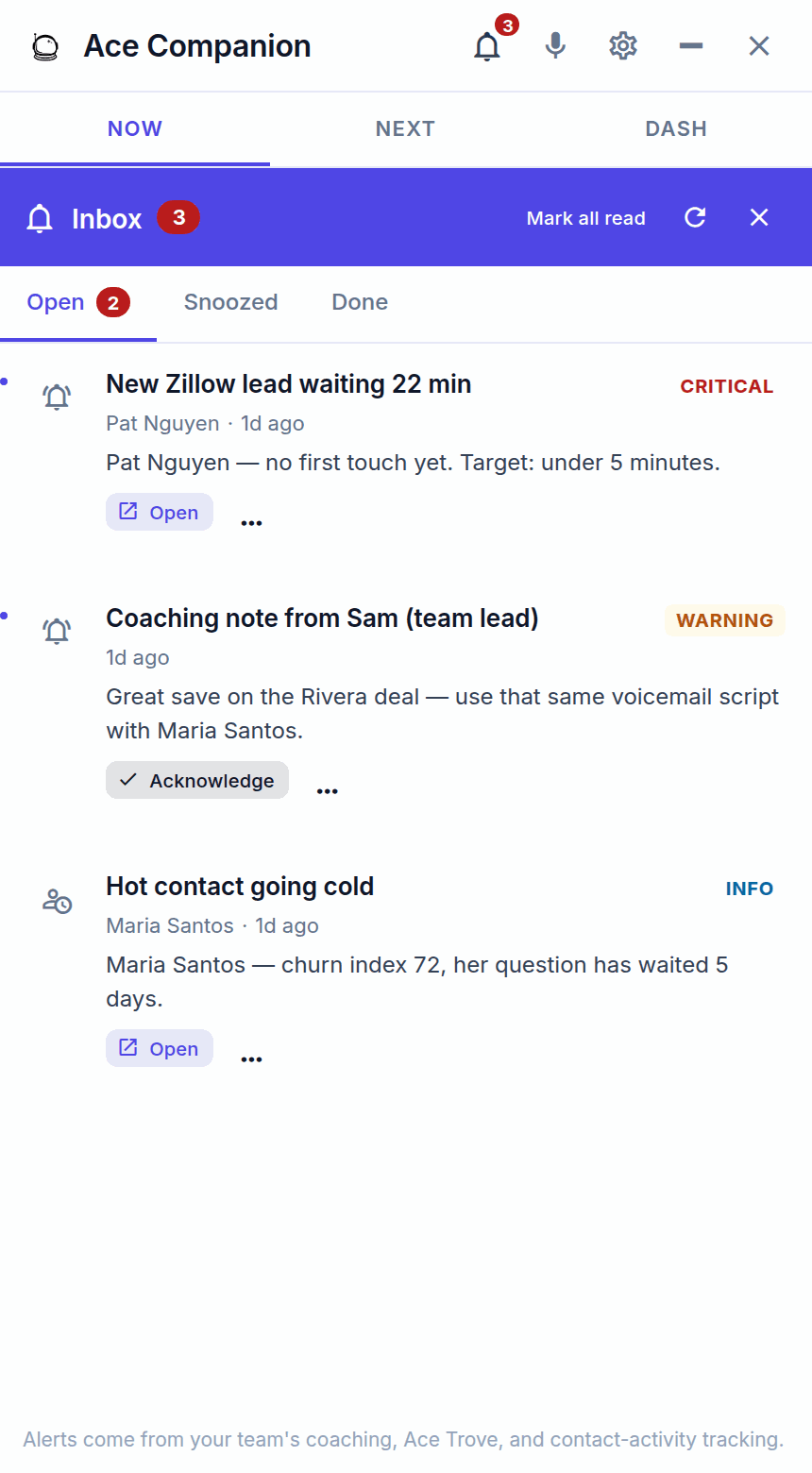
When an admin coaches you on a contact, the note lands in your Companion Inbox and also creates a matching task and note on that contact in Follow Up Boss. Open the Companion, check the Inbox, and act on the linked contact. This is a normal part of Ace — not spam.
I Can’t Upgrade, Cancel, or Change My Billing
If the upgrade, cancel, or manage-billing options are missing or disabled for you, it’s almost always because your seat was purchased by your team’s admin (team-pay). Billing is managed where it was purchased, so team-billed seats are changed by the admin, not the individual agent.
Fix: ask your account admin to make the change from their dashboard. If you personally bought your own seat (self-pay) and still can’t manage it, email support with your account email.
Still Stuck?
Email [email protected] with:
- Your account email address
- The issue you're experiencing (a screenshot helps)
- When it started happening
Support typically responds within 1 business day.
Related articles
- Using the Ace Companion
- Voice Mode: Talking to Ace Hands-Free (Pro)
- Billing & Seat Management: Complete Guide
- Follow Up Ace: Frequently Asked Questions
Last updated: July 2026
Thanks for the feedback — it helps us improve.