Using the Ace Companion
Updated September 5, 2026
The Ace Companion is a floating window that tags along while you work in Follow Up Boss on desktop. It reads context from whichever contact you have open, so you can move from contact to contact in a rhythm without losing your place. The Companion is available on both Ace and Ace Pro seats.
Opening the Companion
Click Open Companion in the Ace embed's bottom chat bar in Follow Up Boss, or press Cmd+K / Ctrl+K. The window floats above your Follow Up Boss session and follows you as you navigate between contacts.
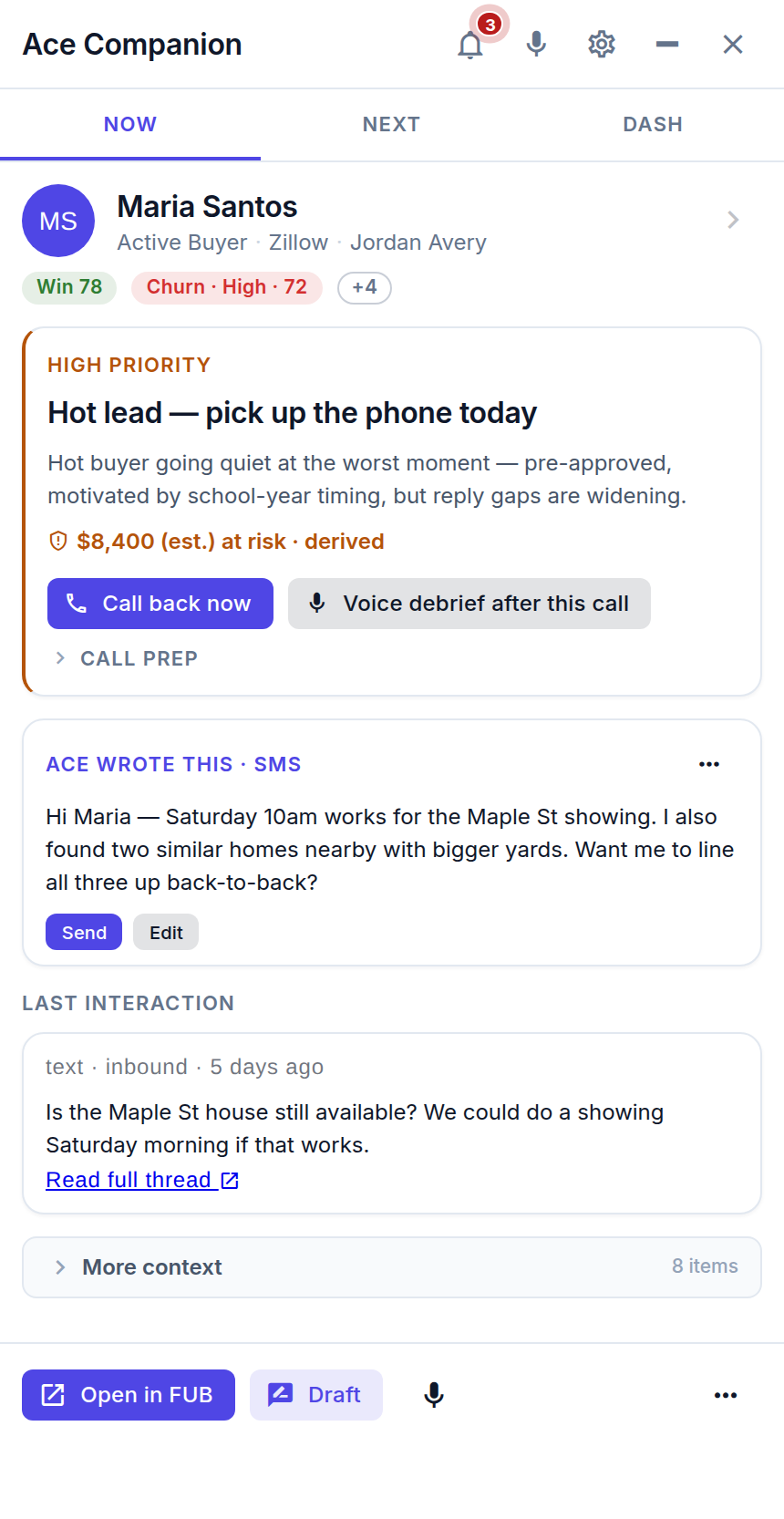
NOW — who you're looking at
When you open a contact in Follow Up Boss, the Companion detects it and the NOW pane updates with a briefing: lead source, last activity, key signals, and the suggested next step — often with a ready-to-send draft. You don't tell Ace who you're looking at; it reads context from the parent window.
NEXT — who to talk to next
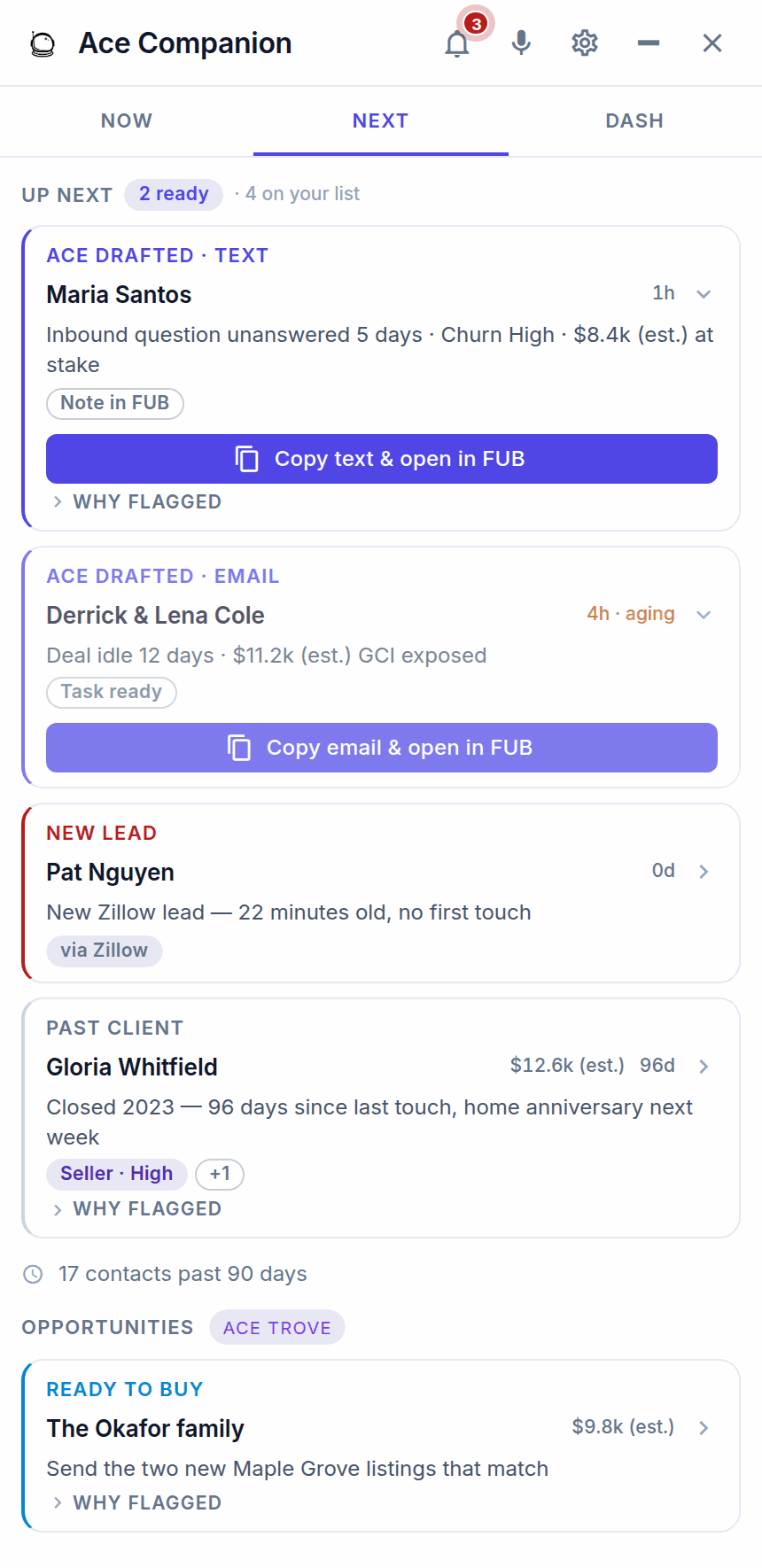
The NEXT pane is your prioritized call list for the day — the order is the priority. Ace-drafted texts and emails sit at the top, ready to copy and open in Follow Up Boss, followed by new leads, past clients, and Trove opportunities. Click any contact to load them in Follow Up Boss; NOW updates with their briefing. Ace seats see the top 5; Pro seats see the top 10. Admins tune the ranking from the Team Playbook page.
DASH — your numbers
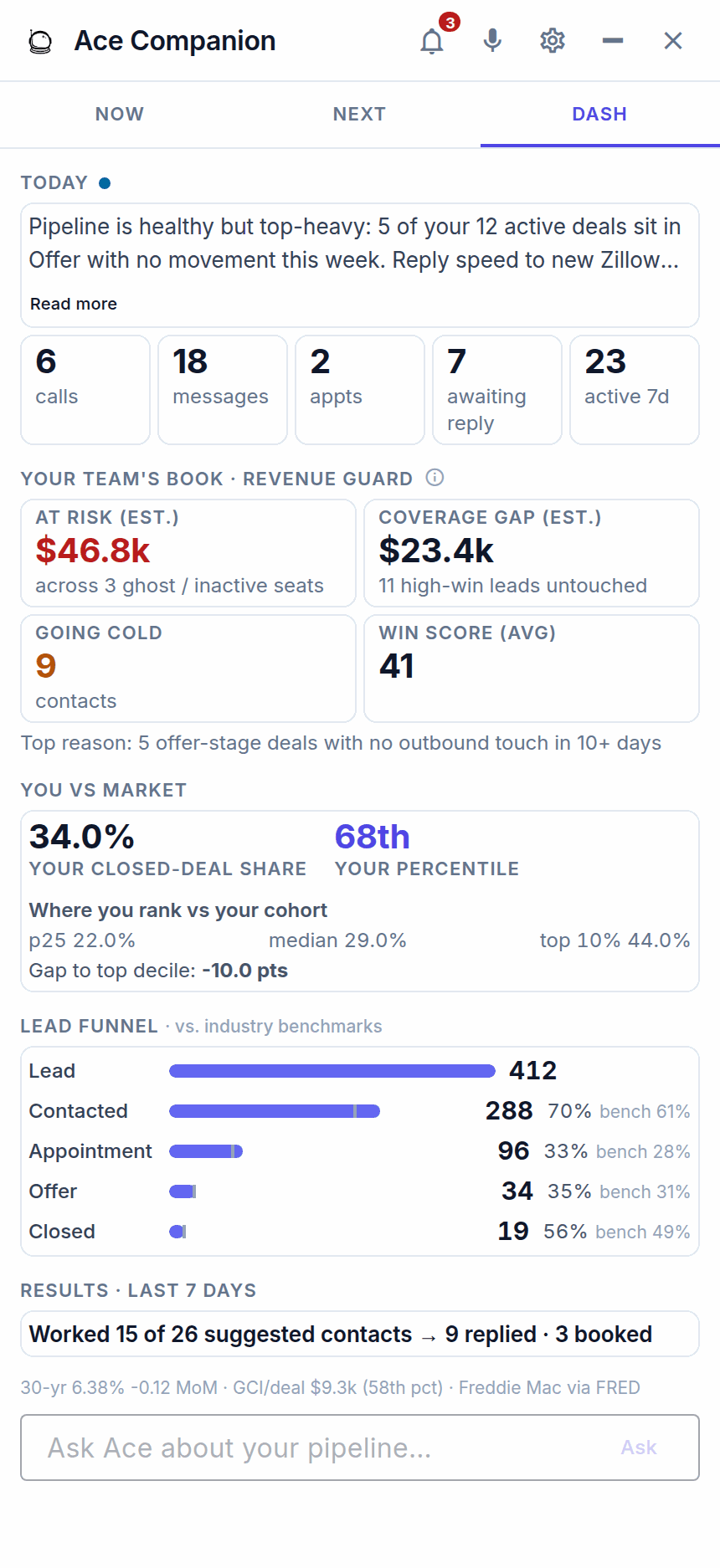
The DASH pane shows your dashboard activity and contact stage mix. Basic stage counts are available without Ace Trove. Ace Trove adds features such as the daily brief, revenue signals, market comparisons, and Ask Ace; these follow the account's Trove access rather than the Regular or Pro seat label.
Explore your contact stage mix
In the updated DASH pane, Your stage mix shows the signed-in agent's assigned contacts represented in this dashboard. Admins see Team stage mix for the account. The ring describes the current stage counts in that view; it does not measure stage-to-stage conversion or changes over time.
- Choose a stage. Select its row or ring segment to see its count and share. Shares use the sum of the valid stage counts shown. Select the same stage again or choose Show all to clear the selection.
- Check coverage. A Limited view notice means the stage distribution covers only the counted contacts. If the full dashboard total is available, the notice shows both numbers. The shares describe the contacts shown, and should not be extrapolated to the whole book. Choose Explore more stages to reveal additional stage rows; this does not load more contacts.
- Prepare a question. With Ace Trove access, selecting Ask Ace about this stage prefills and focuses the existing Ask Ace box with the stage, counts, and account or agent scope. Review or edit it, then press Ask or Enter to submit it to Ace. Selecting a stage or prefilling the question sends nothing and does not change a contact's stage.
Keyboard: Tab to the stage rows and use Enter or Space to select them. The same controls provide the counts and percentages without requiring the ring. Show all, more stages, and Ask Ace are also keyboard accessible.
If counts are missing: Stage counts are unavailable means the dashboard could not supply usable counts; refresh and retry. It is different from No contacts in this view yet, which requires an available, empty result. If only some counts are unavailable, those rows are excluded and a notice explains the reduced view. A missing stage name is shown as Unknown or Unknown stage.
Inbox — coaching from your team lead
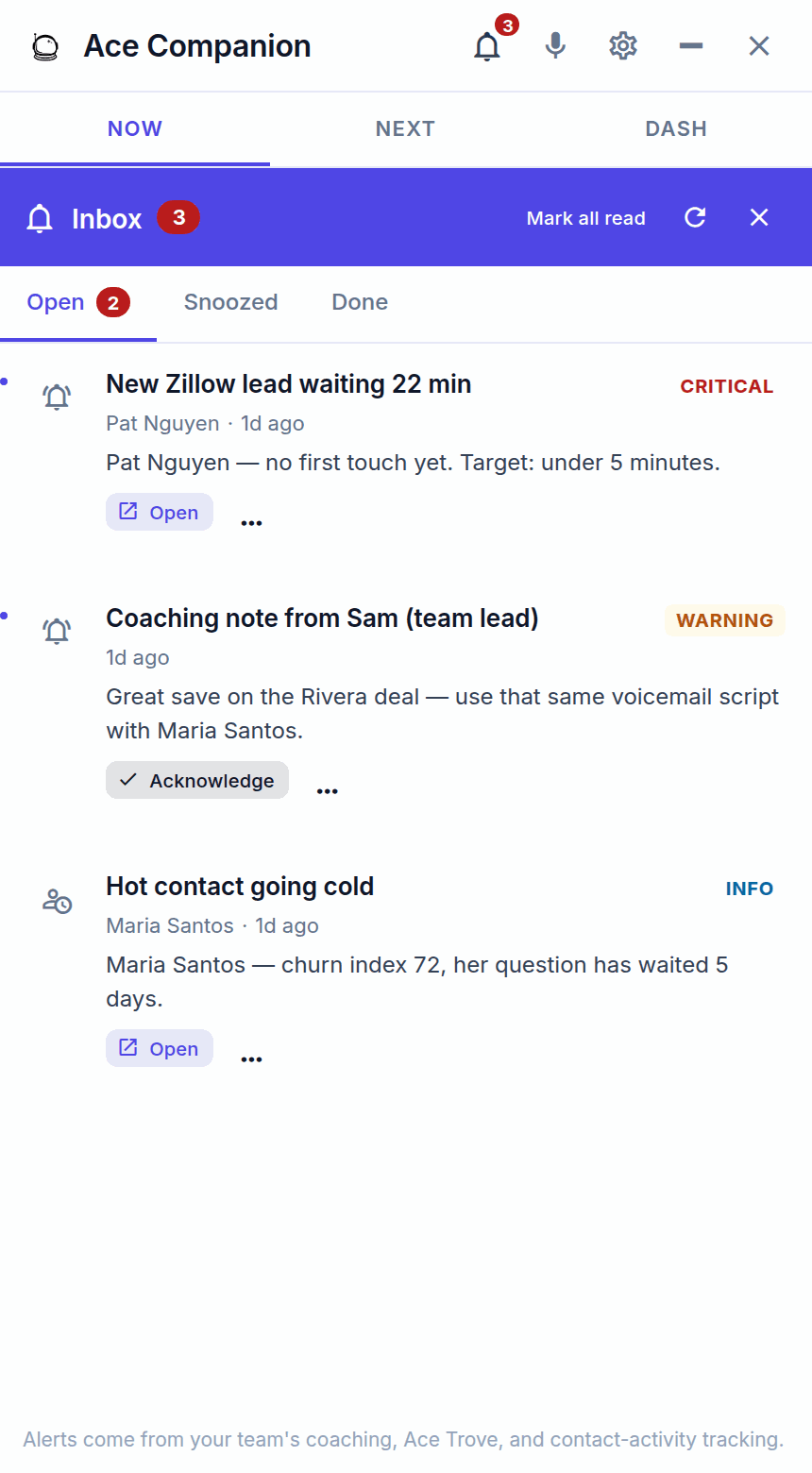
The Companion also has an Inbox. When your admin or team lead coaches you on a contact from their dashboard, that note lands here alongside a matching task and note in Follow Up Boss — so the feedback and the record stay together. You'll also see time-sensitive alerts here, like a new lead waiting too long. Open a note, act on it, and keep moving.
Your daily workflow
- Open the Companion from the Ace embed's bottom chat bar.
- Check NEXT and pick the top item on today's list.
- Click the contact — Follow Up Boss navigates to them and NOW shows their briefing.
- Work them in the embed — ask Ace to draft an email, text, talking points, or an objection response.
- Send and move on — review, approve, send, then back to NEXT.
The pattern: NEXT → click → NOW brief → embed chat → draft → send → repeat.
Voice mode (Pro)
On Pro seats, click the mic icon in the Companion to talk to Ace hands-free — ask questions, add notes, or get a briefing, ideal when you're driving between appointments. Ace opens with a short spoken greeting tuned to what you were just working on. If your browser has blocked the microphone, the Companion shows an inline recovery hint: click the lock icon in the address bar, allow the microphone, and use the retry link — no reload needed. Full guide: Voice Mode: Talking to Ace Hands-Free (Pro).
One product, two windows
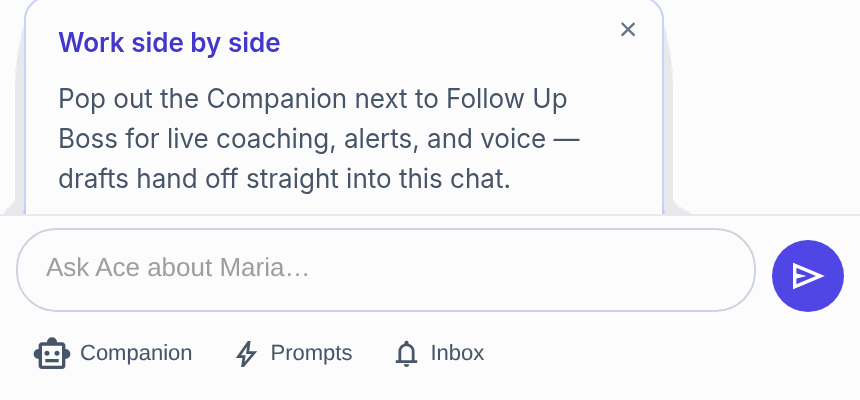
The Follow Up Boss embed and the pop-out Companion are the same product — what you do in one carries into the other, and switching contacts in Follow Up Boss moves the Companion with you. Popping the Companion out into its own window gives you a two-window setup: your list and Ace on one side, the contact record on the other. There's an on-ramp hint in the embed that explains it.
If the Companion stops following your contact
- Return to the intended Follow Up Boss account and open a contact with the Ace embed visible.
- Use the Companion button in the embed's bottom chat bar to bring the popup forward. If the browser blocked the popup, allow popups for Ace and try again.
- If a session-expired banner remains, use its sign-in or reconnect action, then retry the failed request. A fresh contact label by itself does not prove the session has recovered.
- When switching Follow Up Boss accounts or users, close the old Companion and open it again from the intended account's embed. An already-open Companion keeps its account and user; another tab cannot silently replace them.
For a standalone browser or mobile login, sign in again with the Follow Up Boss email for the seat you want. If an integration needs reconnecting, open Settings → Integrations. Gmail connection status refreshes after the authorization flow returns; closing its popup without finishing does not connect it.
Related articles
- Voice Mode: Talking to Ace Hands-Free (Pro)
- What Is Follow Up Ace? A Quick Introduction
- Troubleshooting: Common Issues and Fixes
- What Is Ace Trove? Overview and Pricing
Last updated: September 2026
Thanks for the feedback — it helps us improve.