Billing & Seat Management
Updated July 29, 2026
Everything about Follow Up Ace billing in one place: how plans work, purchasing and assigning seats, upgrading and downgrading, cancellation, and the questions we hear most. This guide is for the account admin.
Plans and pricing
| Plan | Price | What's included |
|---|---|---|
| Free | $0 | Limited daily AI credits — enough to explore. Upgrade for full, unlimited access. |
| Ace | $25/mo per seat | Unlimited Ace chat, full CRM access, contact research, task and note creation, email drafting, Knowledge Base, daily briefings |
| Ace Pro | $55/mo per seat | Everything in Ace, plus a premium AI model, voice mode, contact memory (cross-session facts), and MCP integrations (Claude, ChatGPT) |
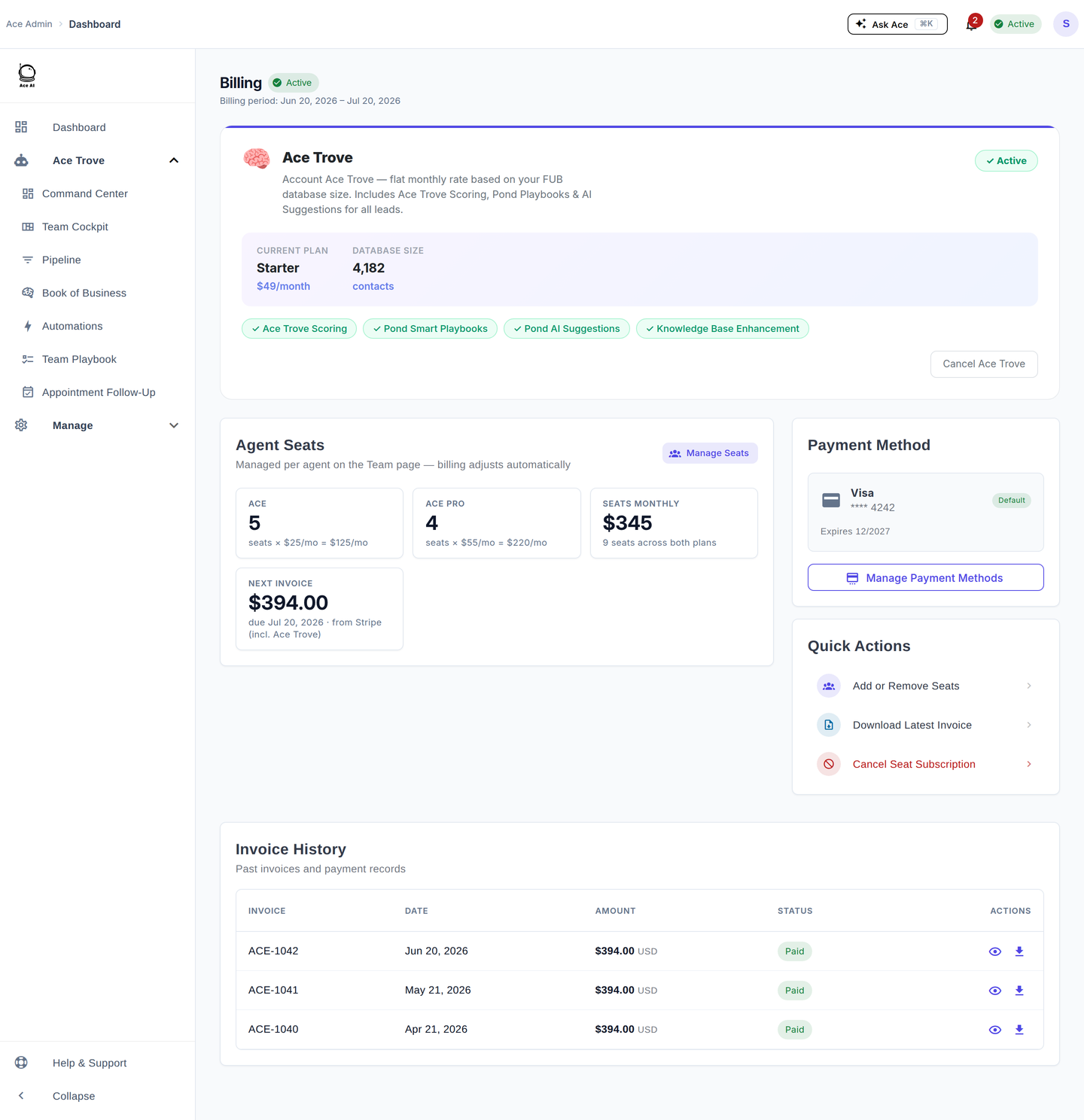
The Ace Trove add-on is billed separately as a flat monthly tier based on your total Follow Up Boss contact count ($49–$899/mo) — it isn't included in any seat plan. See What Is Ace Trove? Overview and Pricing.
Two billing models
Ace supports both admin-managed and self-pay billing, and they can coexist on one account.
- Admin-managed seats — the admin buys seats and assigns them to team members; the admin's payment method covers them. The admin can activate, deactivate, and change these seats at any time, with prorated billing. Best for teams.
- Self-pay seats — an individual agent subscribes on their own from within Follow Up Boss, and their own card is charged. They manage their own subscription — the admin can't modify or cancel it. To remove a self-pay user, contact support.
Buying and assigning seats
Seats are bought per agent, right from the Seats page — there is no separate "buy a pool first" step. Licensing an agent from Free starts a new seat subscription that day at the seat's monthly price ($25 for Ace, $55 for Ace Pro), renewing monthly from that date — nothing is prorated, because there is no existing period to prorate against.
- Go to followupace.com/admin and sign in.
- Open Manage → Seats in the left sidebar. Your Follow Up Boss users appear there automatically once the connection is made.
- Find the agent and click Upgrade to Ace or Upgrade to Pro on their row. That buys and licenses the seat in one step, and their access is live immediately. You'll see the price on the confirmation before anything is charged.
If you already have an unused seat in your pool, that row shows Assign Ace seat or Assign Pro seat instead — that consumes the seat you already paid for, at no new charge. The badge on each row shows the agent's current tier: Free, Ace, or Ace Pro.
Click Disable on a row any time to end that agent's access and return the seat to your pool; their data and history are retained.
Upgrading, downgrading, and removing seats
All three happen on the Seats page. To move an agent from Ace to Ace Pro, click the ▲ Pro button on their row — you'll get a proration preview before you confirm, and the change takes effect immediately. An agent already on Pro shows a Downgrade button, which takes effect at the end of the current period. To stop paying for a seat entirely, click Disable on that row; the seat comes off your next invoice and generates a prorated credit.
Updating your card
Where you update a card depends on which billing model covers your seat.
If you are an admin paying for team seats: go to followupace.com/admin, sign in, then open the profile menu in the top-right corner and choose Billing (it lives there rather than in the left sidebar). Click Manage Payment Methods to add a new card, set it as the default, and remove the old one. Your team's seats bill to whichever card is the default.
If you are an agent paying for your own seat (self-pay): open Ace, go to Settings → Subscription, and choose Update payment method. That opens your secure billing page, where you can add the new card and set it as the default for future renewals. In the iOS app, plan and payment changes are handled on the web rather than in the app.
If a renewal was declined before you got the new card saved, email [email protected] once it is on file and we will put the outstanding renewal through for you.
No trial — the free tier is your evaluation
Follow Up Ace doesn't use time-limited trials. The Free plan has no expiration — use it as long as you like to evaluate Ace before upgrading. When you subscribe to Ace or Ace Pro (self-pay or admin-purchased), your card is charged immediately for the first period. You can downgrade back to Free or cancel any time — see Cancellation below.
Cancellation
Go to Billing → Cancel Subscription.
| Option | What happens |
|---|---|
| Cancel at period end (default) | Access continues until the current period ends; no further charges. Shows as "Scheduled for Cancellation" — undo any time before the period ends with Keep My Subscription. |
| Cancel immediately | Access ends right away. No refund for unused time. |
Cancellation does not delete your account or Follow Up Boss data, does not cancel self-pay users' subscriptions, and does not trigger an automatic refund — contact support if you believe you're owed one.
Common billing questions
I added seats mid-month — what do I pay?
The prorated amount for the rest of the period, charged immediately. The full monthly rate starts at your next renewal.
I removed seats mid-month — do I get a credit?
Yes, a prorated credit on your next invoice. It offsets future charges rather than issuing a cash refund.
Why can't I deactivate a specific user?
A greyed-out toggle means the user is self-pay. Admin controls apply only to admin-assigned seats — contact support for self-pay changes.
Where are my invoices?
Under Billing → Invoice History; click Download for a PDF.
The billing page shows an error or won't load.
Usually a transient payment-processor issue — wait a minute and refresh. If it persists, contact support.
Related articles
- Team Management: Adding, Assigning & Removing Seats
- Understanding Your Ace Plan: Regular vs. Pro
- What Is Ace Trove? Overview and Pricing
Last updated: July 2026
Thanks for the feedback — it helps us improve.