Team Management: Adding, Assigning & Removing Seats
Updated July 3, 2026
This guide covers managing your team in Follow Up Ace — adding users, assigning and switching seats, and removing access. Every action happens in the admin dashboard at followupace.com/admin. For purchasing and cancellation, see Billing & Seat Management: Complete Guide.
Before you start
Your Follow Up Boss users appear in Follow Up Ace automatically once the connection is made. If Seats is empty or users are missing, confirm the Follow Up Boss step under Account Setup shows connected. You do not need to buy seats ahead of time — licensing an agent purchases their seat as part of the same click.
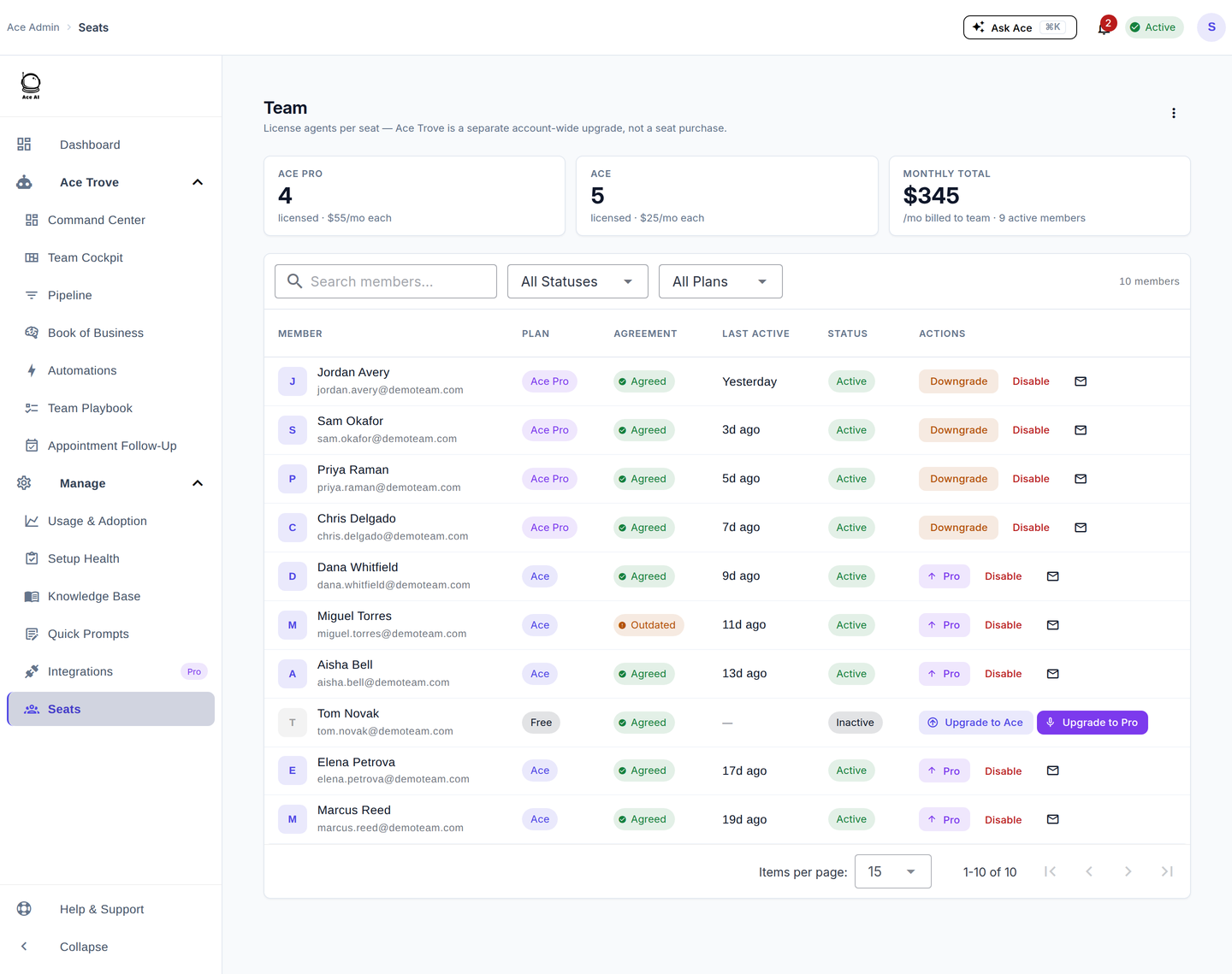
The Seats page
Go to Manage → Seats. Each user shows their status and plan badge:
| Badge | Meaning |
|---|---|
| Free | Limited access — no paid seat assigned yet |
| Ace | Ace seat assigned — full AI access |
| Ace Pro | Ace Pro seat — full access plus voice mode and MCP integrations |
The summary at the top shows your purchased seat counts (Ace and Ace Pro), how many are assigned, and how many remain.
Licensing a user
- Find the user and click Upgrade to Ace or Upgrade to Pro on their row — that buys and assigns the seat together. Confirm the price shown; a new seat subscription starts that day and renews monthly from that date, so there is no partial-period proration on a brand-new seat.
- Their badge updates to Ace or Ace Pro and their access is live immediately. If you already had an unassigned seat, the row shows Assign Ace seat / Assign Pro seat instead and no new charge is made.
- Click the envelope icon on their row to send them a welcome email so they know their access is live.
Switching a user between Ace and Ace Pro
- On an agent currently on Ace, click the ▲ Pro button on their row and review the proration preview.
- Confirm — the upgrade takes effect immediately. An agent already on Pro has a Downgrade button instead, which takes effect at the end of the current period and can be reversed with Cancel Downgrade before then.
Deactivating a user
- Click Disable on the user's row — access ends immediately and the seat returns to your pool.
Deactivating doesn't delete the user's data or history. Re-license them later and they pick up where they left off. The seat's cost comes off your next invoice.
Self-pay users
Some agents buy their own Ace subscription from within Follow Up Boss. They appear on Seats with a badge, but you get no plan controls on their row — they manage their own billing. For changes to a self-pay user's access, contact [email protected].
Common questions
A user doesn't see Ace after I licensed them.
Confirm the badge on their row shows Ace or Ace Pro. Then have them confirm the Ace embedded app is enabled in their Follow Up Boss settings — Follow Up Boss requires each user to enable embedded apps on their end.
I have seats but can't license a user.
Licensing requires an active subscription, not just available seat credits. If your subscription has lapsed, restart it from Billing (in the profile menu, top right) first.
My Follow Up Boss users aren't appearing.
Users sync automatically after the connection. If they're still missing, confirm the connection under Account Setup and wait a few minutes; contact support if it persists.
Related articles
Last updated: July 2026
Thanks for the feedback — it helps us improve.