Managing Seats and Subscriptions
Updated July 3, 2026
Follow Up Ace is billed per seat, and the account admin manages every seat from the admin dashboard. This guide covers how seats and plans work and how to assign, change, and remove them. For the full billing walkthrough, see Billing & Seat Management: Complete Guide.
How seats work
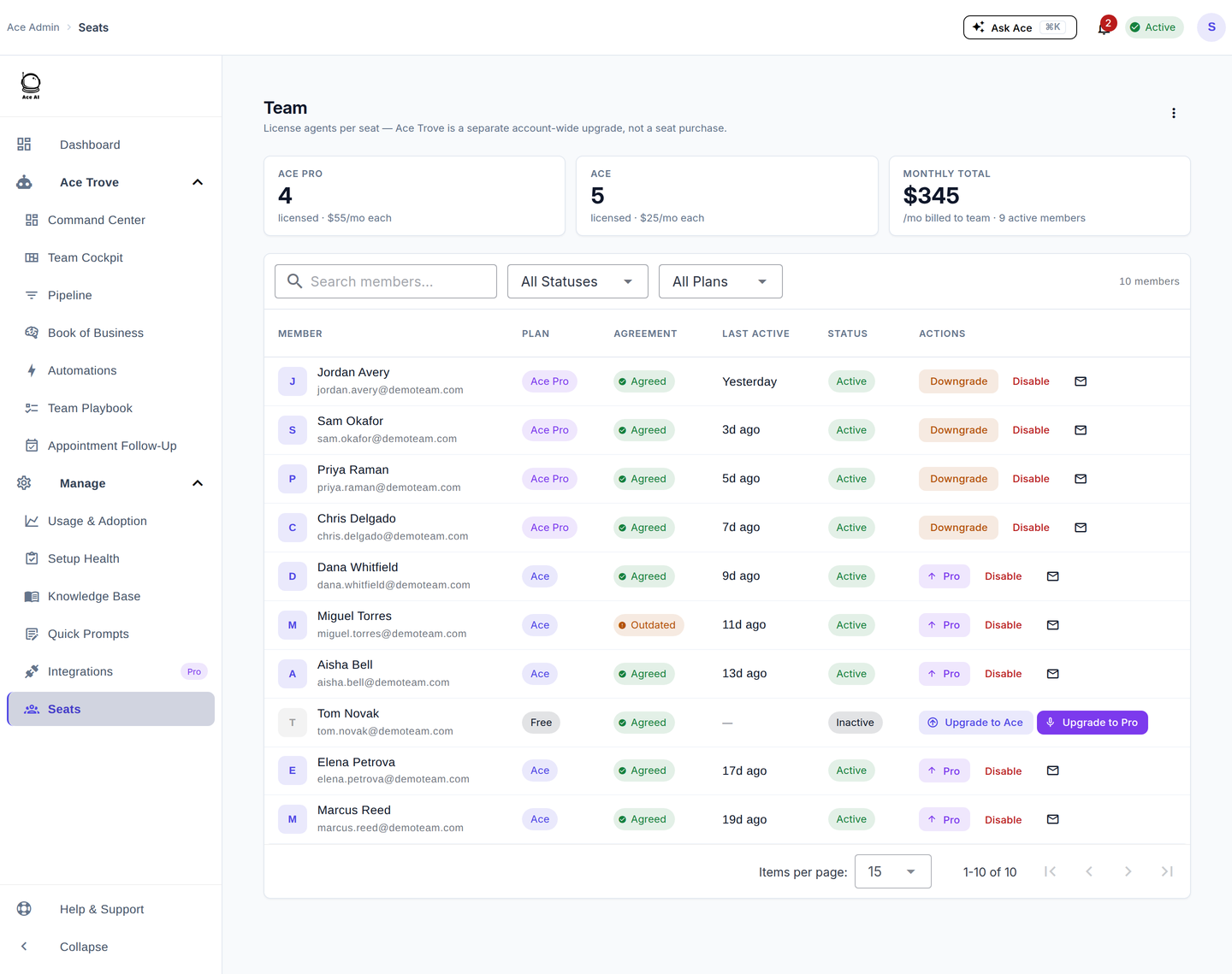
Each seat gives one agent access to Ace inside Follow Up Boss. You license agents one at a time from the Seats page, and the purchase and the assignment happen together in a single click. If you ever end up with a seat you've paid for but haven't assigned, it sits in your pool and the next agent you license consumes it instead of triggering a new charge.
| Plan | Access | Voice mode |
|---|---|---|
| Free | Limited — basic chat and read-only CRM queries | — |
| Ace | Full chat, CRM context, task/note creation, follow-up drafting, the Companion | — |
| Ace Pro | Everything in Ace, plus a premium AI model, contact memory, and MCP integrations | Yes |
Licensing a seat
- Sign in to your admin dashboard at followupace.com/admin.
- Go to Manage → Seats.
- Find the team member and click Upgrade to Ace or Upgrade to Pro on their row, and confirm the price shown. Their badge updates to Ace or Ace Pro and their access is live immediately. Licensing an agent who was on Free starts a new seat subscription that day, renewing monthly from that date — there is no partial-period proration on a brand-new seat.
- Click the envelope icon on their row to send them a welcome email so they know their access is live.
If you already have an unassigned seat, the row shows Assign Ace seat or Assign Pro seat instead — that uses the seat you've already paid for, at no new charge.
Switching a seat between Ace and Ace Pro
On Seats, an agent on Ace has a ▲ Pro button on their row. Click it, review the proration preview, and confirm — the upgrade takes effect immediately. An agent already on Pro has a Downgrade button, which takes effect at the end of the current billing period (and can be reversed with Cancel Downgrade before then). Either way, the agent doesn't need to do anything on their end.
Removing a seat
Click Disable on a member's row on Seats to end their access immediately and return the seat to your pool. Their data and history are retained, so you can re-license them later. The seat's cost comes off your next invoice.
Understanding your subscription
Your subscription covers every assigned seat (billed per active seat per month) plus the Ace Trove add-on if active, which is billed separately as a flat monthly tier based on your Follow Up Boss contact count. See your current usage, next billing date, and invoices in Billing.
Common questions
Can a team member use Ace without a seat?
No. Unassigned agents see no assistant. Add them as a user and assign a plan first.
Can I mix Ace and Ace Pro seats?
Yes. Assign each member the plan that fits how they work.
Why can't I change a specific user's seat?
If their row has no plan buttons, they bought their own seat (self-pay) and manage their own billing. Contact support for help with self-pay users.
Related articles
- Billing & Seat Management: Complete Guide
- Team Management: Adding, Assigning & Removing Seats
- Understanding Your Ace Plan: Regular vs. Pro
Last updated: July 2026
Thanks for the feedback — it helps us improve.