Activating Ace Trove and Your Ace Fields
Updated July 3, 2026
This article covers how to activate Ace Trove for your Follow Up Ace account, what happens during the first analysis, and how to read the Ace fields Trove writes into Follow Up Boss — including what happened to the older custom fields.
Before you start
- You need at least one active paid Ace or Ace Pro seat — Trove can't be activated on a free-only account.
- Your Follow Up Boss account must be connected to Ace via OAuth.
- You must be signed in as an admin.
If FUB isn't connected yet, follow Connecting Follow Up Boss via OAuth first.
Activating Ace Trove
- Sign in to followupace.com/admin.
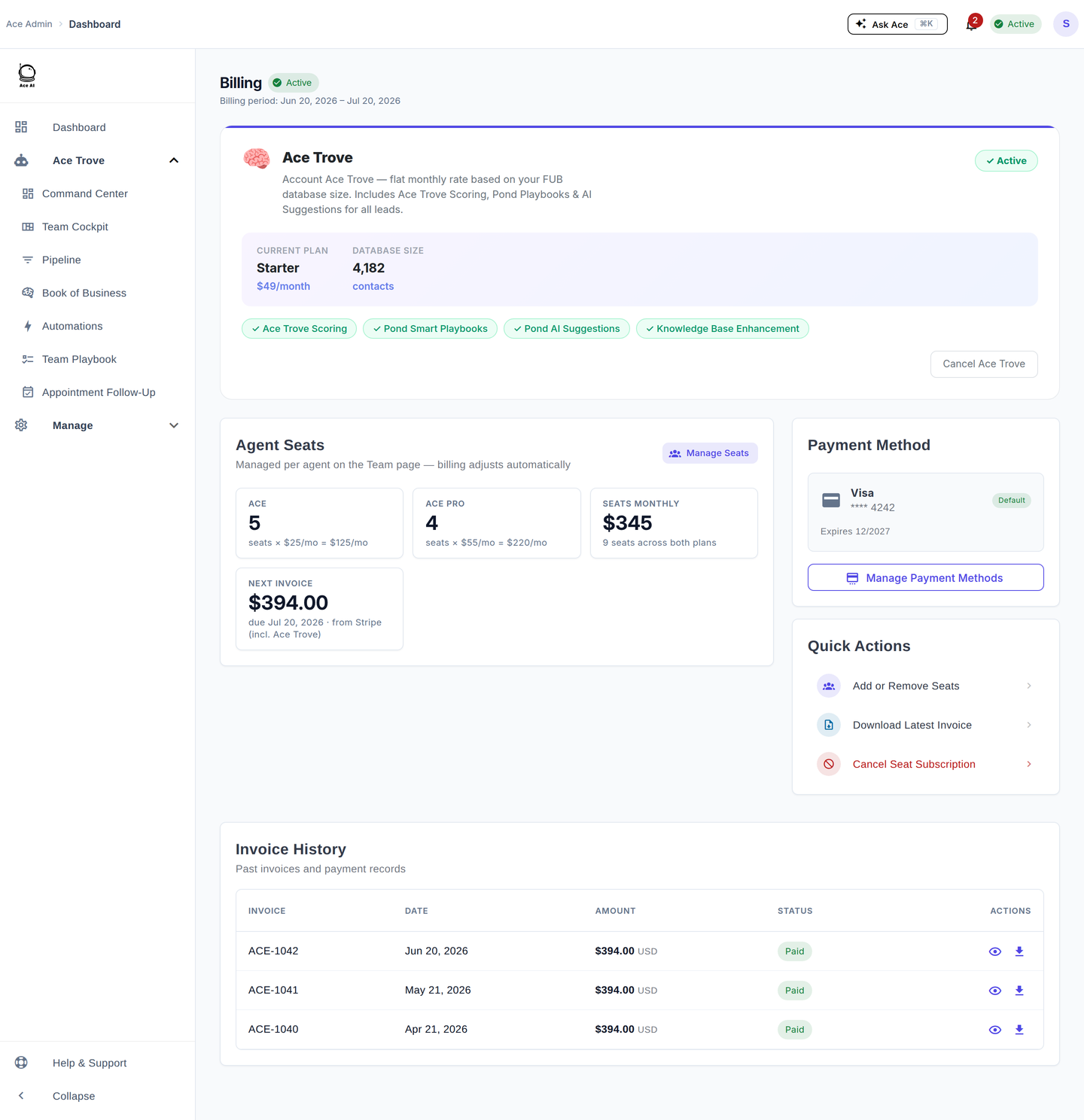
- Go to Billing and open the Ace Trove card (or the tier picker on the Payment page).
- The screen shows your current FUB contact count, your auto-quoted tier and monthly price, and a proration preview of today's exact charge.
- Review and click Confirm.
Billing starts on the day you activate; your first invoice is prorated to the end of your current billing period. You'll always see the exact charge previewed before you confirm.
What happens after activation
- The first full-book analysis is queued — Trove will read your whole FUB database. Completion time varies with database size, source availability, and queue state; use the status shown in the product rather than an elapsed-time promise.
- Your Ace fields populate in FUB — as analysis completes, contacts start showing the consolidated Ace fields (see the table below).
- The Trove dashboards unlock — Command Center, Team Cockpit, Pipeline, Book of Business, and more appear in your admin nav.
- Ace chat gains account-wide queries — you can ask about your whole database, not just one contact.
From then on, score delivery is scheduled nightly for Trove, while meaningful new activity can schedule an additional debounced rescore — only changed values are re-sent.
Understanding the Ace Win Score
The Ace Win Score is a 0–100 within-account percentile rank of calibrated win likelihood. A Win Score of 30 means roughly the 30th percentile in that account, not a 30% close probability, and the system checks its own predictions against what actually happened and re-fits as your market drifts.
- High Win Score — strong relative win rank; a great primary sort key for a Smart List of who to work.
- Rising or falling — movement reflects new activity (calls, texts, emails, property searches, notes).
- Ace Churn Risk (Low / Medium / High) — the model's read on whether an already-engaged contact is about to go cold; sort by Churn Risk = High for your save list.
Every forward dollar Trove shows carries "(est.)" — it's a modeled estimate grounded in your account's own median commission, not booked revenue.
Your seven Ace fields in Follow Up Boss
| Field | Tier | What it says |
|---|---|---|
| Ace Win Score | Free | Within-account percentile rank (0–100), not a close probability |
| Ace Churn Risk | Free | Low / Medium / High model risk an engaged contact goes cold |
| Ace Expected GCI (est.) | Trove | Win probability × your account's own median commission |
| Ace Opportunity | Trove | At Risk / Active Buyer / Active Seller / Likely Seller / Nurture |
| Ace Seller Tier | Trove | Relative seller-propensity tier |
| Ace Buyer Tier | Trove | Relative buyer-propensity tier |
| Ace Last Analyzed | Trove | Timestamp of the last analysis |
Ace Win Score and Ace Churn Risk populate free on every connected account. The other five require Ace Trove.
"My Ace Score / Ace Tier / Next Action field disappeared from Follow Up Boss"
This is expected — it's the June 2026 field consolidation, not a bug. The older heuristic fields (Ace Score, Ace Tier, Ace Status, Response Time, Velocity, Days Since Inbound, Preferred Channel, Lead Type, Property Profile, Search Area, Lead Summary, Next Action, Seller Score) were retired and are being deleted from FUB so there's no stale junk left behind. They're replaced by the seven model-grounded fields above.
What to do: rebuild any Smart List that filtered on Ace Tier = Hot to sort by Ace Win Score (descending) instead, or filter Ace Churn Risk = High for save-lists. The old signals (velocity, preferred channel, days-since-inbound) are still computed — they now power the dashboards and the ranked queue instead of taking up field slots.
Seller intent: only Ace Seller Tier syncs to a FUB field. The full 0–100 seller score and the evidence behind it live in Seller Radar, refreshed nightly.
Troubleshooting
My contacts aren't showing Ace fields after activation.
The first analysis may still be running. Check the Trove dashboard for status. If it shows complete but fields are missing, reload FUB and check the displayed pipeline status. If the state is failed, stale, or unknown, email [email protected].
Fields still show the old names (Ace Score, Ace Tier, etc.).
Those are the retired fields being removed — see the section above. Rebuild affected Smart Lists on Ace Win Score / Ace Churn Risk.
A contact's Win Score seems off.
Scores reflect activity logged in FUB. If calls or emails aren't logged on the contact, they can't factor in — log the missing activity; meaningful activity can schedule a rescore, and delivery timing follows your account cadence.
Ace chat can't answer database-wide questions.
This usually means the first analysis hasn't finished. Wait for it to complete and try again.
I want to cancel Ace Trove.
Go to Billing in the admin dashboard and cancel. Deactivation takes effect at the end of the current period; your Ace fields remain on contacts but stop updating.
Related articles
- What Is Ace Trove? Overview and Pricing
- Ace Trove: What It Is and How to Get Started
- Connecting Follow Up Boss via OAuth
Last updated: July 2026
Thanks for the feedback — it helps us improve.