
Team Startup Guide: Rolling Out Follow Up Ace to Your Team
Updated July 21, 2026
This guide takes a team lead or broker from a brand-new account to a fully rolled-out team — Follow Up Boss connected, seats bought and assigned, Ace Trove activated, and the whole team invited and working. Budget about 30 minutes for the setup itself; the team rollout runs over your first week. Every step below is something you do once, as an admin, from the Ace admin dashboard.
Before you start: how the product is priced
There are two things you buy, and they are billed separately:
- Per-agent seats. Ace is $25/mo per seat and Ace Pro is $55/mo per seat. Pro adds voice chat. (The Daily Brief and DASH pane come from Ace Trove being active on the account, not from the seat plan — a Regular seat sees them once Trove is on, same as Pro.) This is your agents' in-CRM AI assistant.
- Ace Trove. An account-wide add-on, bought once per account, that powers the whole admin dashboard — full-book scoring, the Command Center queue, Team Cockpit, Pipeline, Book of Business, Seller Radar and more. Trove is a flat monthly rate set by your total Follow Up Boss contact count, and it requires at least one active Ace or Ace Pro seat.
You do not have to pick a Trove tier by hand — the price is auto-quoted from your live FUB contact count when you activate. See What Is Ace Trove? Overview and Pricing for the full tier ladder.
Step 1 — Install Ace and connect Follow Up Boss
Add Ace from the Follow Up Boss integrations store, then connect your CRM through OAuth. This is the connection that lets Ace read your contacts, deals, and activity so every score and dashboard reflects your real workflow. Full walkthrough: Connecting Follow Up Boss via OAuth.
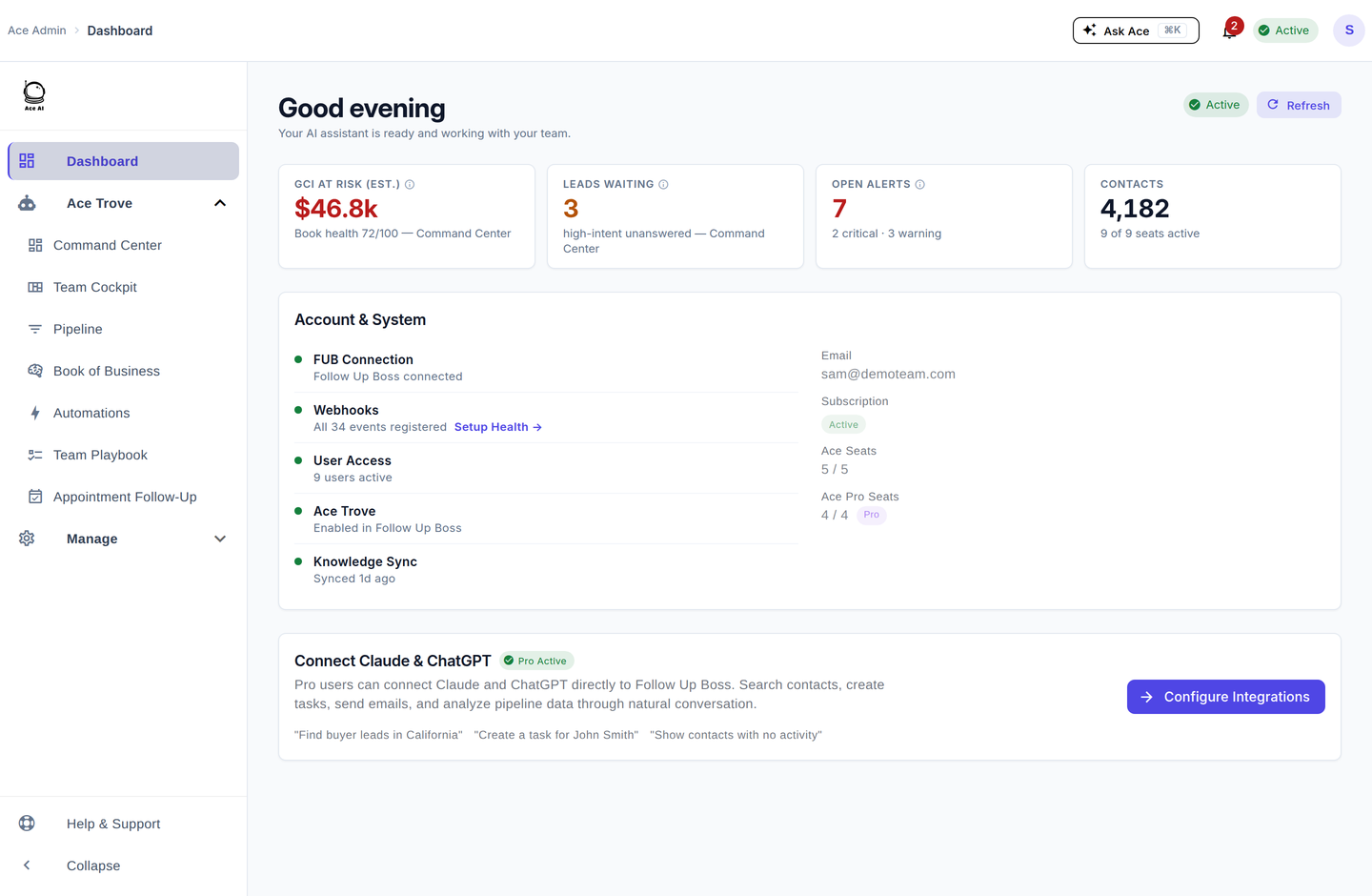
When the connection is healthy, your admin Dashboard shows FUB Connection, Webhooks, and Knowledge Sync all green.
Step 2 — Buy seats for your agents
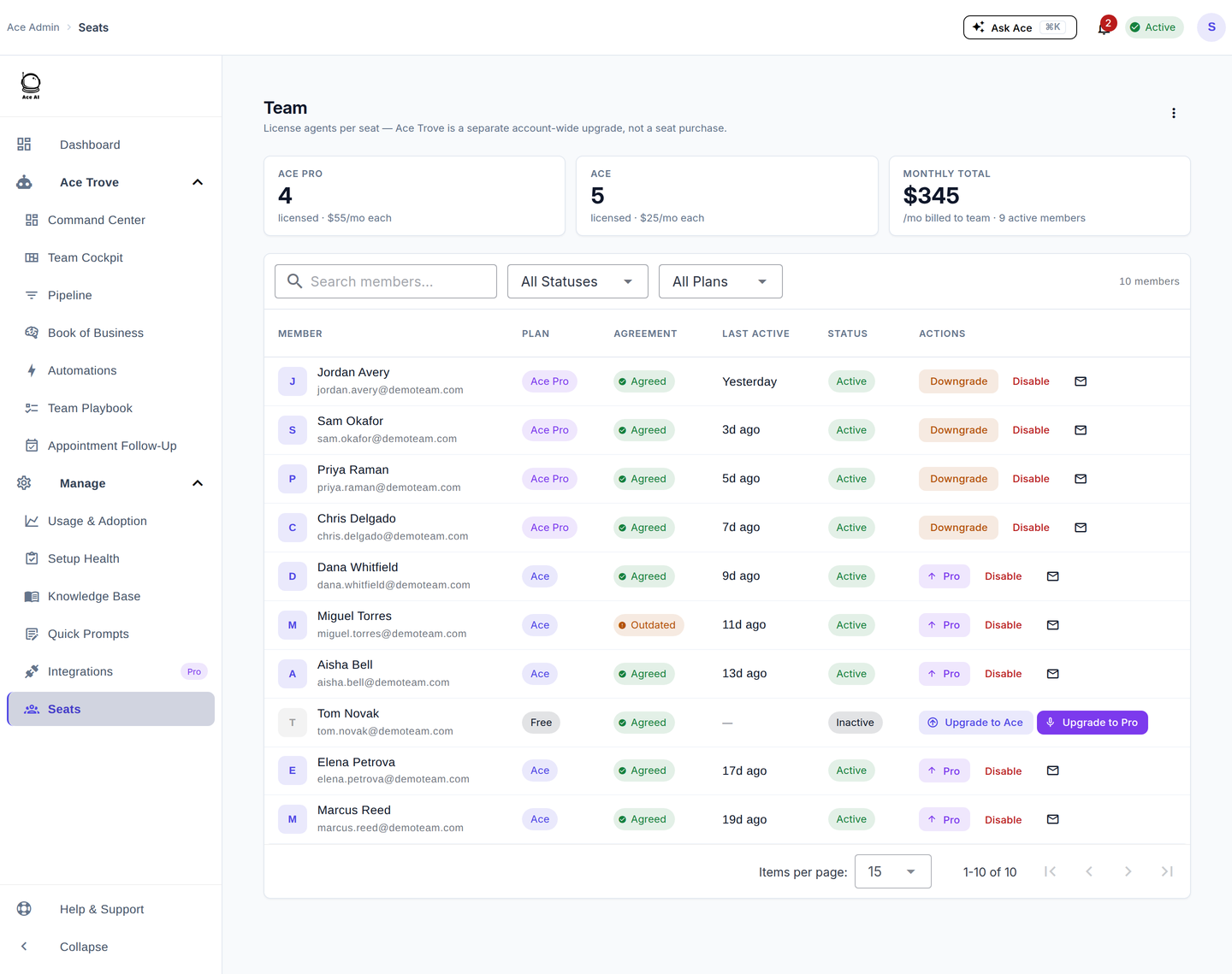
Go to Manage → Seats. Buy one seat per agent who will use Ace. As you add seats the monthly total updates automatically, and Seats and Billing always read the same seat count so the numbers can never disagree.
Step 3 — Assign Pro vs Regular
Decide who needs Ace Pro ($55) and who is fine on Ace ($25). The one capability that separates them is voice chat — it is a Pro-seat feature. A good default is Pro for agents who work leads hands-free (in the car, between showings) and Regular for everyone else; you can change a seat's plan any time.
When you change a plan you always see the exact charge first: an upgrade bills immediately and turns voice on right away; a downgrade applies at the end of the current period and keeps voice until then. Details: Understanding Your Ace Plan: Regular vs. Pro.
Step 4 — Activate Ace Trove
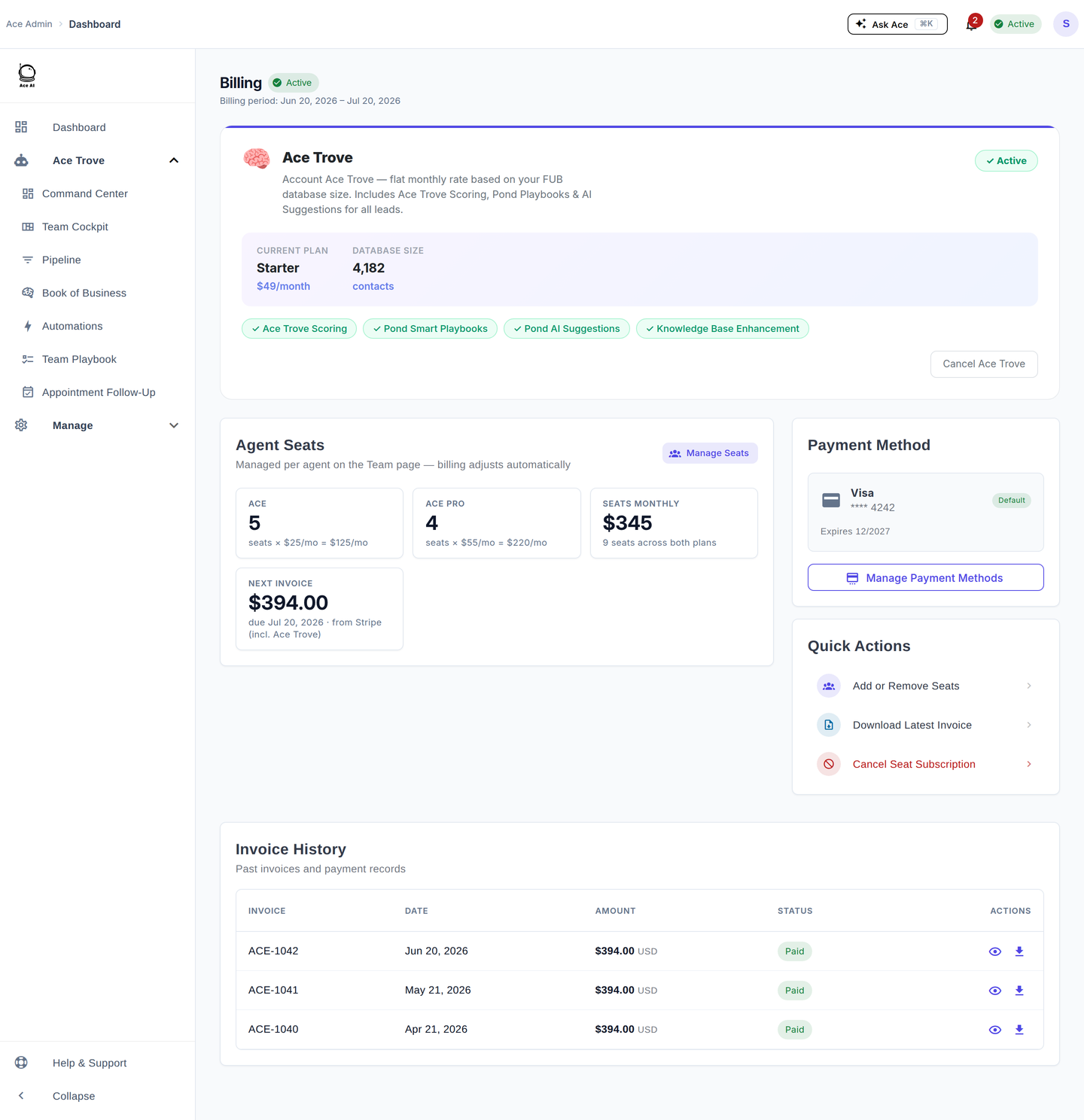
Go to Billing and open the Ace Trove card. The tier is already sized to your account's FUB contact count, so you will see the exact monthly price and a proration preview before you confirm. Activating Trove is what lights up the full admin dashboard and the whole-book scoring.
Two model fields — Ace Win Score and Ace Churn Risk — populate in Follow Up Boss on every connected account, even without Trove. Activating Trove adds the account-wide dashboards and four more FUB fields (Expected GCI (est.), Opportunity, Seller Tier, Last Analyzed). See Activating Ace Trove and Understanding Your Ace Fields.
Step 5 — Invite the team
Back on Manage → Seats, assign each seat to a team member and send the invite. Agents accept, and Ace appears inside their Follow Up Boss as the embedded assistant, plus the pop-out companion. Agents never see a checkout or billing screen — because you bought the seats, billing stays on your side. If an agent asks how to upgrade, they will get a "notify your admin" prompt that sends the request to you.
Your first-week checklist
- Follow Up Boss connected, webhooks green (Step 1).
- A seat bought and assigned for every active agent (Steps 2–3).
- Ace Trove activated; Win Score and Churn Risk visible on a few contacts in FUB (Step 4).
- Open Command Center once and confirm real leads/deals appear in the queue.
- Open Knowledge Base and confirm your stages, templates, and action plans synced (and turn off anything Ace should ignore).
- Run the 15-minute team meeting below.
- Ask every agent to open the companion NOW tab once on day one — that is the single strongest first-value moment.
Your 15-minute team introduction (ready to read)
Use this as a script in your next team huddle. It is written to be read aloud almost verbatim.
(0–2 min) Why we added Ace. "We're adding an AI teammate called Ace. It lives inside Follow Up Boss — you don't log in anywhere new. Its whole job is to make sure no lead goes cold and you always know who to work next. It is not here to grade you for the sake of it; it's here to hand you the next best call with the context already pulled up."
(2–6 min) What you'll each use every day. "Open the Ace companion and look at the NOW tab. It shows one person to work right now, why they matter, and a ready-to-send message you can edit. That's your morning triage in one screen. The NEXT tab is your ranked to-do list — the order is the priority. DASH is your own numbers. Inside Follow Up Boss, the Ace Today panel gives you the same decisions in the contact view."
(6–9 min) What the scores mean. "Every contact now has an Ace Win Score — a 0–100 estimate of how likely they are to close — and an Ace Churn Risk flag for people about to go quiet. Sort your Smart Lists by Win Score to work the hottest first. Anything with a dollar figure and '(est.)' next to it is a modeled estimate, not booked money — it's there to tell you which conversations are worth the most."
(9–12 min) What I'll see as your lead. "I get a Command Center that shows me when a new lead has been waiting too long or a deal is slipping. If I send you a coaching note, it lands in your Ace Inbox — it's a nudge, not a gotcha. When you finish an appointment, hit Debrief with Ace so we capture the outcome and plan the follow-up."
(12–15 min) The one ask. "For the next two weeks, start every morning in the NOW tab and work the top three. That's it. Do that and you'll feel the difference in your response times and your pipeline. Questions?"
For the full rollout plan that turns this meeting into lasting adoption, follow Getting Started with Follow Up Ace — Admin Complete Guide and the 30-Day Adoption Playbook.
Related articles
- Getting Started with Follow Up Ace — Admin Complete Guide
- What Is Ace Trove? Overview and Pricing
- Managing Seats and Subscriptions
- Connecting Follow Up Boss via OAuth
Last updated: July 2026
Thanks for the feedback — it helps us improve.