Admin Settings Reference
Updated August 13, 2026
Ace Admin Configuration Reference
This guide covers the configurable settings in the Ace admin dashboard. Use it alongside the Admin Setup Guide (which covers account creation and the Follow Up Boss OAuth connection). This reference assumes your account is already connected to Follow Up Boss. Only an account admin can change organization-level settings.
Where each setting lives (the Manage group)
The admin sidebar has two groups plus one standalone row. The Ace Trove group at the top is the intelligence dashboard (Command Center, Team Cockpit, Pipeline, Book of Business, Automations, Autopilot, Dynamic Smart List, Appointment Follow-Up, Back Office). Below it sits Capture — its own top-level row, outside the Trove group because capture tooling is available to every account. It holds Lead Magnets, Ace Forms, Client Packets and Ace Pages as tabs, plus a Leads inbox spanning all four. The account-configuration settings below live in the Manage group:
| Manage row | What you configure there |
|---|---|
| Usage & Adoption | Who on your team is using Ace — activity, CRM actions, time saved, last active, and AI Suggestions |
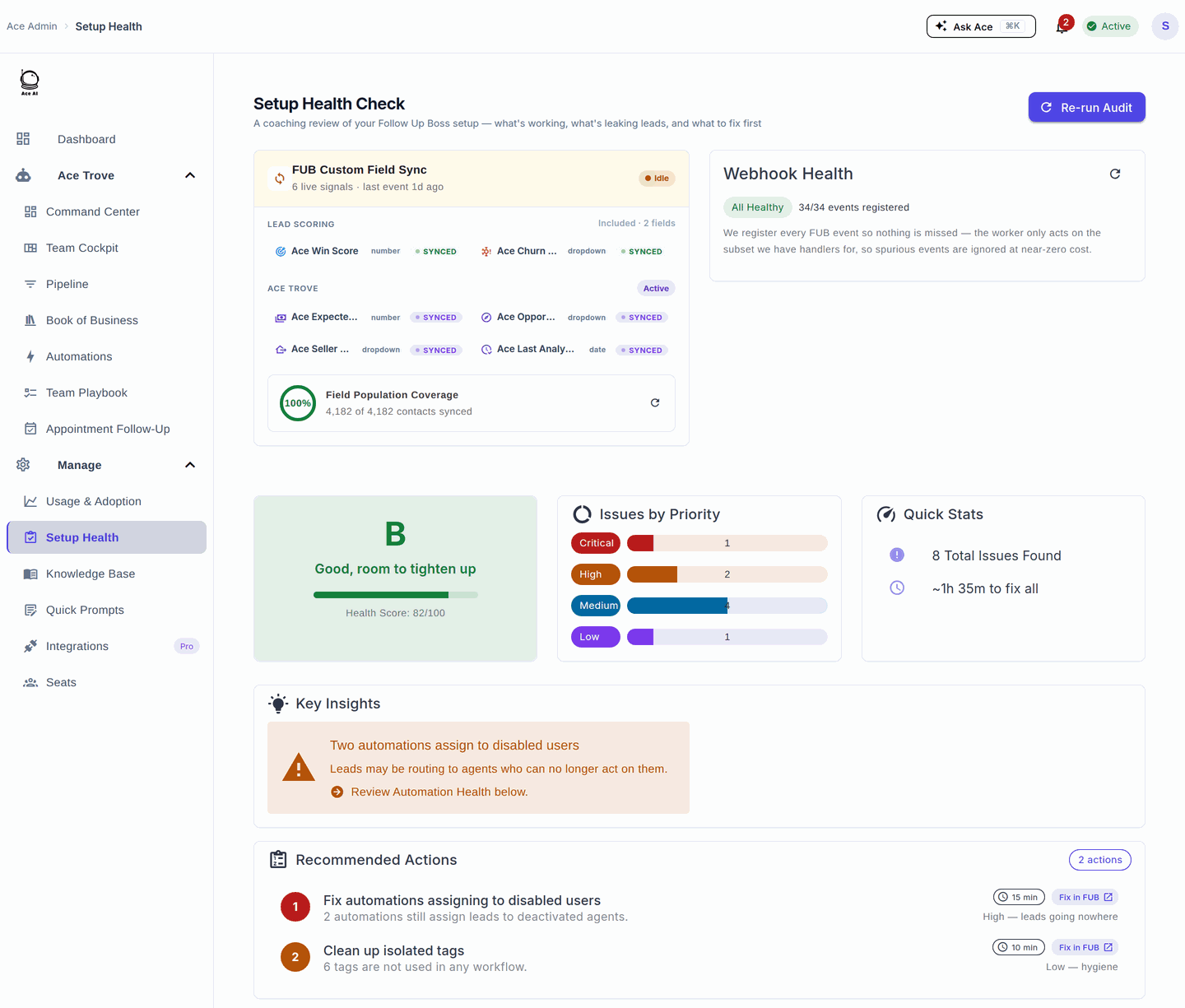
| Setup Health | Follow Up Boss connection status, webhook registration, and OAuth health (troubleshoot here when Ace isn't seeing FUB data) |
| Assistant Settings | Team branding + how Ace writes for everyone (writing style, tone, special instructions) |
| Knowledge Base | What Ace knows about your business, synced from FUB, and which items it is allowed to use |
| Quick Prompts | Saved prompts that appear in the Ace embed for one-click actions on a contact |
| Team Playbook | Ranking rules that order the companion's NEXT work queue |
| Integrations | Your Remote MCP Server URL and the Claude / ChatGPT connectors (Pro) |
| Seats | License agents per seat — activate users, switch Ace/Ace Pro, assign and remove access |
| Admins | Who has admin access to this dashboard |
| Billing | Subscription, seat counts, the Ace Trove card, payment method, and invoices |
Assistant Settings
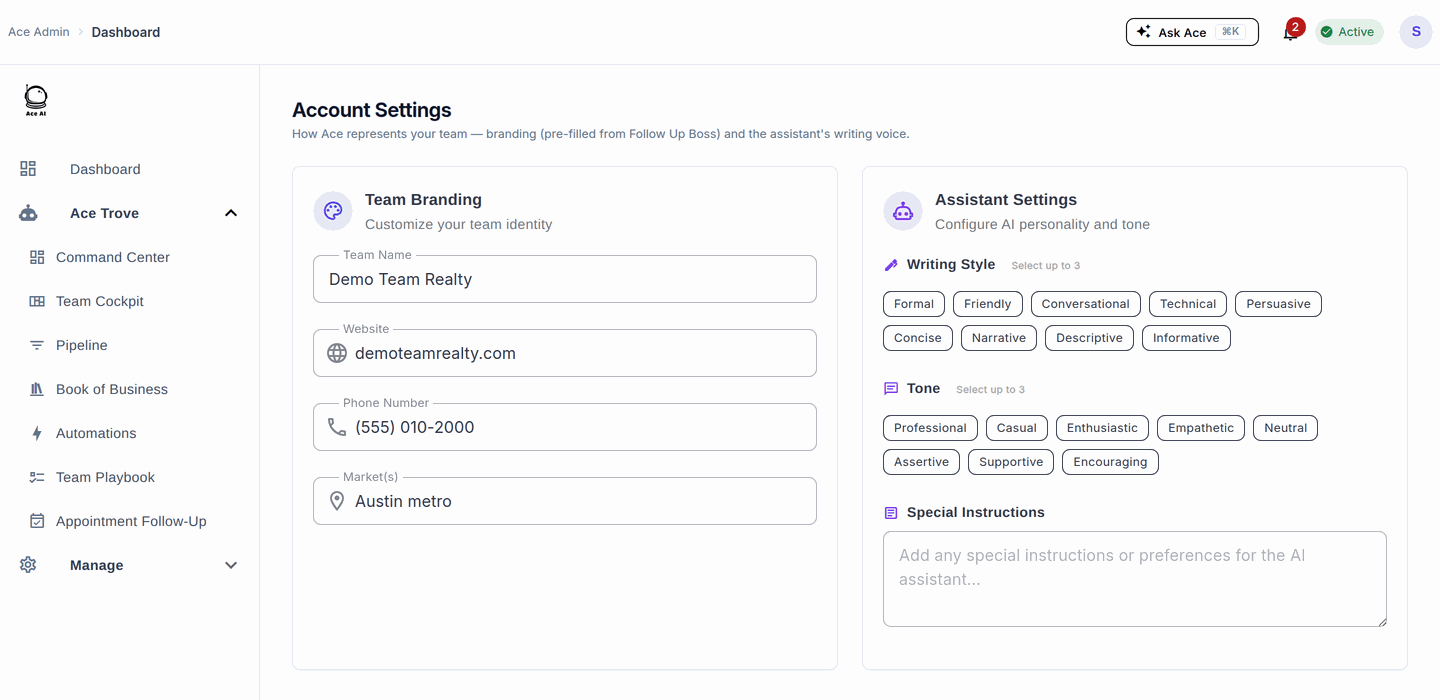
Go to Manage → Assistant Settings. These settings control how Ace writes for everyone on your team; individual users can set personal preferences that take precedence where set.
Team branding
The identity context Ace uses when generating responses on behalf of your team: Team Name, Website, Phone Number, and the Market(s) you serve. Ace references these in contact-facing drafts.
Writing style & tone
Select the writing styles (Formal, Friendly, Conversational, Concise, Persuasive, and more) and tones (Professional, Casual, Empathetic, Assertive, Supportive, and more) Ace should use.
Special instructions
A free-text field for standing rules — phrases to always or never use, compliance notes, brand-voice guidelines. Keep them concrete. Example: "Refer to people as 'clients', not 'customers'. Always confirm next steps at the end of a message."
Knowledge Base
Go to Manage → Knowledge Base. Ace mirrors your Follow Up Boss setup — stages, team members, action plans, email and text templates, appointment types and outcomes, contact and deal fields, and deal tracks — on a daily sync so it reasons over your real workflow. Every item has an Ace uses this / Ace ignores this toggle: turn one off and Ace will never use it (enforced server-side). Use Refresh to pull the latest, and the Off-limits to Ace filter to review everything you've excluded. Full detail: Managing Your Ace Knowledge Base.
Autopilot action controls (Ace Trove)
Open Ace Trove → Autopilot to configure autonomous follow-up. Autopilot requires Trove and an enabled account and playbook. It starts with draft review. Requested Off / Draft / Execute modes are separate from the current effective permission: account and playbook review settings, available capabilities, and existing sending limits still apply. Choose allowed stage transitions and sequences by name, and choose whether Ace may use no knowledge, all eligible account knowledge, or selected entries. Global knowledge exclusions and approval requirements still apply.
In tagged targeting mode, add ace-autopilot to an eligible contact to enroll them. This enrollment does not require a separate contact-level consent artifact. Existing opt-outs, channel policies, quiet hours, and account, playbook, and per-contact limits still apply.
Ace continues eligible conversations when the current reply's content and origin can be verified. A qualified or requested human next step leads to handoff to the assigned agent. Opt-outs and human takeover stop automation.
To request an AI call, the account needs an active Lead Engage attestation and the writable Follow Up Boss text field Reason for Calling. Ace writes the reason, confirms the saved value, then applies the exact tag Leadengage outbound ai call. An accepted call trigger does not confirm that the call connected.
Appointment preferences are draft-only. Ace does not check calendar availability or reserve or book an appointment. The agent reviews the proposal, checks a real calendar, and confirms the appointment.
Recent activity distinguishes drafts, accepted SMS commands, accepted call triggers, handoff alerts, pending cancellation, and unknown outcomes. An accepted SMS command does not confirm delivery to the lead. Review any unconfirmed outcome before retrying an action.
Quick Prompts
Go to Manage → Quick Prompts. Prompts are saved commands that appear in the Ace embed inside Follow Up Boss; an agent clicks one to run it against the current contact. Add prompts from the library or write your own with a Prompt Name (what agents see) and Prompt Instructions (what Ace does). Reorder to control how they appear, and keep the list short and well-curated. See Automate Your SmartList Workflows with Quick Prompts.
Integrations
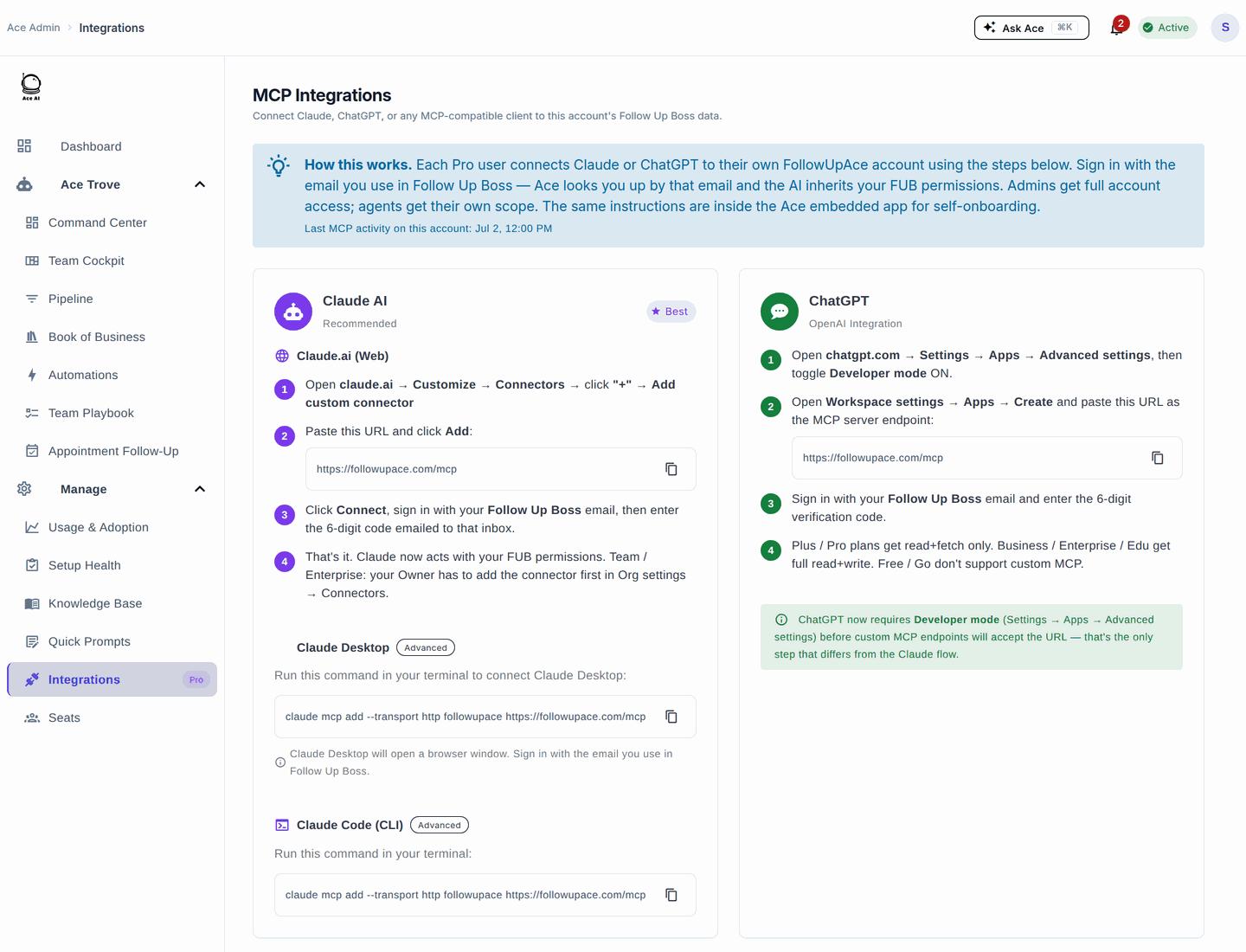
Go to Manage → Integrations. This is where you copy your Remote MCP Server URL and connect external AI clients (Claude, ChatGPT). MCP is a Pro capability. Full walkthrough: Connect FollowUpAce to Claude, ChatGPT & Other AI Assistants via MCP.
Seats
Go to Manage → Seats. Your FUB users appear automatically after OAuth is connected. Activate a user to assign a seat, switch anyone between Ace ($25/mo) and Ace Pro ($55/mo, adds voice), and deactivate to return a seat to the pool. Self-pay users (who bought their own seat) manage their own billing and can't be toggled by the admin. See Team Management: Adding, Assigning & Removing Seats.
Setup Health
Go to Manage → Setup Health. Shows the FUB connection status and webhook/OAuth health. Start here when Ace isn't responding to FUB data or agents report the assistant isn't appearing in Follow Up Boss.
Usage & Adoption
Go to Manage → Usage & Adoption for usage and adoption metrics across your account — AI activity, CRM actions taken, time saved, last active per member, and the AI Suggestions tab. See Usage & Adoption: Who's Getting Value from Ace.
Common configuration questions
How long does the Knowledge Base take to build? Initial sync is usually a few minutes; large FUB installations take longer. It refreshes automatically in the background when your FUB data changes — you don't need to rebuild it regularly.
Can agents change their own writing style? Yes — individual preferences take precedence over the account defaults where a user has set them.
Why don't I see my FUB users under Seats? Users populate only after FUB OAuth is connected. Confirm the connection under Setup Health; if it's green but users are missing, wait a few minutes for the sync or contact support.
Related articles
- Admin Setup Guide
- Ace Admin Portal — Dashboard Overview
- Where Did My Menu Items Go? The 2026 Dashboard Update
- Managing Your Ace Knowledge Base
Last updated: September 2026
Thanks for the feedback — it helps us improve.