Connecting Ace to Claude, ChatGPT & Other AI Tools (MCP)
Updated August 6, 2026
Follow Up Ace supports the Model Context Protocol (MCP) — the open standard for connecting AI assistants directly to external tools and data. Connect Claude, ChatGPT, or another MCP client and it can search your CRM, create tasks, send emails, pull market data, and more, all through natural conversation. This is an Ace Pro feature; an active Ace Pro seat is required, and Follow Up Boss must be connected to Ace.
What your AI can do once connected
With Follow Up Ace connected, you can ask your assistant things like:
- "Find all my hot buyers in Austin and create a follow-up task for each one."
- "Draft a personalized text for leads who haven't been contacted in 30 days, for me to review and send in Follow Up Boss."
- "Pull today's mortgage rates and draft an email to my fence-sitter clients."
- "Give me a briefing on the five contacts most likely to transact this month."
- "Enroll all leads from Zillow in my nurture action plan."
You get up to 189 role-scoped tools — supported Follow Up Boss tools plus Ace's own intelligence layer — covering contacts, tasks, appointments, email, SMS, deals, pipelines, bulk operations, Zillow speed-to-lead workflows, Federal Reserve market data, and AI briefings.
Find your setup instructions in-app
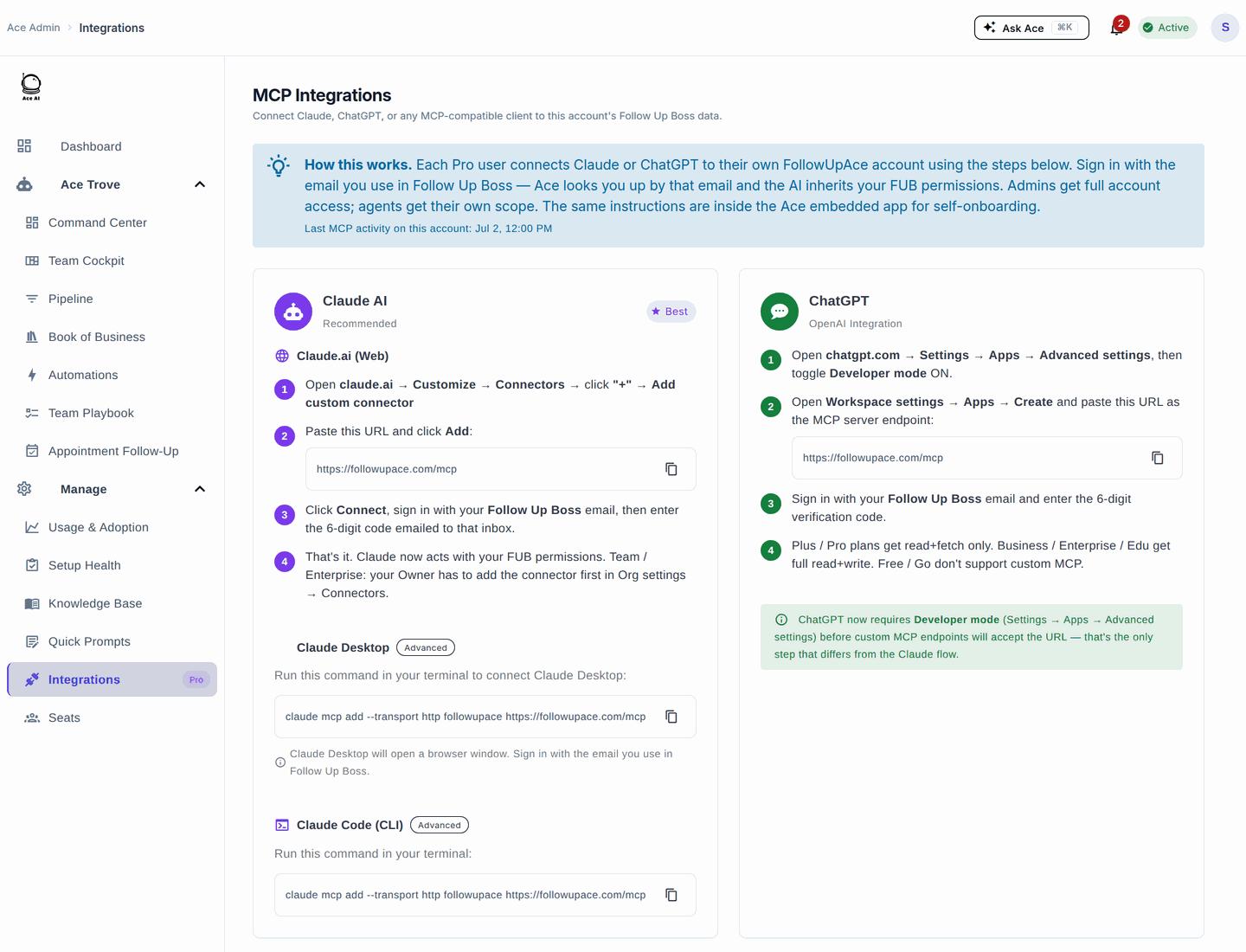
The fastest path is the built-in Integrations page — it shows your exact server URL, the setup steps for each client, and every available tool by category. It does not report whether your assistant is currently connected; that status lives in your assistant, and the section below shows you how to read it. Go to Integrations in the left sidebar of the admin dashboard (agents reach the same instructions from the Ace embed). The steps below mirror what you'll see there.
Connect Claude
Claude connects through its Connectors feature. Server URL:
https://followupace.com/mcp
- Open claude.ai → Settings → Connectors → Add custom connector.
- Paste the URL above and click Add.
- Sign in with your Follow Up Boss email — a verification code is sent to that inbox.
- Enter the code. The tools Claude can see are scoped to your own Ace seat — team-wide tools appear only for admins and brokers. CRM actions use the credential resolved for your own live seat. An admin or owner may use the account connection when authorized; an agent cannot borrow it. The tool still checks your own role and contact access.
Enable the connector per conversation from the + menu → Connectors. On Team and Enterprise plans, an Owner adds the connector once under Organization settings → Connectors, then members connect individually with their own Follow Up Boss email. Claude Desktop uses the same remote URL — Anthropic brokers the connection from its cloud, so no local config file is needed.
Connect ChatGPT
ChatGPT connects through its custom MCP support. Server URL:
https://followupace.com/mcp?tools=full
- In ChatGPT, open Settings → Security and login and turn Developer mode on.
- Open ChatGPT Plugins at https://chatgpt.com/plugins, select the plus button, add Follow Up Ace, and paste the URL above.
- Sign in with your Follow Up Boss email and enter the verification code.
Why the URL ends in ?tools=full
ChatGPT can connect to Follow Up Ace in two shapes, and the connector URL is what chooses between them:
https://followupace.com/mcp— the research shape: two actions,searchandfetch.searchlooks up contacts,fetchreturns one contact's full profile. This is the shape OpenAI's Deep Research expects, so it stays the default.https://followupace.com/mcp?tools=full— the full Ace toolset, the same one Claude gets: account-wide reads for tasks, deals and pipeline, appointments, calls/texts/emails and other activity, and Smart Lists, alongsidesearchandfetch.
If ChatGPT Plugins lists only two actions, your connector is on the first URL. Remove it, add it again with ?tools=full on the end, and re-authorize — ChatGPT reads the action list when the connector is added, so refreshing the existing one won't change it.
This switch only affects ChatGPT. Claude and other MCP clients always receive the full toolset.
Other MCP clients
Any MCP-compatible client — Cursor, VS Code, Cline, Windsurf, Zed, Continue, and others — can connect to Follow Up Ace using the same endpoint (https://followupace.com/mcp). The Integrations page includes one-click installers for common clients and a universal config snippet you can drop into your client's config file.
Authentication
Follow Up Ace uses a verification-code flow — no separate API key or password:
- Your assistant opens the Follow Up Ace authorization page.
- Enter your Follow Up Boss email and request a code.
- Enter the one-time code from your inbox to complete the connection.
You can revoke access any time from the Integrations page.
Available tools (up to 189)
| Category | What you can do |
|---|---|
| Contacts & Leads | Search, create, update, tag, merge, bulk-manage; check duplicates; manage relationships |
| Bulk Operations | Review and confirm supported tag, stage, assignment, and sequence changes on the specified contacts |
| Notes | Log call summaries, meeting notes, and AI briefings |
| Send via Gmail, draft with AI, manage templates | |
| SMS / Text | Prepare text drafts for review and sending in Follow Up Boss; manage SMS templates |
| Tasks | Create, assign, and track all Follow Up Boss task types |
| Deals & Pipeline | Create deals, manage stages, track pipeline value |
| Appointments | Schedule showings and meetings; manage the calendar |
| Action Plans | Enroll in action plans, pause and resume them |
| Smart Lists | Run saved filters and process entire lists with AI |
| Team & Organization | Manage teams, ponds, and lead-routing rules |
| Zillow Speed-to-Lead | Qualify, score, and build follow-up sequences for Zillow leads |
| Federal Reserve Data | Mortgage rates, housing market, employment, affordability, forecasts |
| AI Intelligence | Briefings, timeline analysis, and AI message drafts |
| Custom Fields & Config | Manage custom fields, webhooks, and CRM configuration |
Permissions, reconnection, and switching accounts
The connector uses your exact active Follow Up Boss account-and-user seat. Ace checks that seat, account, role, session, and Pro access again when a call runs. Pro access can come from an individual Pro plan or active team billing with Pro seats; a Regular seat without either does not gain connector access. Team reporting still requires the caller's own admin role, and Trove tools still require Trove.
On the authorization screen, review the requested permissions. A read-only connection can answer questions but cannot change records or send. Reconnect and approve write access if you want those tools. Reauthorizing with another account does not upgrade the old account's connection: remove the old connector and sign in to the intended seat.
Access renews automatically while the client supports refresh and the seat remains eligible. If renewal fails after a seat move, deactivation, revoked session, or plan change, check the seat and reconnect. If you see a Follow Up Boss connection error, reconnect your own Follow Up Boss identity in Ace. An agent cannot borrow the account owner's credential to bypass a missing personal connection.
Before an outbound email, sequence enrollment, destructive change, contact edit, appointment change, or tag update, review the affected records and exact content and explicitly confirm the action. Write permission alone is not that confirmation. If the final email compliance check changes the draft, review and confirm the new version before it can send.
How to tell Claude is actually connected
There is no connection light on the Ace side — the connector lives in your assistant, so your assistant is where the truth is. Three checks, in order, and the third is the one that settles it:
- Is the connector still authorized? Open your connector list in Claude (on claude.ai, under your settings) and find Follow Up Ace. If it is asking you to sign in, reconnect, or re-authorize, the connection has lapsed — that is the single most common cause. Authorizations do not last forever, and an assistant that has gone months without using the connector will usually need to sign in again.
- Is it switched on in this conversation? Claude enables connectors per conversation from the + menu → Connectors. A connector that is authorized but not switched on in the conversation you are typing in looks exactly like a broken connection.
- Ask it for something only your CRM knows. This is the real test, and it takes ten seconds. Ask: "Using Follow Up Ace, look up [the name of a real contact in your Follow Up Boss] and tell me when I last contacted them." If it comes back with the actual person and a real date, you are connected. If it answers vaguely, says it has no access to your CRM, or describes what it would do, you are not — go back to step 1. A general question like "are you connected to Follow Up Boss?" is not a reliable test: an assistant can answer that one confidently while having no working connection at all.
If step 3 fails after you have reconnected, work through the Troubleshooting section below — in particular, the connector needs both an active Ace Pro seat and a live Follow Up Boss connection, and it is the second one that usually bites.
Troubleshooting
Can't see the Integrations page?
Integrations requires an active Ace Pro seat. Confirm your Pro seat is assigned and your subscription is active in Billing.
Verification code not arriving?
Most of the time no code was sent at all, rather than one going astray. The sign-in page only sends a code when the address you type is a Follow Up Boss login that has an active Ace Pro seat on it. If either half is missing, the page still advances as though a code were on its way — but nothing is sent, and waiting or re-requesting will not change that. Check both:
- Type your Follow Up Boss login, not the personal or billing address you originally signed up for Ace with. Those are often different, and only the Follow Up Boss one has a seat attached.
- Confirm that seat is on Ace Pro, not Ace (Regular). Check it in Billing — the connector is a Pro capability, and a Regular seat is turned away before any code is sent.
If both are already correct, check your spam folder; codes expire after a few minutes, so request a fresh one.
Connected but the assistant isn't using it?
In Claude, enable the connector per conversation via the + menu → Connectors. In ChatGPT, confirm Developer mode is on.
Claude says "Authorization with the MCP server failed"?
Check the connector URL, your active seat, and your Follow Up Boss connection. Claude needs https://followupace.com/mcp. The retired /api/mcp/sse/ path is not a setup URL for Claude or ChatGPT. Remove the connector and add it again with the correct URL; editing it in place won't help, because Claude only reads the server details when a connector is first added.
Entered the code and still denied?
We look your seat up by the email you type on the sign-in page, so it has to be the Follow Up Boss login your Ace Pro seat is on. If you originally signed up for Ace with a different personal address, that address has no seat attached and will be turned away.
Signed in successfully, but the connector still says authorization failed?
The connector needs two things: an active Ace Pro seat and a live Follow Up Boss connection. If nobody on your team has connected Follow Up Boss to Ace yet — or your own connection has lapsed — the sign-in step succeeds and the connector is then turned away when it reaches for your CRM, which the assistant reports as an authorization failure. Open Ace inside Follow Up Boss and look for a Connect Follow Up Boss prompt; completing it takes a few seconds and is enough on its own to unblock your connector. Then remove the connector in your assistant and add it again. The team account connection is managed separately by an admin, broker, or owner; it does not replace an agent's required personal credential.
ChatGPT says "No app actions available yet"?
That connector is pointed at an endpoint ChatGPT can't read a tool list from. Use https://followupace.com/mcp?tools=full — the /api/mcp/sse/ address is a legacy transport and is not the one to give ChatGPT.
ChatGPT only offers "search" and "fetch"?
Expected on the plain https://followupace.com/mcp URL — see Why the URL ends in ?tools=full above.
"Server not reachable" error?
The Follow Up Ace MCP server is publicly hosted — no VPN or firewall setup is needed on your end. If it persists, contact support.
Related articles
- Understanding Your Ace Plan: Regular vs. Pro
- Ace Admin Configuration Reference
- Cheat Sheet: Ace MCP + Claude
Last updated: August 2026
Thanks for the feedback — it helps us improve.