Automations: Rules and Playbooks That Act for You
Updated September 5, 2026
Automations lets Ace watch your signals and models and act for you — escalating slipping leads and reassigning the ones an agent never worked. It answers: how do I make sure nothing falls through the cracks without babysitting it? There are two kinds of automation here: condition-based rules (they watch time and model signals) and event-based playbooks (they respond to matching Follow Up Boss events as queued work is processed).
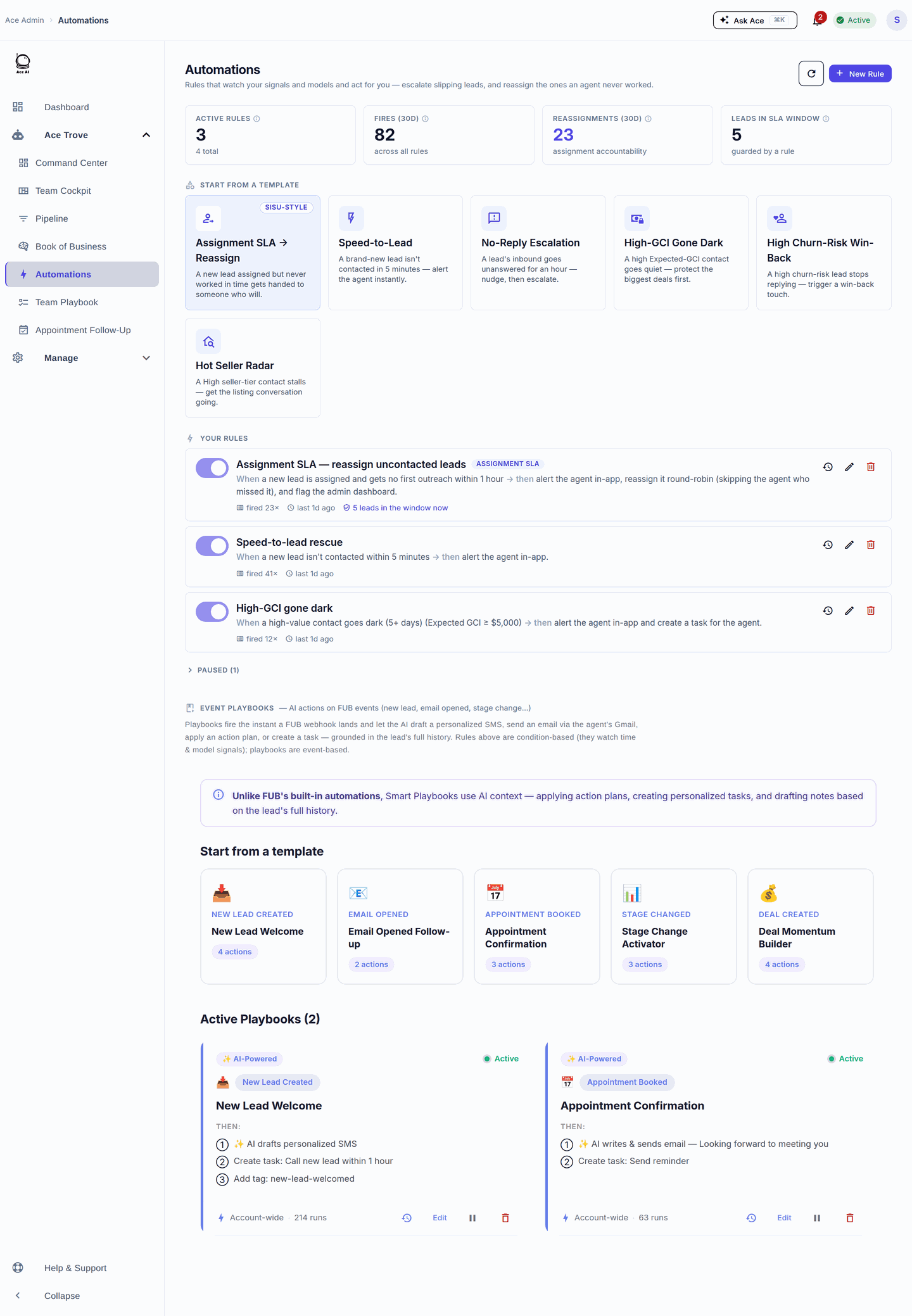
The assignment-SLA / reassignment rule
The featured template is Assignment SLA → Reassign: when a new lead is assigned but gets no first outreach within your SLA window, Ace alerts the agent in-app, reassigns the lead round-robin (skipping the agent who missed it), and flags your admin dashboard. It's the single most valuable rule to turn on first — it gives your team a defined escalation path when first outreach is not recorded. The tile even shows how many leads are in the SLA window right now.
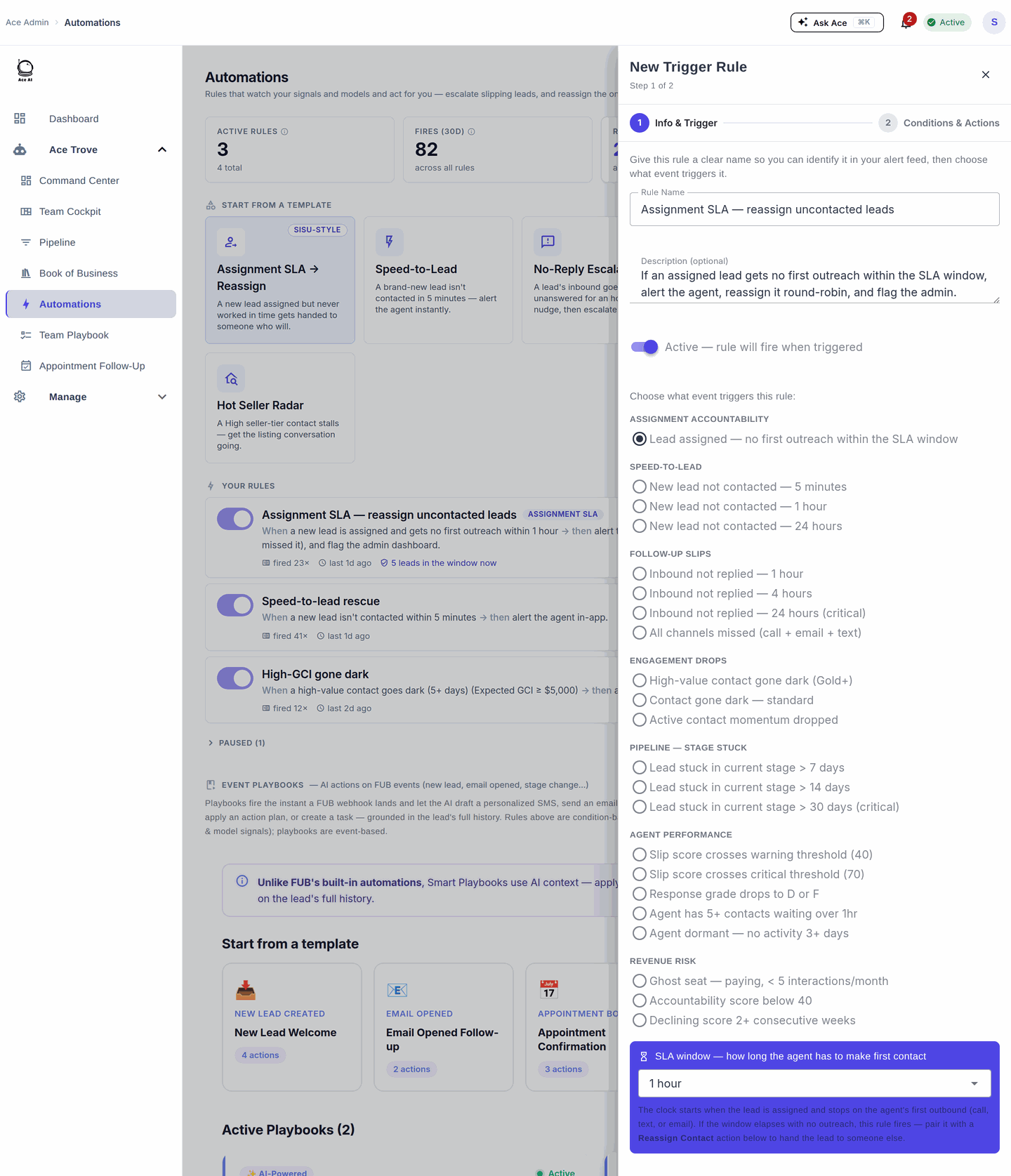
Other rule templates
- Speed-to-Lead — a new lead isn't contacted in 5 minutes; alert the agent instantly.
- No-Reply Escalation — an inbound goes unanswered for an hour; nudge, then escalate.
- High-GCI Gone Dark — a high Expected-GCI contact goes quiet; protect the biggest deals first.
- High Churn-Risk Win-Back — a high-churn contact stops replying; trigger a win-back touch.
- Hot Seller Radar — a high seller-tier contact stalls; get the listing conversation going.
How far back the waiting rules look. Speed-to-Lead and No-Reply are freshness rules — they measure how long a genuinely recent lead or inbound has gone unanswered. To keep them pointed at work you can still act on, they stop firing once the wait passes 30 days, so a thread that went unanswered months or years ago will not surface as a new one-hour miss. Long-dormant contacts are still covered, just by the rules built for them: High-GCI Gone Dark, High Churn-Risk Win-Back, Hot Seller Radar, and stage-stuck.
Event playbooks
Playbooks fire on FUB events (new lead, email opened, appointment booked, stage change, deal created) and let Ace draft a personalized SMS, send an email through the agent's Gmail, apply an action plan, or create a task — grounded in relevant, available CRM evidence. AI drafts use the contact's notes, background, activity records and the latest text fields that Follow Up Boss supplies. They do not read complete email or text threads or call transcripts. Playbooks can also use your configured knowledge base and agent voice; a template action uses the template you selected.
What makes a draft specific
Ace looks up a bounded set of records for the target contact before an AI draft, including when the trigger is a tag change. It uses the recorded facts and your instructions to choose a useful next step. An unavailable source is treated as unknown, not proof that nobody replied. Agent memory is scoped to this contact so another client's personal details do not become the basis of their message.
For a better result, keep a concise note about the client's latest goal, objections and agreed next step in Follow Up Boss. See How Ace Writes a Grounded Follow-Up for what Ace can use and how to improve a draft.
Create, pause or change an automation
- Open Admin Dashboard → Automations in the correct account. You need Automations management access and Ace Trove; a read-only login cannot save changes.
- Choose a template or create a rule. Set the trigger, conditions and action details. For an event playbook deployed to specific agents, select at least one agent.
- Save it paused while you review the settings, then enable it when ready. An enabled rule can perform its configured actions, so check whether each action creates a draft, sends an email, adds a task or reassigns a contact.
- Use the switch to pause a rule or playbook. Wait for the save to finish before making another change. Edit to adjust its settings; delete to remove it.
Condition-rule actions waiting in the durable queue are checked against the current rule before execution. Paused or deleted rules are skipped; edits made after scheduling invalidate the queued version. A playbook resuming after a WAIT step also rechecks its current configuration and account access. A change cannot undo an action already performed or guarantee cancellation of an action already running.
Autopilot has separate settings and action permissions in the dashboard's Autopilot view. Companion shows an action-policy summary; use the admin controls to verify effective capabilities and save account-wide permissions. Manage the account rules and event playbooks described here in Automations. See Ace Autopilot enrollment and delivery for tag-based enrollment, ongoing conversations, and delivery outcomes.
Retries and delivery review
An accepted event playbook is saved as queued work before its first action. Repeated delivery of the same event uses the same firing, and completed steps are retained when a later step needs a retry. A queue interruption can delay execution; it does not make a configured WAIT run early. The worker rechecks the current playbook, assigned agent, deployment and feature access before acting.
Ace can retry a failed step when it knows no external action started, or when repeating the step safely sets the same value, such as a tag. If Ace cannot confirm whether a send, task, note or other action completed, it stops that firing and raises Playbook step needs review. Check the contact's activity and the sending mailbox or provider before manually retrying. An email with an unconfirmed delivery is not presented as a new ready-to-send draft, since that could send the same message twice.
A firing's count is separate from its delivery result. Open its execution details to see completed, skipped and failed steps; a retry updates the initial firing's progress without counting it as another new fire.
If an automation does not look right
- Access could not be verified: choose Retry access check. A failed connection is not evidence that you need to buy Trove again.
- Rules could not be refreshed: the warning identifies condition rules, event playbooks or both. Last-loaded rows remain visible; choose Retry rules before relying on their status.
- Nothing fired: confirm the rule is enabled, its trigger and conditions match, the target is in the selected deployment and the account or assigned agent has the required feature access. Repeated matching events can be suppressed by a cooldown.
- A fire count increased but no message arrived: inspect the individual execution results. A trigger, a draft, a skipped action and a successful delivery are different outcomes. Check the selected sender, channel connection and sending limits before retrying.
- A WAIT step is still pending: it resumes after the configured delay and must still pass its current checks. Pausing or changing the playbook can stop the waiting steps.
Five things to do here
- Turn on Assignment SLA first. Set the window to your team's real standard.
- Add Speed-to-Lead. The two together cover the biggest lead-loss gaps.
- Start small. Enable one or two rules, watch the fire counts for a week, then add more.
- Tune, don't over-fire. If a rule fires too often, tighten its threshold — alert fatigue kills adoption.
- Layer in a playbook. Start with "New Lead Welcome," then check its draft or delivery result so you know what the configured action actually did.
Frequently asked questions
How is this different from FUB's own automations? Rules act on model signals (churn risk, Expected GCI, seller tier) and time-based SLAs; AI playbook actions draft with available CRM evidence, agent voice and optional knowledge-base context. You can also choose a FUB template when a fixed message is the right fit.
Will an automation send something without me? Depending on their configured actions, rules can alert, reassign, create tasks or generate email. A playbook email action can send through an available delivery connection when enabled; an SMS draft action prepares copy for the agent. Read each action's result: a draft, skipped action and successful send are different outcomes. Autopilot and its Lead Engage SMS bridge have separate enrollment and delivery settings.
Where did Smart Playbooks go? They're the event playbooks on this same Automations view; the old /playbooks URL redirects here.
Related articles
- Where Did My Menu Items Go? The 2026 Dashboard Update
- The 30-Day Adoption Playbook (for Team Leads)
- Team Startup Guide: Rolling Out Follow Up Ace to Your Team
- What Is Ace Trove? Overview and Pricing
Last updated: September 2026
Thanks for the feedback — it helps us improve.