
Admin Setup Walkthrough
Updated July 3, 2026
This page walks you through setting up Follow Up Ace for your team, start to finish. Each step links to a detailed guide so you can move at your own pace — most admins are fully set up in 10–15 minutes.
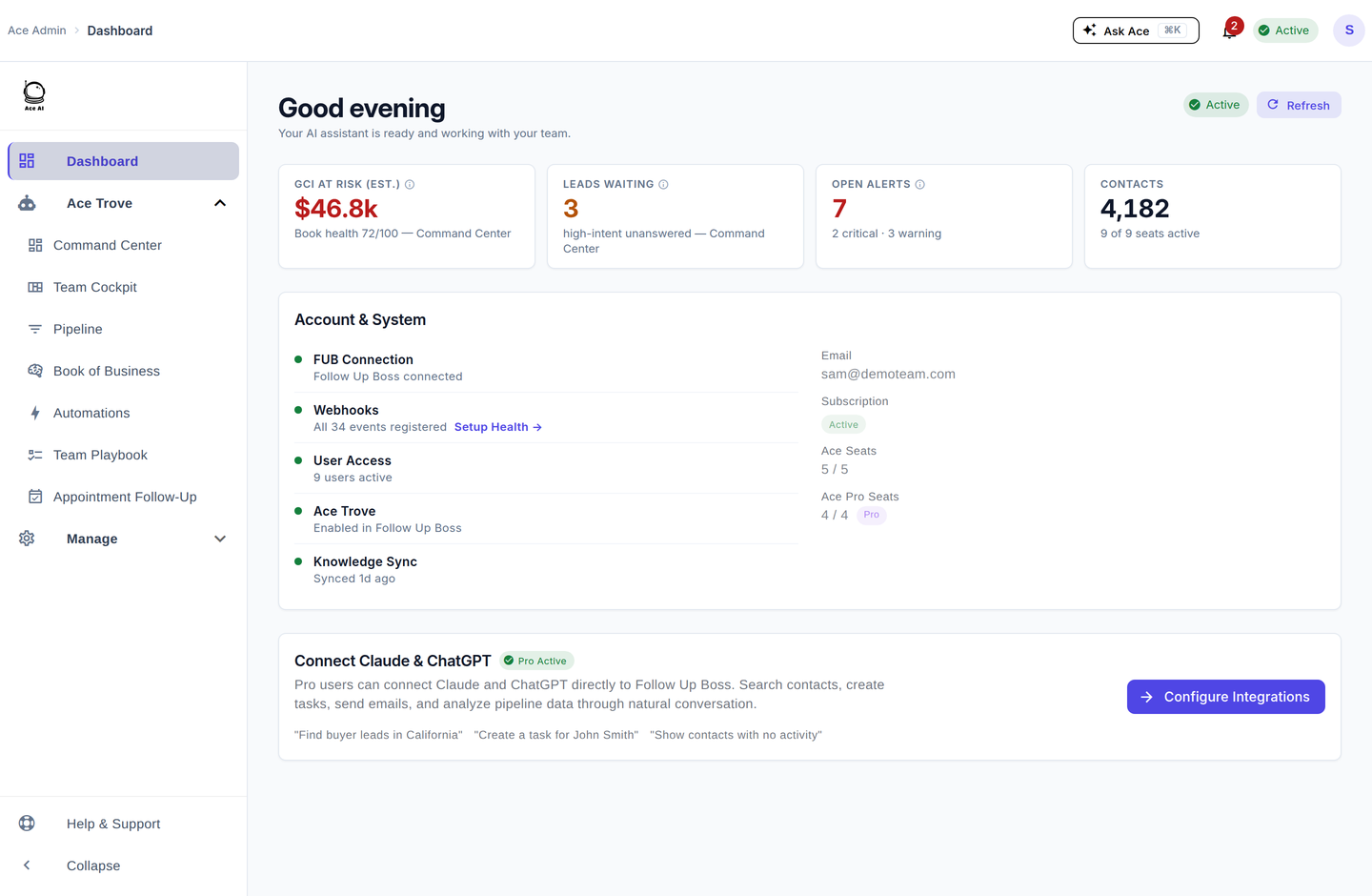
The setup path
- Create your account and connect Follow Up Boss. Sign up at followupace.com/admin, verify your email, and authorize Follow Up Boss over OAuth so Ace can read your contacts, activity, and deals. See Admin Setup Guide and Connecting Follow Up Boss via OAuth.
- Choose and buy seats. Ace is $25/seat/month; Ace Pro adds voice mode and Claude/ChatGPT integration at $55/seat/month. See Understanding Your Ace Plan: Regular vs. Pro and Billing & Seat Management.
- Configure Ace for your business. Set your team branding, tone, and Knowledge Base so Ace answers in your voice. See Configuring Ace's Behavior, Tone, and Branding and Managing Your Ace Knowledge Base.
- Invite your team and roll out. Assign seats, then use the rollout playbook to drive adoption. See Team Startup Guide and The 30-Day Adoption Playbook.
- (Optional) Add Ace Trove. Turn on account-wide intelligence — full-book scoring, Command Center, Team Cockpit, and Seller Radar. See What Is Ace Trove? Overview and Pricing.
For your agents
Agents don't set anything up — once you assign a seat, Ace appears inside Follow Up Boss automatically. Point them to the Agent Quickstart, which gets them productive in about ten minutes.
Prefer a live walkthrough?
For a screen-share setup session or a recorded walkthrough for your team, email [email protected] and we'll set one up.
Related articles
- Admin Setup Guide
- Getting Started with Follow Up Ace — Admin Complete Guide
- Team Startup Guide: Rolling Out Follow Up Ace to Your Team
- Getting Set Up: the Onboarding Wizard and the Ops Hand-Off Link
Last updated: July 2026
Was this article helpful?
Thanks for the feedback — it helps us improve.