Agent Quickstart: Your First Day with Ace
Updated July 3, 2026
This guide gets you productive with Ace in about ten minutes. Ace is your AI assistant inside Follow Up Boss — start at Step 1, run the example prompts, and you're up and running. It's for agents who've just been given a seat.
Step 1 — Open Ace in Follow Up Boss
- Log in to Follow Up Boss as usual.
- Find the Ace chat icon in the bottom-right corner of your screen.
- Click it — the Ace panel opens on the right.
With a contact open, Ace already knows who you're looking at — ask "summarize this person" and you'll get their full profile without naming them. With no contact open, Ace still handles account-wide questions: your task list, pipeline questions, and contact searches.
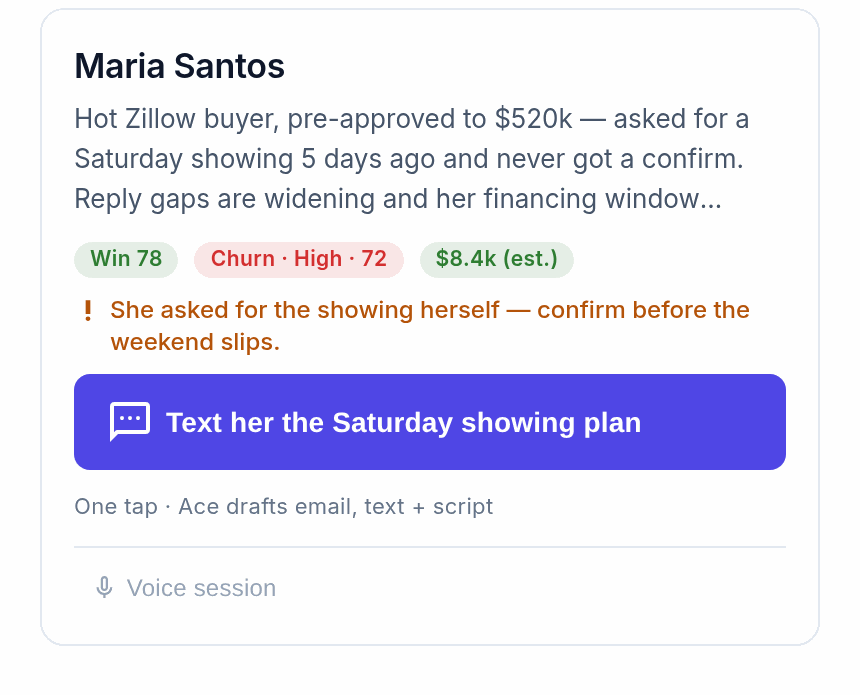
Step 1a — If you don't see the Ace icon at all
An empty screen with no Ace icon almost always means the Ace app has not been switched on inside Follow Up Boss yet. Connecting Follow Up Boss to Ace and enabling the app inside Follow Up Boss are two separate steps, and the second one is manual. Work through these in order:
- Ask your account owner or admin to confirm the app is enabled. In Follow Up Boss they go to Admin in the top navigation, choose Integrations, scroll to the Embedded Apps section, click Moon Sherpa (Ace AI), and make sure it shows as enabled. Until an admin does this, nobody on the team sees Ace, no matter what their seat says.
- Open an actual contact record and refresh the page. Ace loads alongside the contact you have open.
- Check your browser's privacy settings. Ace runs in a frame served from a different domain than Follow Up Boss, so blocked third-party cookies, strict tracking prevention, or a private/incognito window can stop it from appearing. Add an exception for the site rather than turning protection off, then reload.
If all three are clear and the icon is still missing, email [email protected] with your browser name and a screenshot of a Follow Up Boss contact page.
Step 2 — If you see a connection prompt
A prompt to "Connect Follow Up Boss" just means your session token needs a one-click refresh — click it and you're reconnected in seconds, no password. If you see a message that your admin needs to finish setup, ask your account owner to assign you a seat.
Step 3 — Run these first
Open any contact, then type each of these into Ace:
- "Tell me about this person" — their full profile: contact info, source, stage, tags, last activity, recent notes, tasks, and deals. Your fastest pre-call prep.
- "What's their recent activity?" — the full timeline of calls, emails, texts, and property searches.
- "Draft a follow-up email" — a personalized email based on their history; review, edit, and send from Follow Up Boss.
- "What should I do next with this person?" — a recommended next action, with a short reason why.
- "Add a note: [your note]" — logs a note instantly. Ace confirms before saving.
How Ace works day to day
- Context-aware by default. With a contact open, every question is about that person; switch contacts and Ace's context switches too. To ask about someone else, just say their name.
- Always confirms before acting. When you ask Ace to create a task, send a message, or change a stage, it shows a draft and asks first. Nothing happens until you say yes.
- Fresh each session. Ace re-reads your live CRM every time you open it, so the data is current — but it won't remember a previous chat.
Prompts that work well
Looking up contacts
- "Who hasn't been contacted in the last 30 days?"
- "Show me my leads tagged 'hot buyer.'"
- "Find contacts in the Active Buyer stage under $400k."
Managing your day
- "What tasks do I have due today?"
- "What's overdue from this week?"
- "Create a call task for Thursday at 10am."
Drafting communications
- "Draft a follow-up email after our showing yesterday."
- "Write a re-engagement text for a lead who's been quiet for a month."
- "What did we last talk about?"
Working your pipeline
- "Show me my active deals."
- "Move this contact to the Active Client stage."
- "Apply the New Buyer action plan to this contact."
Quick tips
- Be specific about timing: "Create a task for next Monday at 9am" beats "schedule something."
- Use names naturally: "What's going on with the Martins?" works fine.
- Stack questions: "Summarize this contact and tell me what to do next" is one message.
- Cancel any action: say "stop" or "never mind."
Related articles
- Cheat Sheet: Using Ace in Follow Up Boss
- Using Ace: The Complete Chat Guide
- Understanding Your Ace Plan: Regular vs. Pro
Last updated: July 2026
Thanks for the feedback — it helps us improve.