Ace Forms: Running an Open House from Sign-In to Seller Recap
Updated September 5, 2026
The open-house sign-in is a Lead Magnets tool — and it does more than collect names: visitors keep a Home File about the property, they can ask questions, and afterwards you can send the seller an honest aggregate recap of the event.
What you'll have when you're done
- A live open-house sign-in page with your property details on it.
- A QR code and a printable door sign to put on the entry table, plus kiosk mode for a tablet.
- Completed sign-ins saved in Capture → Leads, with a separate delivery status showing whether each contact reached Follow Up Boss.
- A Home File your visitors keep, and an aggregate seller recap you can send after the event.
Your first win, in about 8 minutes
Every account gets one active form free, so you can do this before you decide to pay for anything. Have the listing address and price handy — and note that the open-house tool lives on the Lead Magnets tab, not the Ace Forms tab.
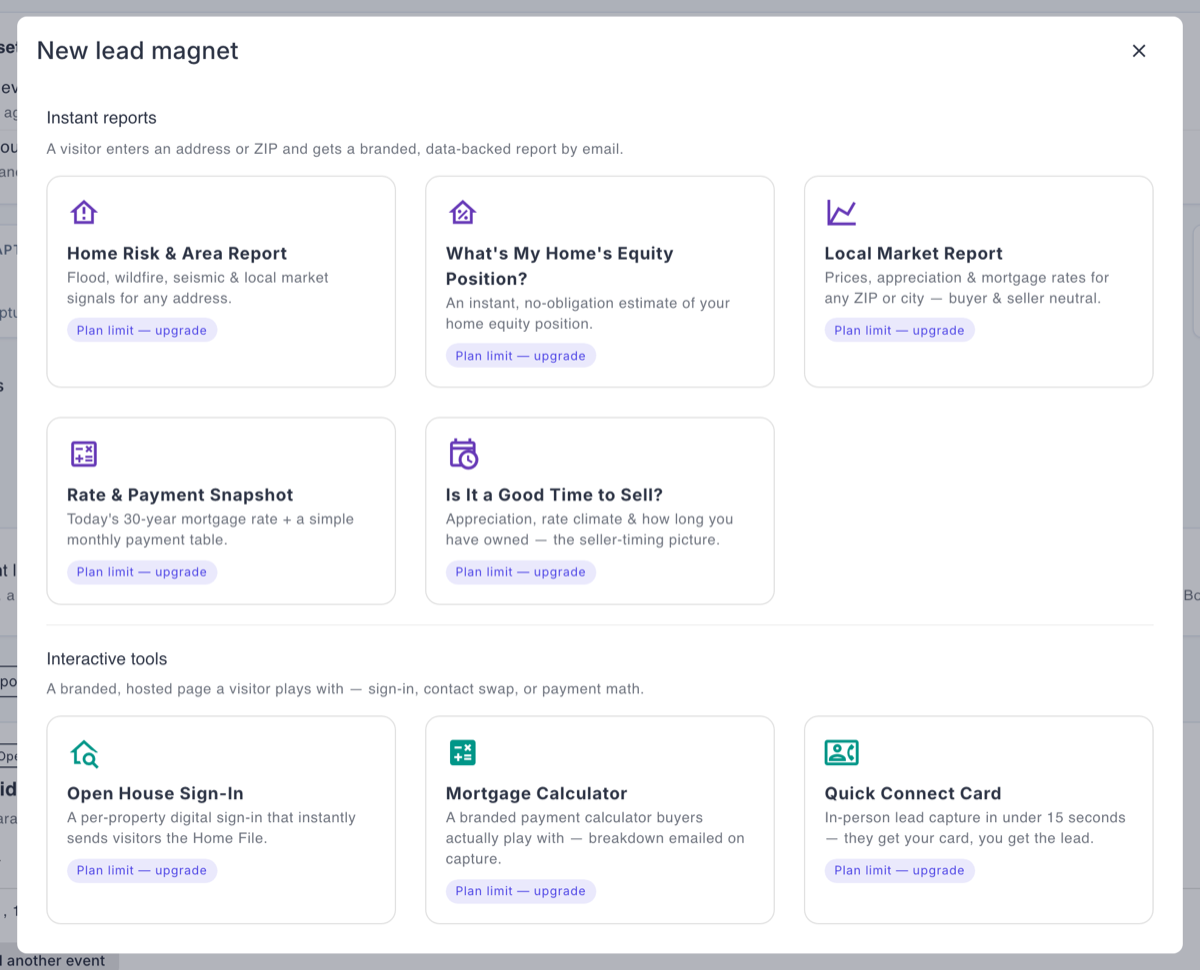
- Open Capture → Lead Magnets, choose New lead magnet, and under Interactive tools pick Open House Sign-In.
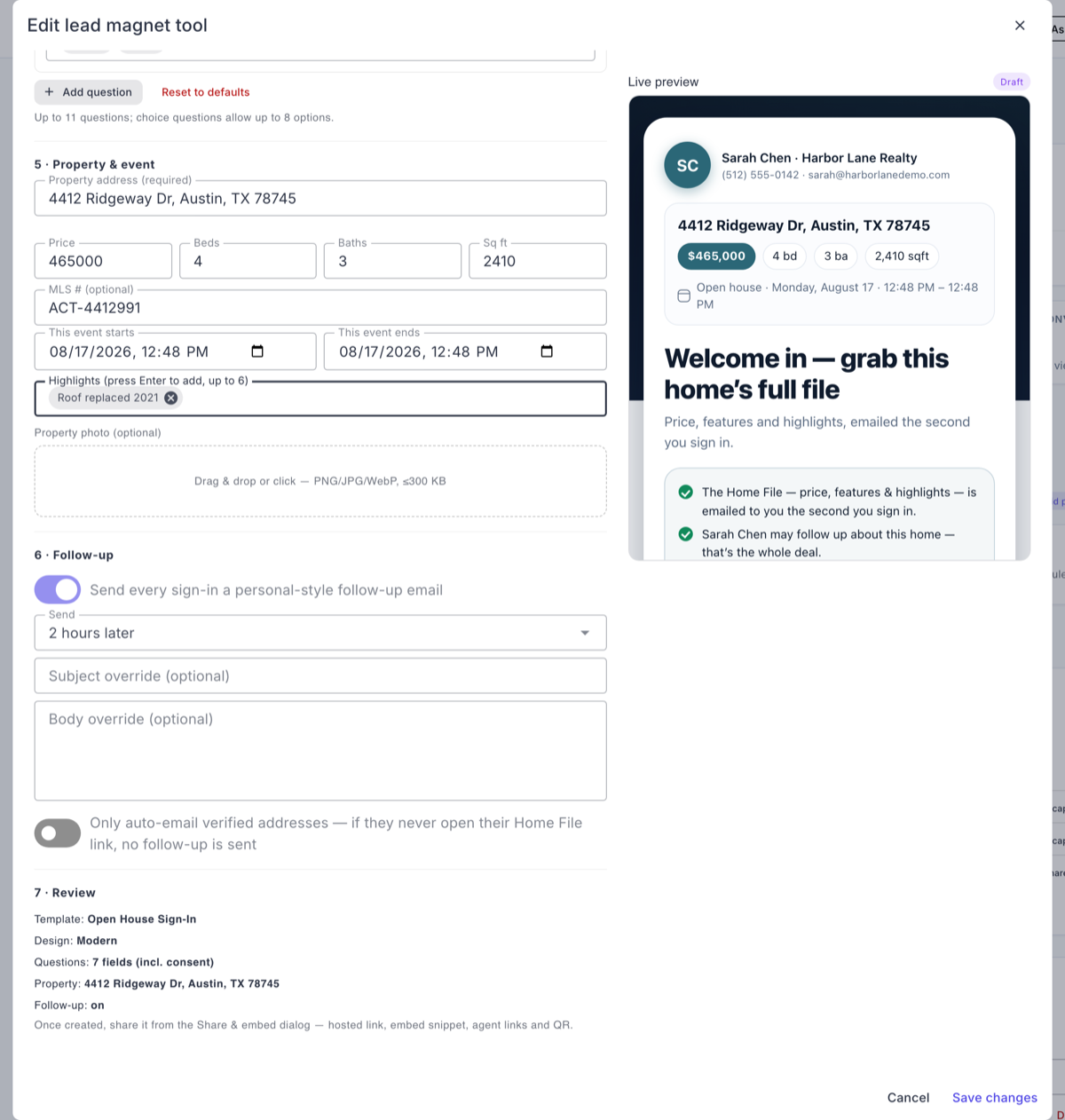
- Fill the property panel: address, price, beds and baths, MLS number, the event window, and up to six highlights. This is what visitors see — it is worth the four minutes.
- Check the live preview beside the form, then save.
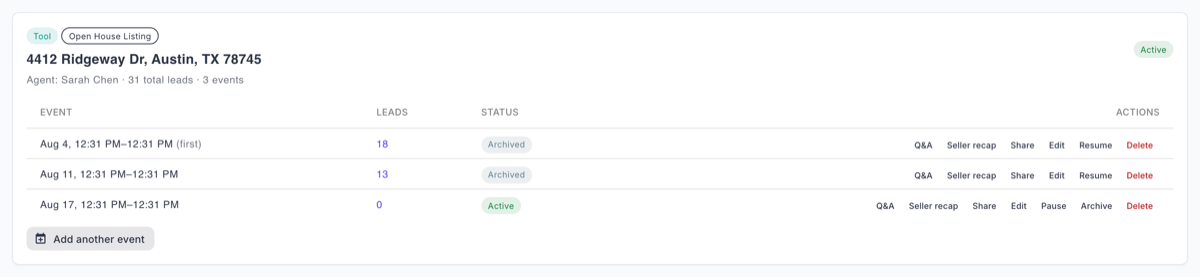
- On the event row, press Share for the link and QR code.
- Open the Lead Magnets tool in the Ace Companion on the device you are taking to the door. Print the Door sign from there — it carries the QR at scannable size — and switch a tablet into Kiosk mode so it resets between visitors. Neither control exists in the admin dashboard.
- Run the event. Afterwards, press Seller recap on the event row, add your note to the seller, and send it.
Who can use it
- Free — every account gets 1 active form. Custom questions are locked.
- Regular seat — up to 25 forms, with custom questions.
- Pro seat (or Ace Trove) — up to 100 forms, plus conditional routing rules, which are Pro-only.
Where to find it
Admin: Capture → Lead Magnets tab, under Interactive tools. Agents: the Lead Magnets tool in the Ace Companion.
Setting up the open house
- New lead magnet → Interactive tools → Open House Sign-In. Fill the property panel: address, price, beds and baths, MLS number, the event window, and up to six highlights.
- Add your questions (paid tiers) and, on Pro, routing rules that assign by answer.
- Check the live preview, then save.
- Get your sign-in surfaces. Share on the event row gives you the plain link and the QR code. The printable Door sign and Kiosk mode — which resets between visitors, for a tablet on the entry table — are in the Lead Magnets tool in the Ace Companion, not in the admin dashboard. Open the Companion on the phone or tablet you are taking to the door.
- Run the event. Visitors sign in on their own phone via the QR, or on your tablet in kiosk mode.
- Recap the seller. Seller recap on the event row opens the report, including a free-text note to your seller — your read on the event, in your words. It rides on both the recap email and the recap page.
What visitors get: the Home File
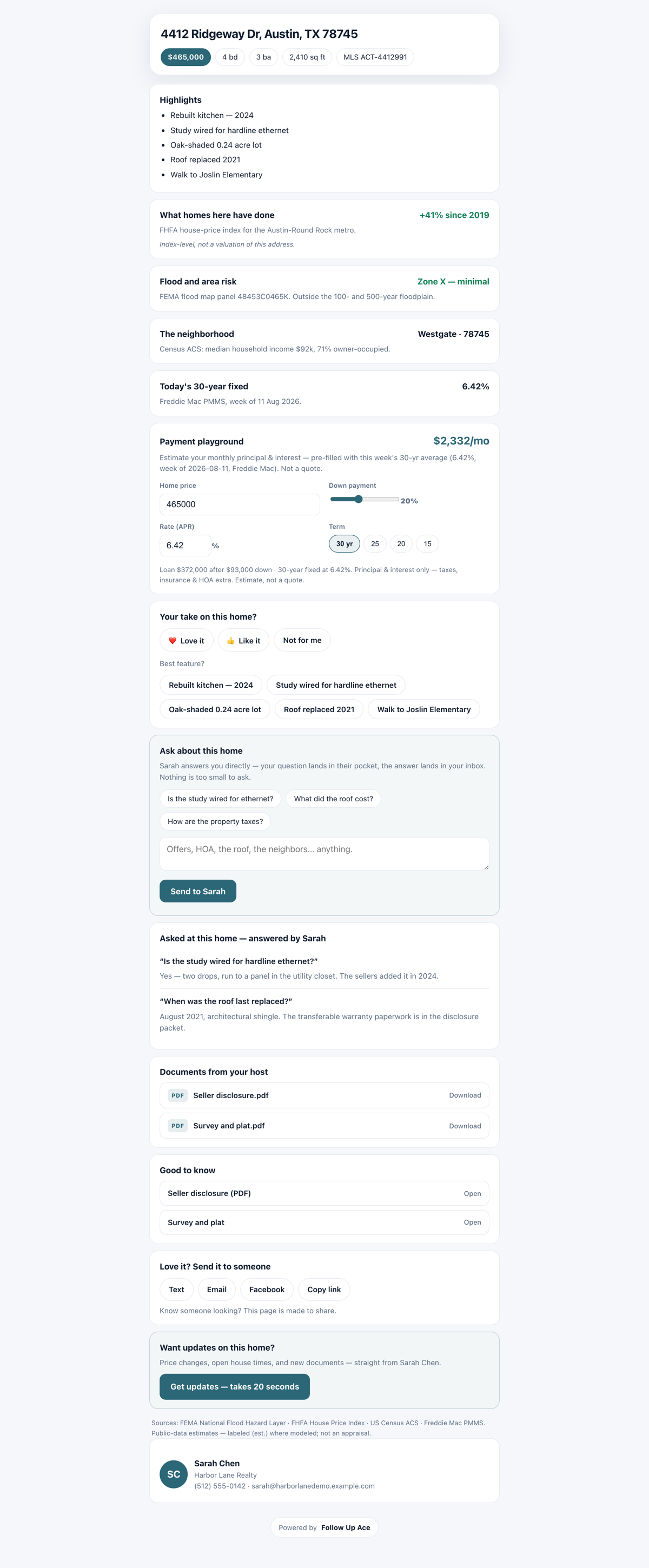
After signing in on their own phone, a visitor can choose Open your Home File on the confirmation screen. Ace also attempts to email their Home File for that property — the details, the highlights, and a place to ask a question about the home. This is the reciprocity: they gave you their contact information, they get something worth keeping. Visitors can also save your contact card.
Check the door setup before visitors arrive
- Confirm the account and host. Open the account you intend to use. On the Companion card, Leads assign to you confirms that your personal share link assigns to you; a team link may use the team’s Follow Up Boss Lead Flow. Use the QR generated for that link.
- Use Preview to check the words. Preview does not save a lead or send an email. Check the address, event time, required questions, contact details, and mobile layout there.
- Make one deliberate live test with your own details. This does save a lead and can send the Home File and configured follow-up. Check the confirmation, your inbox, Live check-ins, and the In FUB status in Capture. For kiosk mode, wait six seconds and confirm the next visitor gets a blank form and an enabled sign-in button.
- Check follow-up settings and the reply address. Open-house automatic follow-up is enabled by default with a two-hour delay. In the admin event builder, check Branding → Host email for replies. For your own event in Companion, open Lead Magnets → Edit → The follow-up email → Host email for replies. This changes that event's reply destination only; team forms remain admin-managed. Ace suggests the host email from the account branding defaults; confirm it is a mailbox your team monitors. A valid reply address is required when automatic follow-up is on. Change the timing, copy, or enabled setting before the event. This is a separate feature from Ace Autopilot and from any Follow Up Boss action plan you attach to the form.
How the automatic follow-up is delivered
Ace sends the email through its sending service and directs replies to the event's saved host email. It does not require the host to connect Gmail. The default wording uses the visitor's answers to choose a relevant version; it does not reserve a showing time or assume you spoke with the visitor. Your own subject or body replaces the defaults, so review any promises or timing in your wording.
If verified-email-only is enabled and the address is still unverified when the follow-up becomes due, Ace makes one further check 24 hours later. A provider receipt confirms acceptance, not that the visitor opened the email. If a send or its receipt becomes uncertain, Ace stops automatic repeats and the failed follow-up goes through its support alerting path. Contact support before sending a replacement; an uncertain result is not proof that nothing was sent.
When something does not arrive
| What you see | What to do next |
|---|---|
| Saved in Ace, missing in FUB | Read the delivery status in Capture → Leads. No FUB means delivery was not attempted; reconnect the correct account. Failed means an attempt failed. Neither state automatically becomes delivered just because the connection is repaired. Keep the saved record and ask support to check its delivery; do not repeatedly submit the visitor’s details. |
| Home File email missing | Check the entered address and spam folder. The confirmation tells the visitor when the email could not be sent, and on their own phone they can still open the Home File from that screen. The kiosk intentionally does not open a visitor’s file on the shared tablet. |
| Repeat sign-in shows no new row | A repeated email, or phone when no email was provided, on the same form within 24 hours is treated as the same sign-in. The Home File may be re-emailed subject to delivery limits; a repeat is not a second visitor or a delivery retry. |
| Check-ins will not refresh | Keep Live check-ins expanded; it refreshes every 15 seconds while open. A network error is shown and the next poll retries. Confirm you opened the right event and personal link. Reopen the panel or use the lead list’s Refresh control to check an existing visitor’s latest delivery state. |
| Automatic follow-up missing | Check that the form is active or archived, automatic follow-up is enabled, the visitor has an email, and Host email for replies is valid. A paused form suppresses the queued follow-up. If verified-email-only is enabled, the visitor must open their emailed Home File link. Imported historical rows do not enter this follow-up. For a delivery failure or uncertain result, ask support to inspect the follow-up job and provider receipt before retrying; editing settings does not automatically resend a finished or failed job. |
| Cannot create another event | Check the active-form allowance shown in the builder. Archive a completed open house to keep its Home File and recap while freeing a slot; use Add another event in admin or Run it back in Companion for a fresh event. |
When contacting support, include the affected event link, the account and host, the approximate time, and the delivery status you saw. Never send your Follow Up Boss credentials or a visitor’s tokenized Home File email link.
Buyer questions
Open Visitor questions on the Companion open-house card, or Q&A on the admin event row. Answer the question from that panel. A visitor answer is saved and an email is attempted; Also publish on the Home File page separately makes the question and answer visible to future visitors without the asker’s name. If email delivery is limited, the saved answer remains available to your team. A few useful distinctions:
- Seeded starter questions on the page never receive an AI-drafted answer, and they are excluded from the buyer-demand totals in the recap — they aren't real demand signal.
- Fair-housing screening runs on question answers. A violation is blocked both from the private and the public view; licensing-related wording blocks publishing only.
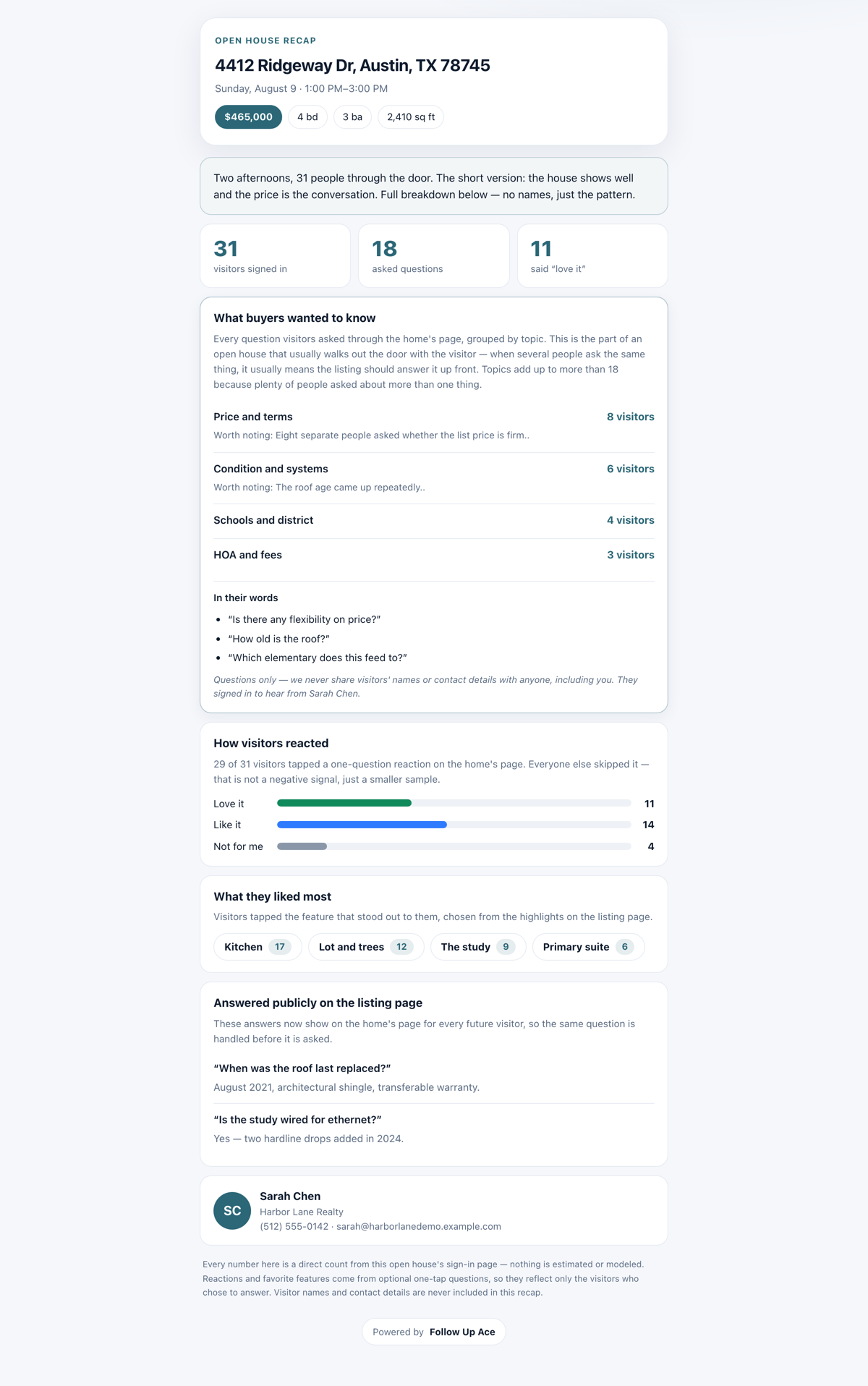
The seller recap
You can send the seller a recap of the event from the event row. Two things make it safe to send:
- It is aggregate only — visitor counts and demand themes, never a list of individual visitors and their contact details.
- It is link-token protected. A wrong or missing token returns a flat "not found," not a partial page.
Archiving vs. pausing vs. deleting
These three do genuinely different things, and picking the wrong one is the most common support question on this tool.
| Action | What happens |
|---|---|
| Archive (the right choice after an event) | New sign-ins stop. The sign-in page shows "This open house has ended" with a link onward. Everything the event left behind stays alive: the Home File, the event page, the seller recap link, the saved assets, and the contact card. It also frees up your active-form slot. |
| Pause | Takes everything down, including the Home File and recap links. Use it to pull a listing offline entirely. |
| Delete | Refused if the form has captured leads. Ace answers with "This form has captured leads. Archive it instead" rather than orphaning the people who signed in. Delete works only on a form nobody used. |
Honest limitations
- Email checking is a hint, not a gate. Ace flags disposable domains and addresses whose mail server doesn't answer, but it never rejects a sign-in over it — a real buyer with an unusual address always gets in.
- Phone formatting covers US and Canadian numbers. A number it can't normalize is a soft signal, not a rejection.
- "Verified email" means they opened a link, not that they entered a code. Leads captured before this existed can never show as verified.
- Open-house forms are not embeddable in your own site — they're a hosted page by design. Custom forms are embeddable.
- Ace never shares your leads with lenders or third parties. They go to your Follow Up Boss and nowhere else.
Coming from another tool?
If you have been running open-house sign-ins through Curb Hero, Spacio or a paper sheet, you can backfill those sign-ins into an Ace form rather than losing the history.
The flow is import → review → nothing, and that last word is deliberate.
- Import. Point the backfill at the form you want the sign-ins to belong to and upload the CSV. Rows are validated against that form’s own field schema — a row with an unusable email or phone is rejected and shown to you, never coerced into something that looks valid.
- Review. You attest, by name, to where the sign-ins came from. That attestation is stored with the records, and imported leads are labeled by source in Capture → Leads so nobody later mistakes a backfilled row for a fresh one.
- Nothing sends. Imported sign-ins carry no consent for automated email. They land in Follow Up Boss so you can work them the way you would work any contact you met in person — but they are deliberately excluded from this automatic open-house follow-up. Other automations you enable use their own enrollment rules; importing alone does not turn them on.
Frequently asked questions
Do visitors need to install anything?
No. They scan the QR and sign in on the web.
Can I run sign-in with no internet at the door?
No — the form is a hosted page and needs a connection.
I archived a form and my slot didn't free up.
It should — archiving takes the form out of the active count. If your form limit still reads full, contact support.
Can the seller see who visited?
No. The recap is aggregate by design. Individual visitors are yours, in Follow Up Boss.
Related articles
Last updated: September 2026
Thanks for the feedback — it helps us improve.