
Your First Week with Ace's Client Tools
Updated August 13, 2026
Ace ships seven client-facing tools — Lead Magnets, Ace Forms, Client Packets, Ace Pages, Client Referrals, Home Almanac and Back Office — and looking at all seven at once is how teams end up using none of them. This is a five-day path. Each day is one sitting, thirty minutes at most, and each ends with something live.
What you'll have by Friday
- Your brand color and logo on every public page Ace serves.
- A live lead magnet and a live open-house sign-in form, both capturing into Follow Up Boss.
- A profile page for every agent on the team, and a roster page if you're on a paid plan.
- Your first Home Almanac homes enrolled and invited.
- A named list of the past clients who actually refer you business, and — if you hold Ace Trove — a commission plan on the board.
Day 1 — Branding, and your first lead magnet
Do branding first. It costs ten minutes and it applies to every public page every other day produces, so doing it later means re-checking work you already shipped.
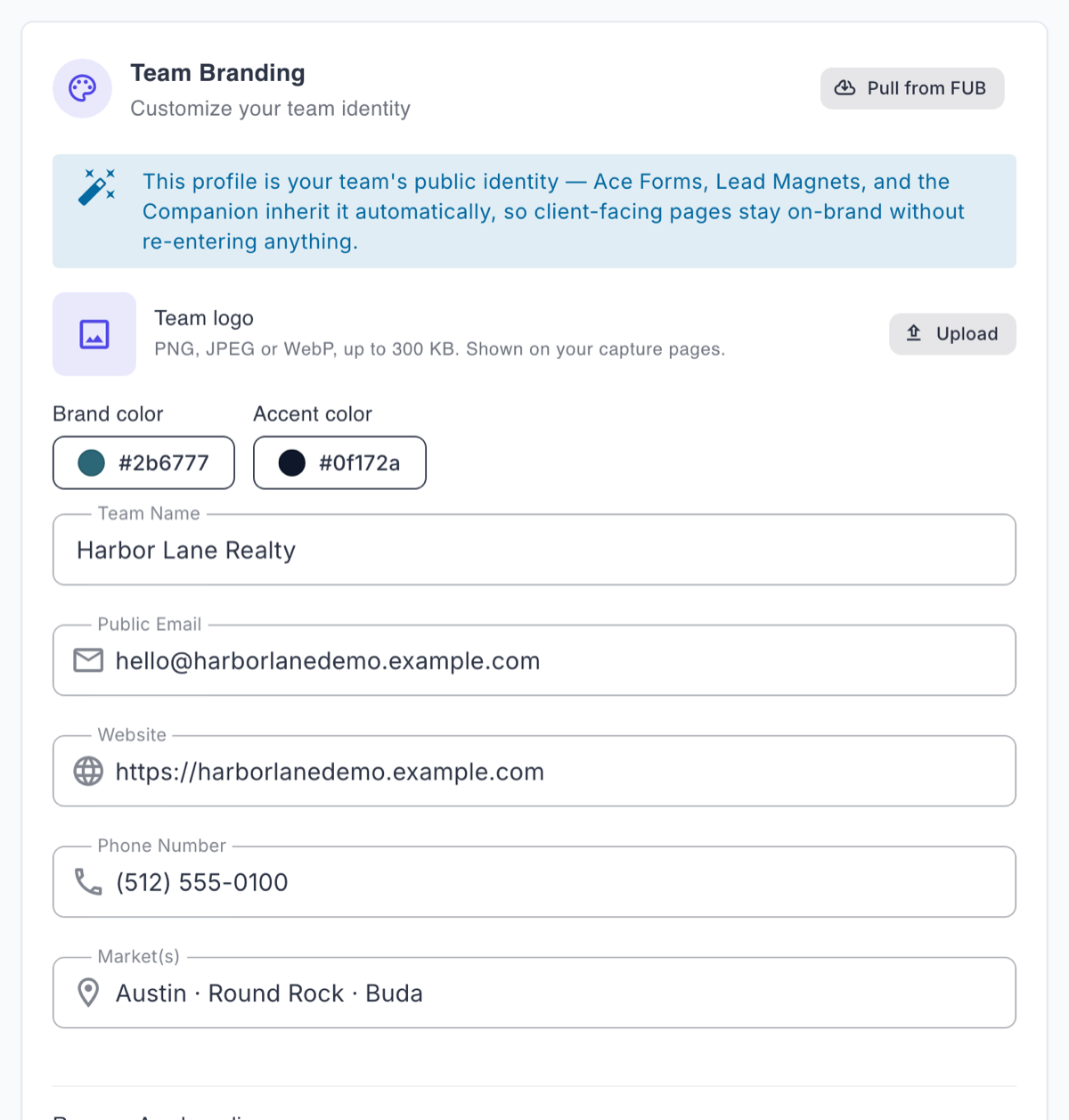
- Open Account Settings from the top-right account menu — it is not in the left nav — and go to Team Branding. Set Team logo and Brand color. Pull from FUB prefills most of it. Ace Forms, Lead Magnets, Ace Pages and the Companion all inherit this automatically.
- While you are there: Remove Ace branding — the switch that drops the "Powered by Follow Up Ace" footer from every page you publish — is a narrower Pro lever, not part of general branding. Leave it alone if you are not on Pro.
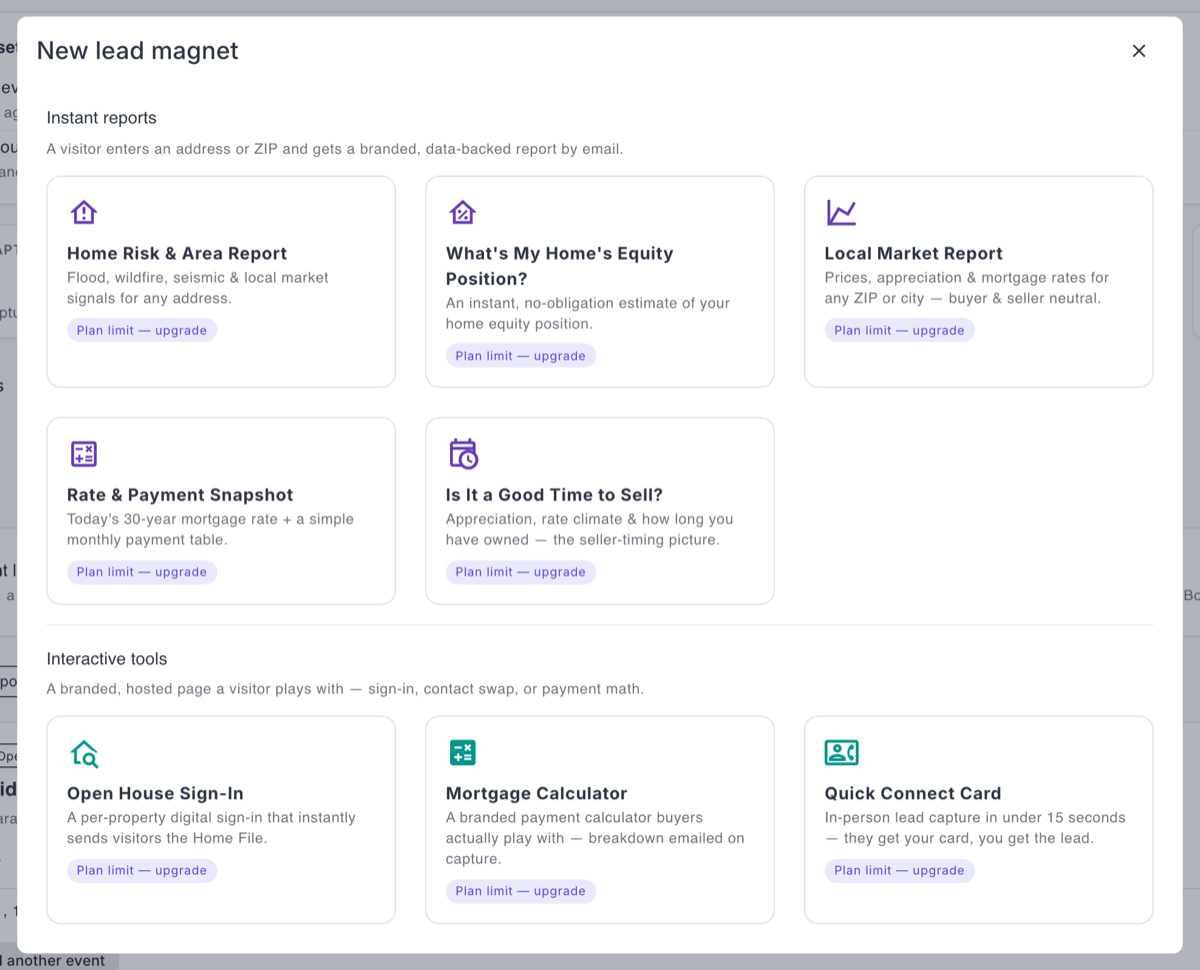
- Open Capture → Lead Magnets → New lead magnet. Under Instant reports there are five: Home Risk & Area Report, What’s My Home’s Equity Position?, Local Market Report, Rate & Payment Snapshot, and Is It a Good Time to Sell?
- Pick What’s My Home’s Equity Position? if you are unsure — it is the one that pairs with the Home Almanac work you will do on Thursday.
- Publish it and put the link somewhere real: your email signature, a social bio, one listing.
Every account gets one active magnet free, so Day 1 costs nothing.
Day 2 — The open-house form
This is the highest-yield day in the week if you list anything at all.
- Capture → Lead Magnets → New lead magnet, then Interactive tools → Open House Sign-In.
- Fill the property panel for your next open house: address, price, beds and baths, MLS number, the event window, up to six highlights.
- Save, then press Share on the event row for the link and QR code.
- Open the Lead Magnets tool in the Ace Companion on the device going to the door. Print the Door sign from there and switch a tablet into Kiosk mode — neither control exists in the admin dashboard.
- After the event, press Seller recap on the event row, add your note to the seller, and send. It is aggregate by design: counts and demand themes, never a list of visitors.
- Running it again next weekend? Add another event on the listing carries the branding, questions and follow-up over and gives the new event its own fresh lead list.
Free accounts get one active form. Archiving a finished event frees the slot back up while keeping the Home File, the event page and the recap link alive — so one free slot can carry an open house every weekend.
Day 3 — Ace Pages for the whole team
Every agent gets a profile page free, capped by identity rather than by an account-wide pool. A team of twenty on the free plan publishes twenty pages.
- Open Capture → Ace Pages → New agent page. Create your own page first so you can show the team a finished one.
- Confirm the identity block, write a short bio, and under Recent sales (curated) press Suggest from won deals and save two or three.
- Save the page, then press Stats on its card — that recomputes the stored snapshot from your deals mirror.
- Decide what’s public. Phone and email are off by default — turn on only what you want strangers to have.
- On a paid plan, use Team roster page for the one-per-account roster, and hand each agent their per-member link so leads from their link are credited to them.
- Send the team one message: "Open My Ace Page in the Companion, add a bio and a photo, publish, and put the link in your signature." They don’t need you for the rest.
Expect one question from your team on this day: "why doesn't it show my rating?" The answer is that Ace publishes no star rating anywhere, because there's no verified public review source behind one — and it does not scrape Zillow or Google. Agent-entered testimonials are supported and labeled as agent-provided.
Day 4 — Home Almanac enrollment
This is the one tool in Ace that emails a client on a schedule, so it's also the one with the most rules. Read the flow before you enroll a batch.
- Check your allowance: a free seat enrolls 0 homes, Regular 25, Pro 100. Ace Trove opens the account's whole book, scaled by tier. The check always resolves against that home's owner's seat.
- Enroll five past clients whose addresses you’re confident about. Agents: Home Almanac in the Companion, then Add a home. Admins with Trove: Book of Business → Home Almanac tab, then Add homes.
- Each enrollment sends exactly one transactional invite telling the homeowner their page exists. That’s all enrollment sends.
- Read the What will send next run panel. Your five will sit under have not opted in yet. Nothing monthly happens until each homeowner presses subscribe on their own page — you cannot do it for them, and there’s no setting that changes that. A home whose owner unsubscribed shows Unsubscribed and cannot be resumed from the admin at all; that is on purpose.
- Text those five clients a line pointing at the link. That's the nudge, and it works better than anything automated would.
Day 5 — Referrals, and Back Office if you hold Ace Trove
Two things, in this order.
Referrals — every seat, including free.
- Open Book of Business → Referrals and press Run backfill on the retro-detection card. It reads your Follow Up Boss history and creates records. It sends nothing, so there is no risk in running it.
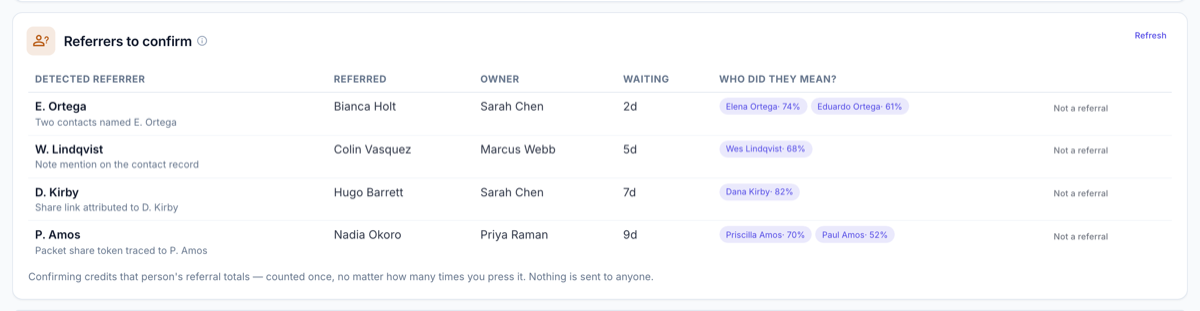
- Work the Referrers to confirm queue. Confirm credits an ambassador once; Reject records your verdict without crediting anyone.
- Read the Ambassador book and call three people on it. Ace drafts touches for you, but nothing sends itself.
Back Office — Ace Trove only.
- Open Back Office in the Ace Trove group. On Commissions, fill one row of the Commission plans table — Agent split %, Cap $ (0 = none), Cap year starts, Fee / deal $ — then open Terms and set Terms effective from.
- Open the ledger for the year. If it’s empty, press Sync from FUB.
- Add a per-deal split override on one co-listed deal. Ace credits shared deals in full to the primary agent by design; the override is how you record what really happened.
If you don't hold Ace Trove, skip the second half. Back Office shows a teaser explaining the add-on rather than an empty dashboard.
Where Client Packets fit
Client Packets aren't in the five-day path on purpose — they're the only tool with no free tier (Regular gets 5, Pro gets 50), and they're triggered by an event rather than by setup. Build one the next time you sign a client, not this week. It takes about seven minutes and the article on packets walks it end to end.
Honest limitations
- None of these tools sends on your behalf. Enrollment invites and packet delivery are the only automatic messages in the set, and the Almanac's monthly issue requires the homeowner's own opt-in. Everything else drafts and waits.
- Free tiers are one-of-each, not unlimited. One active magnet, one active form, one profile page per agent. Archiving a finished form frees its slot.
- The Capture inbox count tiles can under-count. They scan a bounded number of records per tool and say so — the excluded ones aren't zero, they're just not counted. There is no CSV export from the inbox; each tool's own tab owns the deep dive.
- Ace Page stats are a stored snapshot, not live. They're as fresh as your last refresh. Refresh before you promote a page.
- Nothing here replaces your books. Back Office is an internal accounting aid — not a brokerage general ledger, not payroll, not a system of record.
Frequently asked questions
Can I do this in a different order?
Yes, except for branding — do that first or you'll re-check pages you already published. Day 2 is the highest-yield day if you list.
Do my agents need paid seats?
Not for this week. Profile pages, referrals, one magnet and one form are all available free. Packets, the roster page and Home Almanac enrollment need a paid seat or Ace Trove.
My team won't publish their pages.
Publish yours, send them the link, and ask them to copy it. Agents can publish from My Ace Page in the Companion without waiting on an admin — the blocker is usually not knowing the page exists.
I'm migrating from another product. Where does that fit?
Read the migration article first, before Day 4 — imported homeowners start unsubscribed and that changes what your first readiness summary will look like.
Nothing is showing up in the Capture inbox.
Check the In FUB column. No FUB means the account isn't connected and those leads will never deliver; connect Follow Up Boss and capture again.
Related articles
- Capture: Every Lead from Magnets, Forms, Pages and Packets in One Inbox
- Moving to Ace from Another System: What Imports and How Consent Works
- Team Startup Guide: Rolling Out Follow Up Ace to Your Team
Last updated: August 2026
Thanks for the feedback — it helps us improve.