
The Ace Embed: How It Works in Follow Up Boss
Updated July 3, 2026
Ace lives directly inside Follow Up Boss as an embedded app — no separate tab, no switching tools. This article covers how the embed works, what Ace can see and do, and how to get value from it on day one.
What the embedded app is
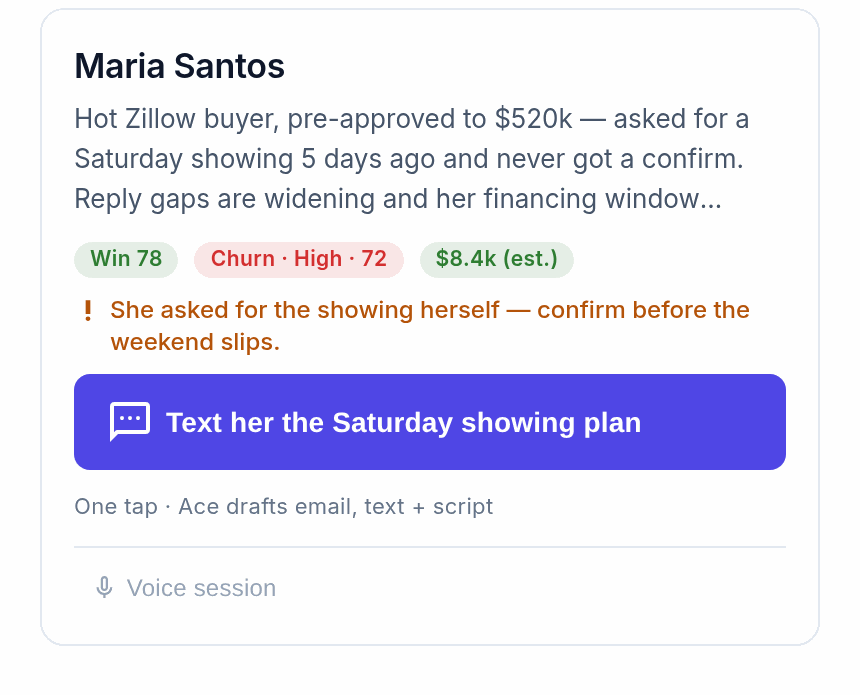
The Ace embedded app is a chat panel inside Follow Up Boss, connected directly to your CRM data, so you can ask questions and take action without leaving Follow Up Boss. When your admin sets Ace up, each agent gets access — for all contacts or for their own assigned contacts, depending on how your account is configured.
Where to find it
Ace appears as a chat icon or panel inside Follow Up Boss — typically a button or panel on the right of a contact record, embedded in the interface rather than a pop-up. If you don't see it, ask your team admin, who controls access and placement.
How the embed works
- It knows who you're looking at. Open a contact and Ace loads that context automatically — ask "tell me about this person" or "create a follow-up task for tomorrow" without naming them.
- Your login is your access. Ace uses your Follow Up Boss login to decide what you can see and do; if Follow Up Boss restricts a contact, so does Ace.
- Sessions are fresh each time. Each time you open the embed, Ace starts a new conversation and re-reads live CRM data. To remember something, add a note to the contact.
What Ace can see
- Contact profiles — name, phone, email, address, tags, stage, source, custom fields
- Notes — the full text of all notes on the contact
- Activity timeline — calls, emails, texts, property views, registrations
- Tasks and appointments
- Deals and pipelines
- Action plans and templates
- Smart Lists, stages, and users (for search and filtering)
Ace Pro seats also get voice mode, the MCP connector, and deeper AI drafting. No plan reads call recordings, call transcripts, or email bodies — Follow Up Boss does not expose that content through its API. For texts, Ace can read Follow Up Boss's single most recent message on a contact when Follow Up Boss supplies it, but nothing further back — so Ace works mainly from notes and activity metadata on every plan. See Understanding Your Ace Plan: Regular vs. Pro.
What Ace can do
- Create tasks — "Create a follow-up call for Thursday at 2pm."
- Add notes — "Note: pre-approved for $450k, wants to close in 60 days."
- Update contact info — "Update their stage to Active Buyer."
- Add or remove tags — "Tag as investor."
- Schedule appointments — "Schedule a buyer consultation for Tuesday."
- Manage deals — "Create a deal for 123 Main St at $575,000."
- Apply action plans — "Apply the New Buyer action plan."
- Draft and send email/text (Pro) — always shown for your approval first.
Things to know
- Ace always confirms before acting. It previews a task, email, or text and waits for your yes. Change your mind? Say "cancel" or "never mind."
- Access follows Follow Up Boss rules. Non-admin users see only the contacts they have access to — by design, not a limitation.
- One contact at a time. The embed is strongest on a specific record, though it can answer account-wide questions too.
- It's not a live feed. Ace reads your CRM when you ask; after a change in Follow Up Boss, ask Ace to "refresh" or re-ask.
Common first questions
| If you want to… | Say this to Ace |
|---|---|
| Get a quick overview of a contact | "Tell me about this person" |
| See recent activity | "What's their recent activity?" |
| Create a follow-up | "Create a follow-up task for tomorrow at 10am" |
| Log a note | "Add a note: [what you want to remember]" |
| Draft an email | "Draft a follow-up email about our showing yesterday" |
| Check your tasks | "What tasks do I have due today?" |
| Find contacts needing attention | "Who hasn't been contacted in 30 days?" |
Related articles
- Getting Started as an Ace User — Agent Quickstart
- Cheat Sheet: Using Ace in Follow Up Boss
- Using the Ace Companion
- Understanding Your Ace Plan: Regular vs. Pro
Last updated: July 2026
Thanks for the feedback — it helps us improve.