
Managing Your Ace Knowledge Base
Updated July 3, 2026
The Knowledge Base is what Ace knows about your business — your Follow Up Boss setup, plus any context you add — and the controls that decide what Ace is allowed to use. This guide is for admins configuring what Ace can and can't reference.
What the Knowledge Base is
Ace mirrors your Follow Up Boss structure so it can reason over your real workflow: contacts, notes, pipeline stages, activity history, custom fields, team members, action plans, email and text templates, appointment types and outcomes, and deal tracks. It syncs automatically when you connect Follow Up Boss and refreshes in the background as your data changes — there's nothing to rebuild on a schedule. Use Refresh if you want to pull the latest immediately after a large change (a bulk import or a tag restructure).
Controlling what Ace is allowed to use
You decide what Ace may reference. Every synced item has an Ace uses this / Ace ignores this toggle. Turn any item off and Ace will never use it — the restriction is enforced on our servers, so an off-limits template or action plan can't reach the assistant even if someone asks for it by name.
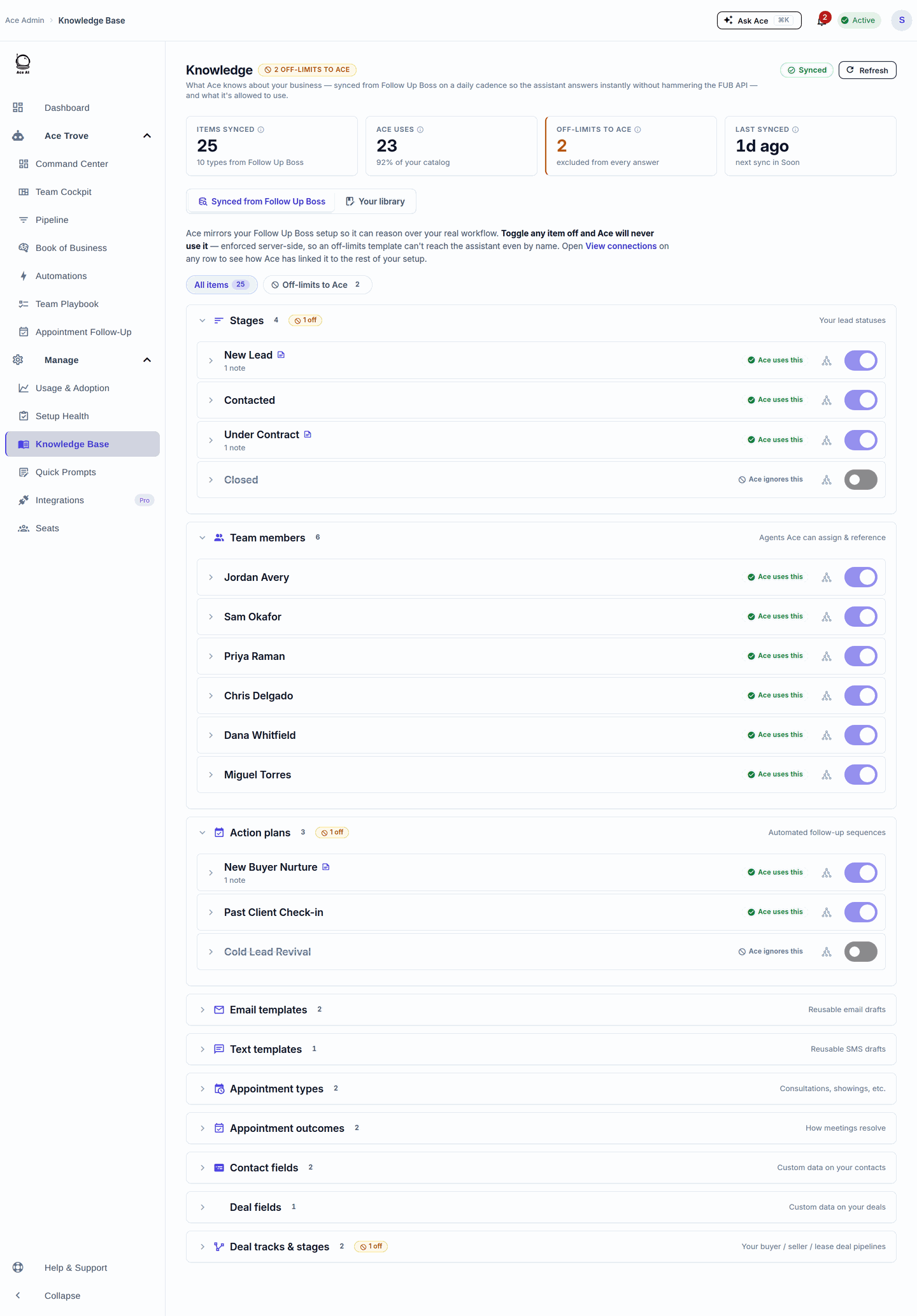
Use this to keep Ace on-message: switch off a retired template, an internal-only action plan, or a stage you don't want referenced. Open the Off-limits to Ace filter at the top to review everything currently excluded, and expand any row to see how Ace has linked that item to the rest of your setup.
Adding your own context
Beyond your CRM structure, you can give Ace context that isn't in Follow Up Boss — your brokerage name, market focus, and team specialties, so Ace introduces your team accurately and answers in your voice. Set the tone and standing rules under Assistant Settings. See Configuring Ace's Behavior, Tone, and Branding.
When answers look stale
Ace reads live Follow Up Boss data, but if a recent change isn't reflected, click Refresh and ask again. If Ace can't see your data at all, check the Follow Up Boss connection under Setup Health — an expired connection is the usual cause. See Troubleshooting: Common Issues and Fixes.
The Knowledge Base and Ace Trove
With Ace Trove active, your contacts' predictive scores are available to Ace chat too. You can query by score — "show contacts with an Ace Win Score above 70 and no task scheduled" or "who's flagged High churn risk?" — and reference the model-grounded fields Trove writes to Follow Up Boss.
Related articles
- Configuring Ace's Behavior, Tone, and Branding
- Ace Admin Configuration Reference
- What Is Ace Trove? Overview and Pricing
Last updated: July 2026
Thanks for the feedback — it helps us improve.