
Team Management: Adding, Assigning & Removing Seats
Updated July 3, 2026
This guide covers managing your team in Follow Up Ace — adding users, assigning and switching seats, and removing access. Every action happens in the admin dashboard at followupace.com/admin. For purchasing and cancellation, see Billing & Seat Management: Complete Guide.
Before you start
Your Follow Up Boss users appear in Follow Up Ace automatically once the connection is made. If Seats is empty or users are missing, confirm the Follow Up Boss step under Account Setup shows connected. You also need at least one purchased seat before you can activate a user — add seats under Billing → Add or Remove Seats first.
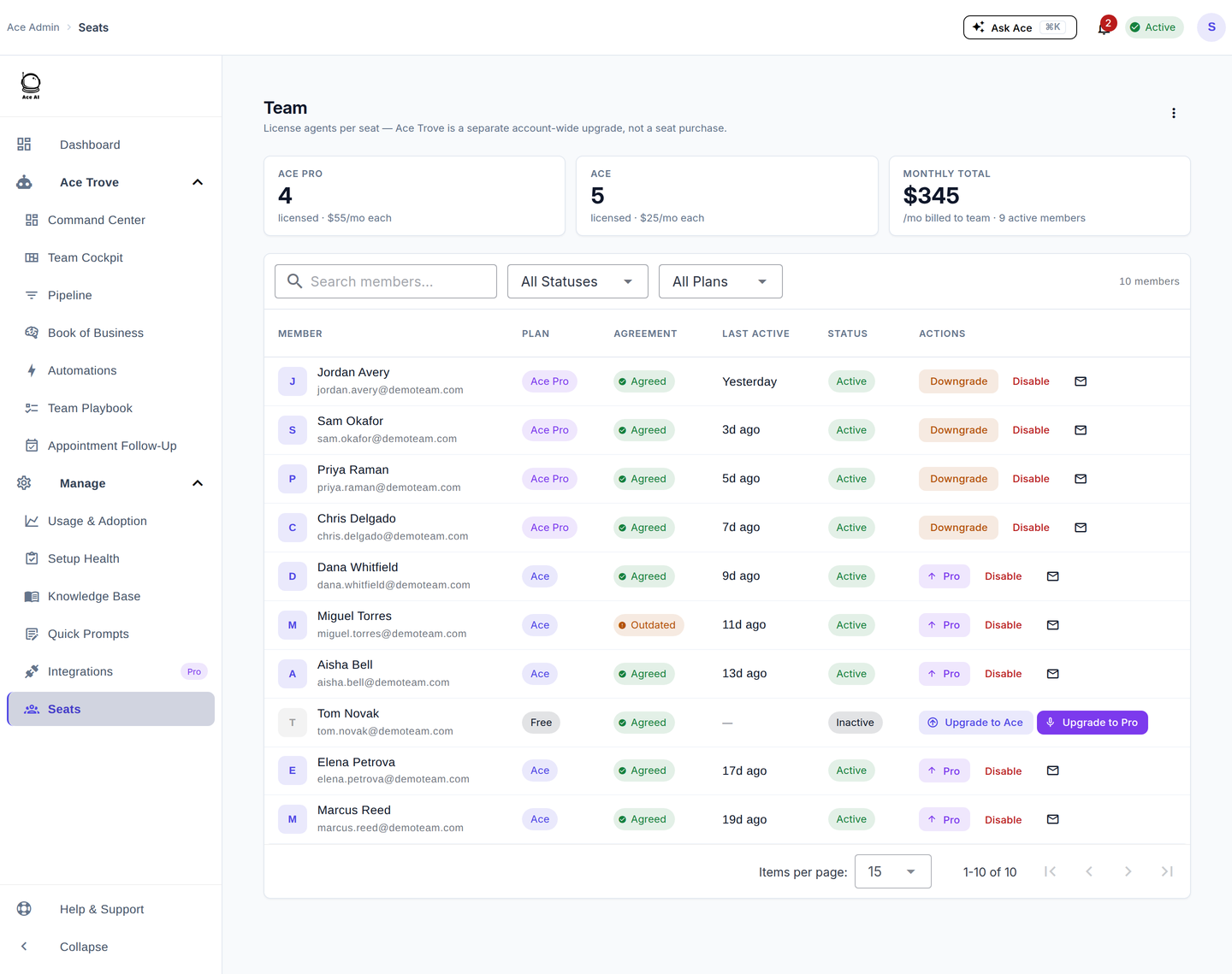
The Seats page
Go to Seats. Each user shows their status and plan badge:
| Badge | Meaning |
|---|---|
| Free | Limited access — no paid seat assigned yet |
| Ace | Ace seat assigned — full AI access |
| Ace Pro | Ace Pro seat — full access plus voice mode and MCP integrations |
The summary at the top shows your purchased seat counts (Ace and Ace Pro), how many are assigned, and how many remain.
Activating a user
- Find the user and turn on their toggle.
- If a seat is available, the user is activated immediately and their badge updates to Ace or Ace Pro. If not, you're prompted to purchase more from Billing.
- Open their actions menu and click Send Welcome Email so they know their access is live.
Switching a user between Ace and Ace Pro
- Open the user's actions menu and click Change Seat.
- Select the new seat type and click Confirm Change — it takes effect immediately, with prorated billing.
Deactivating a user
- Turn off the user's toggle — access ends immediately and the seat returns to your pool.
Deactivating doesn't delete the user's data or history. Reactivate them later and they pick up where they left off. To change your total seat count, use Billing → Add or Remove Seats; reduce active users first so you never exceed your available seats.
Self-pay users
Some agents buy their own Ace subscription from within Follow Up Boss. They appear on Seats with a badge, but their toggle isn't editable by you — they manage their own billing. For changes to a self-pay user's access, contact [email protected].
Common questions
A user doesn't see Ace after I activated them.
Confirm their toggle is on and the badge shows Ace or Ace Pro. Then have them confirm the Ace embedded app is enabled in their Follow Up Boss settings — Follow Up Boss requires each user to enable embedded apps on their end.
I have seats but can't activate a user.
Activation requires an active subscription, not just available seat credits. If your subscription has lapsed, subscribe from Billing first.
My Follow Up Boss users aren't appearing.
Users sync automatically after the connection. If they're still missing, confirm the connection under Account Setup and wait a few minutes; contact support if it persists.
Related articles
Last updated: July 2026
Thanks for the feedback — it helps us improve.