
Managing Seats and Subscriptions
Updated July 3, 2026
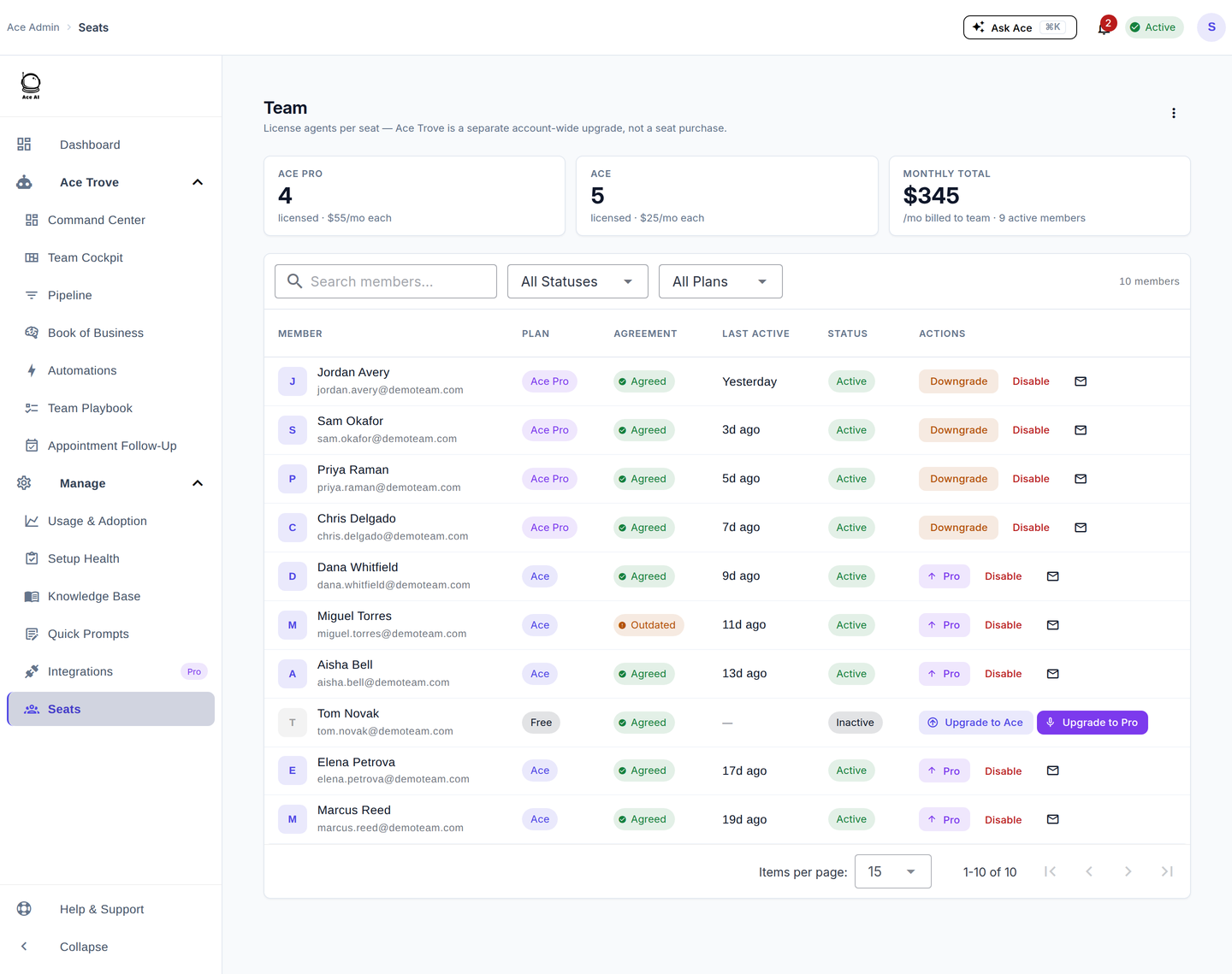
Follow Up Ace is billed per seat, and the account admin manages every seat from the admin dashboard. This guide covers how seats and plans work and how to assign, change, and remove them. For the full billing walkthrough, see Billing & Seat Management: Complete Guide.
How seats work
Each seat gives one agent access to Ace inside Follow Up Boss. You buy a pool of seats and assign them to users — you don't tie a seat to a person at purchase time.
| Plan | Access | Voice mode |
|---|---|---|
| Free | Limited — basic chat and read-only CRM queries | — |
| Ace | Full chat, CRM context, task/note creation, follow-up drafting, the Companion | — |
| Ace Pro | Everything in Ace, plus a premium AI model, contact memory, and MCP integrations | Yes |
Assigning a seat
- Sign in to your admin dashboard at followupace.com/admin.
- Go to Seats.
- Find the team member and turn on their toggle. If a seat is available in your pool, they're activated immediately and their badge updates to Ace or Ace Pro.
- Open their actions menu and click Send Welcome Email so they know their access is live.
If you have no available seats, you'll be prompted to add some from Billing first.
Switching a seat between Ace and Ace Pro
- On Seats, open the member's actions menu and click Change Seat.
- Choose the new seat type and click Confirm Change.
The change takes effect immediately, with prorated billing. The agent doesn't need to do anything on their end.
Removing a seat
Turn off a member's toggle on Seats to end their access immediately and return the seat to your pool. Their data and history are retained, so you can reactivate them later. To reduce your total seat count, use Add or Remove Seats on the Billing page — deactivate users first so you never have more active users than seats.
Understanding your subscription
Your subscription covers every assigned seat (billed per active seat per month) plus the Ace Trove add-on if active, which is billed separately as a flat monthly tier based on your Follow Up Boss contact count. See your current usage, next billing date, and invoices in Billing.
Common questions
Can a team member use Ace without a seat?
No. Unassigned agents see no assistant. Add them as a user and assign a plan first.
Can I mix Ace and Ace Pro seats?
Yes. Assign each member the plan that fits how they work.
Why can't I change a specific user's seat?
If their toggle is greyed out, they bought their own seat (self-pay) and manage their own billing. Contact support for help with self-pay users.
Related articles
- Billing & Seat Management: Complete Guide
- Team Management: Adding, Assigning & Removing Seats
- Understanding Your Ace Plan: Regular vs. Pro
Last updated: July 2026
Thanks for the feedback — it helps us improve.