
Command Center: Your Team's Act-Now Queue
Updated August 6, 2026
Command Center is the first stop in the Ace Trove dashboard and the one screen a team lead should open every morning. It answers a single question: what does my team need to act on right now? Everything urgent — leads waiting too long, deals slipping, contacts going cold, sphere clients ghosting — lands in one ranked queue, with the reason spelled out on every row and an "Open in FUB" action to act immediately.
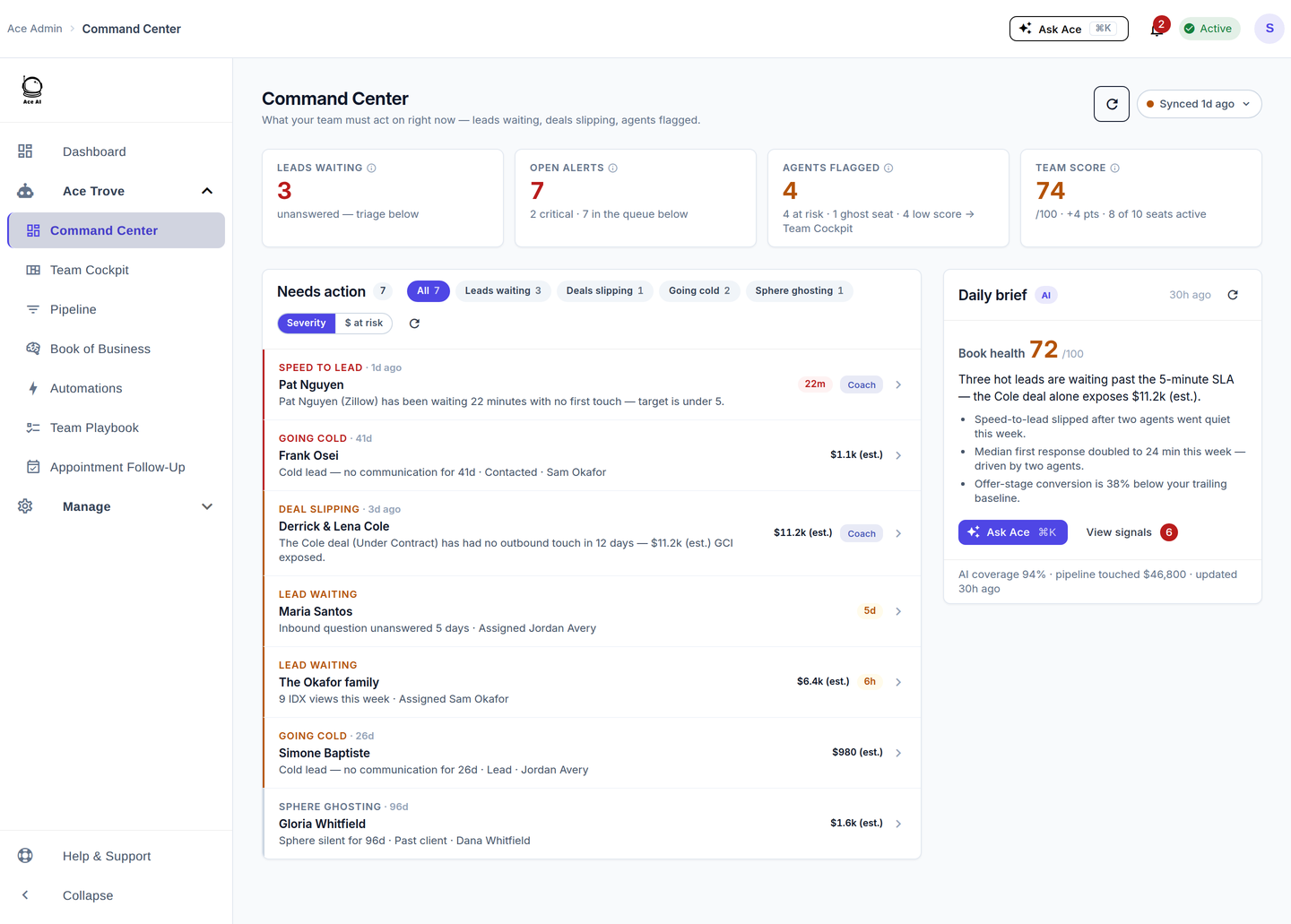
What the top tiles tell you
- Leads waiting — high-intent contacts whose most recent message is still unanswered: the last call, text or email logged on their record in Follow Up Boss came from them, with nothing outgoing logged after it. It is not a "we have never contacted this person" list — a contact you have talked to for years lands here the moment their latest message goes unanswered, and drops off as soon as a reply is logged in Follow Up Boss. Replies sent from a phone or inbox that is not connected to Follow Up Boss are never logged there, so they cannot clear a row. Most message reactions do not count as an unanswered message — when a contact taps a like or a heart on your reply, their phone usually sends that through as a new incoming text reading something like Liked “Thanks!”, and Ace ignores it rather than treating it as a question you still owe an answer to. The one case this does not cover: some phones send the reaction as a bare emoji on its own, with none of the quoted text attached. That is indistinguishable from a lead answering with a bare thumbs-up to “Can you do 3pm?”, so Ace still counts it as an incoming message and the row stays — we would rather leave one extra row than hide someone who really is waiting. Send us the contact name and we will correct it.
- Open alerts — everything currently in the queue, with the critical count called out.
- Agents flagged — agents who are at risk, sitting on a ghost seat, or scoring low; click through to Team Cockpit for the detail.
- Team score — a rolled-up read of how the team is tracking.
Two lenses: Severity and $ at risk
The queue has two sort toggles. Severity puts the most urgent items first for straight triage. $ at risk re-ranks the exact same queue by modeled dollars on the line — this is the "Revenue Guard" lens, sized from your team's own median commission per closed deal (always labeled "(est.)"). The pillar filter chips — Leads waiting, Deals slipping, Going cold, Sphere ghosting — narrow the list to one type of problem.
Five things to do here
- Clear the criticals first. Start on Severity, work top-down, and hit "Open in FUB" to act on each.
- Protect the biggest dollars. Switch to "$ at risk" and rescue the highest-value slipping deals before anything else.
- Coach in one click. On any coachable row, use Coach — it messages the agent, creates a follow-up task, logs the note in FUB, and drops it in the agent's Ace Inbox. A "Coached" state stops you re-coaching the same alert.
- Read the Daily Brief. The right-hand brief summarizes the day's biggest risks in plain language.
- Ask Ace about it. Hit Ask Ace (⌘K) for a grounded answer like "what are my biggest revenue risks right now?"
Who shows up in the queue — and how to control it
Command Center only works prospects. Before anything reaches this queue, Ace classifies every contact in your database and skips the people who are in your CRM for a reason other than buying or selling a home — other agents and recruiting targets, lenders, title and escrow reps, vendors and contractors, your own staff, and anything sitting in a Trash, Junk, Spam or Do-Not-Contact stage. The same rules feed the Daily Brief, the agent’s Now list, Ace’s suggestions, and scoring, so one contact is either worked everywhere or nowhere.
Ace reads three things to decide: the contact’s stage, their tags, and their email domain. It is deliberately cautious — it would rather leave a borderline contact in your queue than quietly hide a real lead — so a few role-based stages and tags are caught automatically and the rest are yours to mark.
Exclude a contact yourself: the ace-ignore tag
- In Follow Up Boss, open the contact and apply the tag
ace-ignore. - They drop out of Command Center and every other Ace surface as the record syncs — usually within a couple of minutes.
The tag syncs per contact, so it is at its best on individuals and small selections. Very large bulk tag jobs in Follow Up Boss may not sync through for every record — if you want a whole stage, tag, or big group out of Ace, skip the tagging entirely and use the account-level exclusion below instead: it takes effect immediately and covers future contacts too.
The reverse tag is ace-include: it forces a contact back in and beats every automatic rule, so use it when Ace has skipped someone you do want worked. If your team already uses different wording, non-prospect, not a prospect, do not score and ace-exclude all work the same way as ace-ignore.
Exclude a whole stage, tag or lead source
Tagging is per contact. If an entire stage should never be worked — a stage named Agent, Vendors or Recruiting, say — we can set that exclusion at the account level so it applies to everyone in it, now and in future, without tagging a single record. The same works for a tag, a lead source, or your own team’s email domain. Email [email protected] with the stage or tag names and we will set it up.
Worth knowing before you ask for a stage exclusion: it removes those contacts from all of Ace, not just this queue — no scores, no suggestions, no seller signals. If you still want referral or recruiting relationships surfaced somewhere, tag the individuals instead.
Frequently asked questions
Can I remove a single row from the queue? Alert rows carry an × — click it and the row is cleared for the whole team. Clearing is safe: if the situation is genuinely still open, it returns as a fresh alert the next time something happens on that contact. The calculated rows — Leads waiting, Going cold, Sphere ghosting — work differently: they are recalculated from your Follow Up Boss data every time the page loads, so there is nothing to dismiss. They clear themselves when the underlying fact changes — but which fact differs by row, and it is worth knowing before you go looking for a way to clear one:
- Leads waiting clears when your team replies. Logging the reply on the contact's record in Follow Up Boss is what moves it.
- Going cold and Sphere ghosting count from the last call, text or email logged on the record in either direction — yours or theirs. Working the contact is what clears the row: log a call, text or email in Follow Up Boss and it drops out of the queue, and it only comes back if the record goes quiet again for the full window (30 days for Going cold, 180 days for Sphere ghosting). Updated August 2026: these two rows used to count only from the contact's own last reply, so your outreach did not move them. That was corrected — your team's work now clears the row. Rows also retire on their own once a record is past the class horizon: 6 months of silence for Going cold, 3 years for Sphere ghosting, at which point the record is dormant rather than at risk. What there is no way to do today is park a row for a shorter, custom stretch — clearing one means working it or excluding the contact.
- Any calculated row also drops out if the contact is tagged
ace-ignoreor their stage is excluded at the account level — but both of those are permanent exclusions from all of Ace, not a temporary snooze.
Other agents and vendors are showing up in the queue. Tag them ace-ignore in Follow Up Boss and they will drop out of Command Center and every other Ace surface. If a whole stage should be excluded, email us the stage name and we will set it at the account level — see Who shows up in the queue above.
Where did Revenue Guard go? It didn't go away — it's the "$ at risk" sort on this queue. Old /revenue-guard bookmarks redirect here. See Where Did My Menu Items Go?
Why do the dollar figures match other screens? By design. The same person or deal shows the same stage, owner, days-idle, and dollar figure on Command Center, Pipeline, Team Cockpit, and the agent's companion — one shared definition feeds them all.
A lead shows as waiting but we definitely answered them. Check what the last entry on their Follow Up Boss record actually is. Two things explain nearly every case: the reply went out from a phone or inbox that is not connected to Follow Up Boss (so it was never logged, and Ace only reads what is logged), or the last entry is the contact reacting to your reply rather than writing a new one. Reactions that arrive with the original message quoted (Liked “Thanks!”) have been ignored since August 2026 — but a reaction sent as a bare emoji on its own still reads as an incoming message, and rows that were already stuck before that change do not clear retroactively. Either way the row clears the moment anyone sends that person another message from a connected line. If you would rather not wait, send us the contact names and we will correct them directly.
What does "(est.)" mean? A modeled estimate, not booked revenue — sized on your account's own median commission. It's a prioritization signal.
Related articles
- Where Did My Menu Items Go? The 2026 Dashboard Update
- Team Startup Guide: Rolling Out Follow Up Ace to Your Team
- The 30-Day Adoption Playbook (for Team Leads)
- What Is Ace Trove? Overview and Pricing
Last updated: August 2026
Thanks for the feedback — it helps us improve.