Back Office: Commissions, Cap Tracking and Transactions
Updated August 14, 2026
Back Office is the team-leader surface: who earned what, who is approaching their cap, which transactions are moving, and who on the team might be drifting. It sits on top of your Follow Up Boss deals — you don't re-enter anything.
What you'll have when you're done
- A commission plan per agent — split, cap, cap-year start month, fees — dated so a mid-year change never rewrites history.
- A ledger for the year computed off your existing Follow Up Boss deals. You re-enter nothing.
- A straight answer to who is near their cap.
- Agents seeing their own numbers in My Commissions in the Companion — and only their own.
Your first win, in about 10 minutes
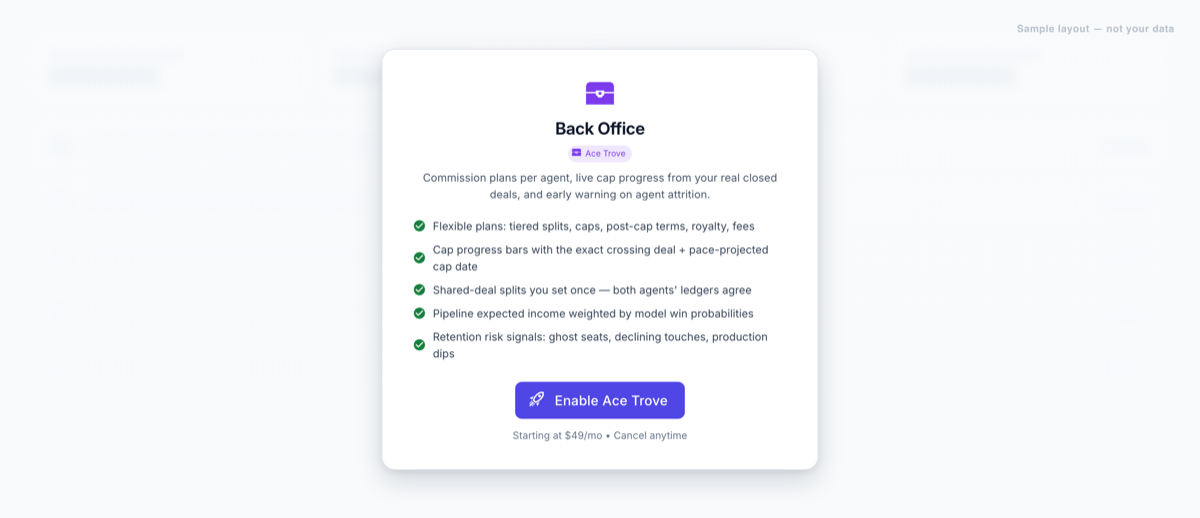
Back Office requires Ace Trove on every screen — without it you get a teaser explaining the add-on, not an empty dashboard. Start with one agent, not the whole roster.
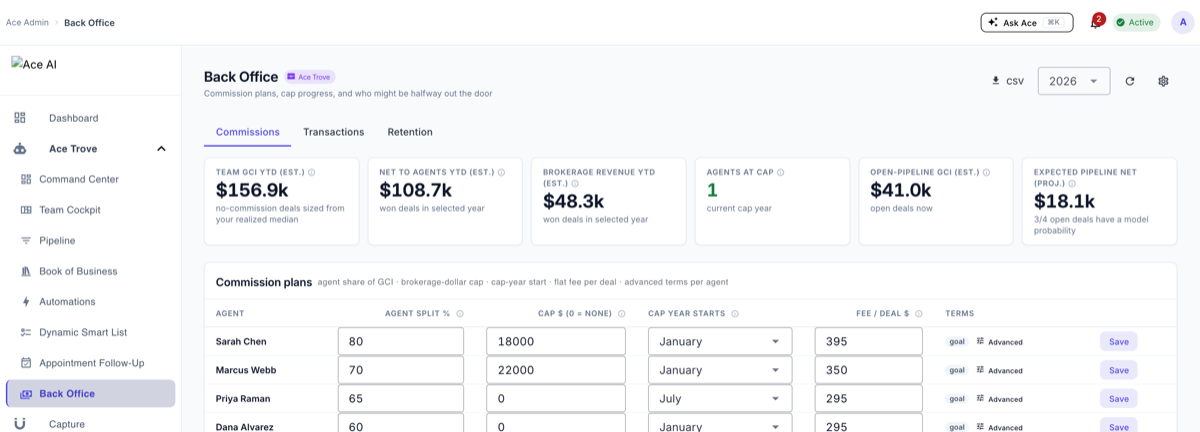
- Open Back Office in the Ace Trove group of the admin sidebar. It has four tabs: Commissions · Transactions · Retention · Recruiting.
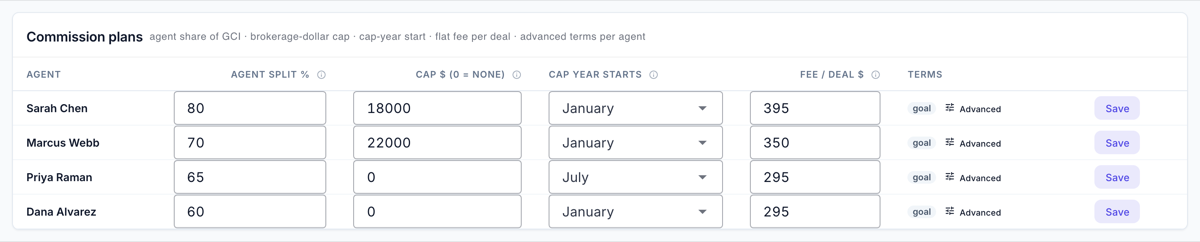
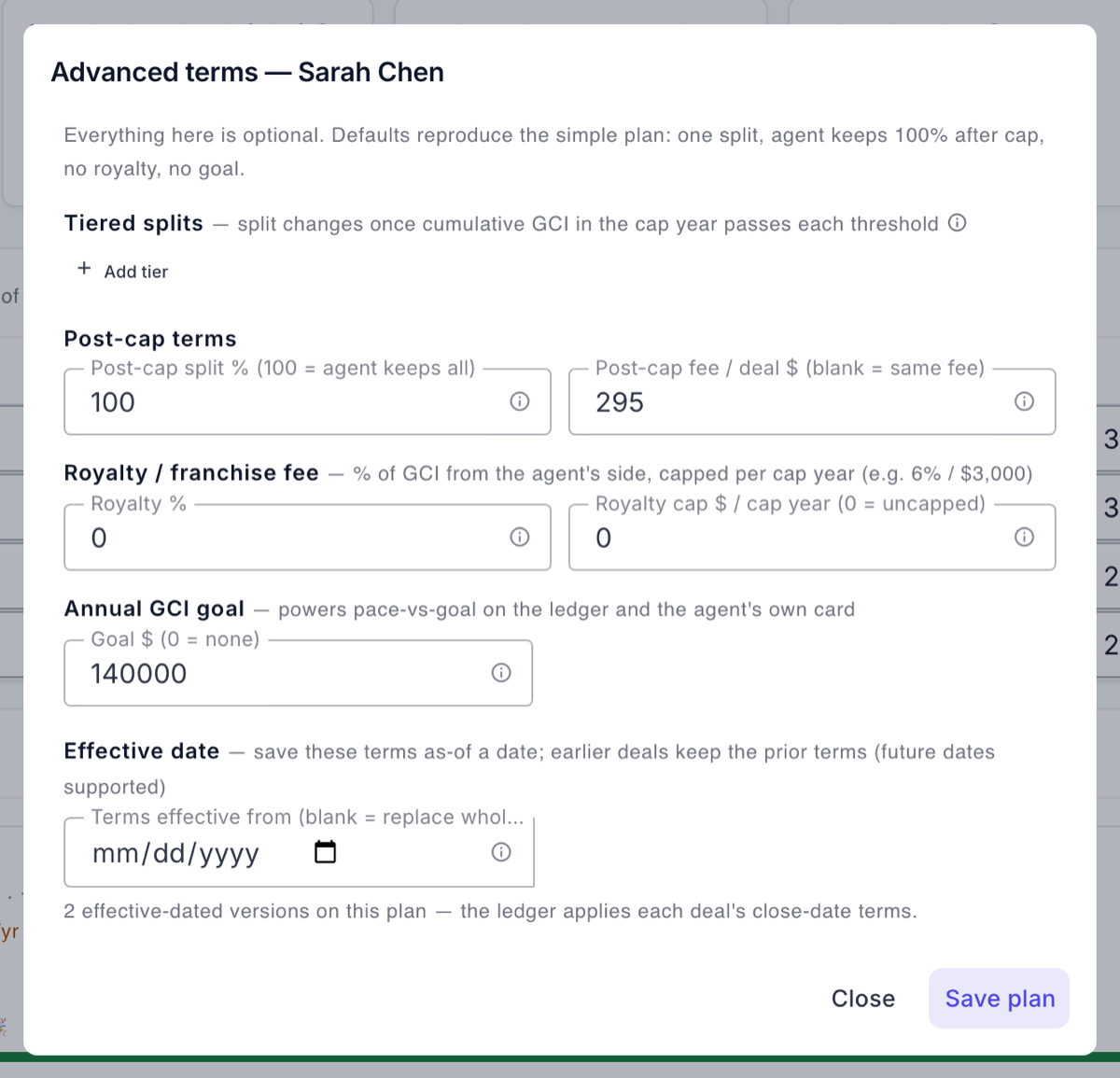
- On Commissions, find the Commission plans table and fill one agent's row: Agent split %, Cap $ (0 = none), Cap year starts, and Fee / deal $. Tiers, royalty, post-cap terms and a production goal live behind Terms and are optional.
- Open Terms on that row and set Terms effective from under the Effective date section. Leaving it blank replaces the whole plan; a date keeps earlier deals on the prior terms. This is the step people skip and regret.
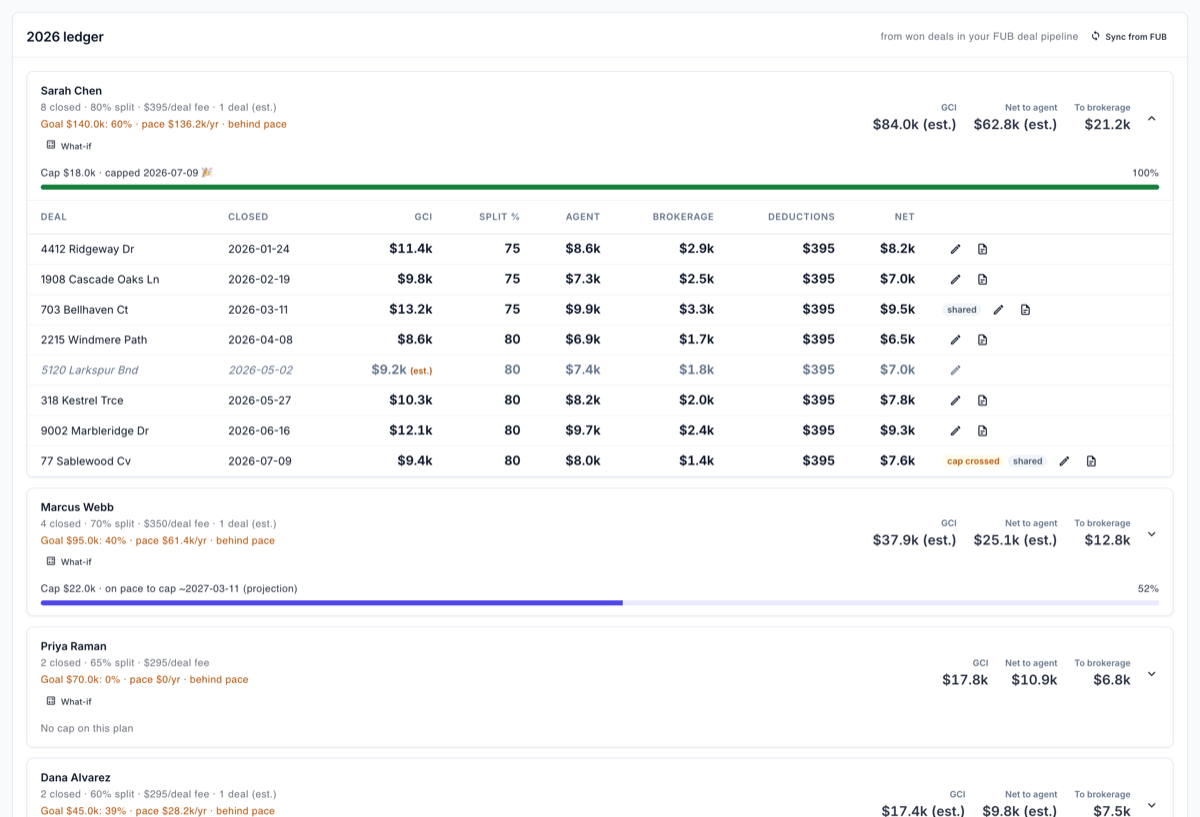
- Open the year's ledger. If it comes back empty, press Sync from FUB to pull your Follow Up Boss deal history, then reopen it.
- Find a co-listed deal and add a per-deal split override. Ace credits shared deals in full to the primary agent by design — the override is how you record what actually happened.
- Repeat for the rest of the team, then tell your agents to open My Commissions in the Companion.
Who can use it
Back Office requires Ace Trove, on every screen. Without it you'll see a teaser explaining the add-on rather than an empty dashboard.
Updated August 2026: the agent-facing Companion tools now carry the same gate. My Commissions and My Transactions both require the account to have Ace Trove — an agent on an account without it sees a friendly "ask your admin" message rather than a blank tool. My Commissions additionally stays empty until a team admin sets up a commission plan for that agent, because there is nothing to compute against.
Where to find it
Back Office in the Ace Trove group of the admin sidebar. Four tabs: Commissions · Transactions · Retention · Recruiting.
Commissions and cap tracking
- Set up a plan. On the Commissions tab, the Commission plans table has one row per agent: Agent split %, Cap $ (0 = none), Cap year starts, Fee / deal $. Tiers, royalty, post-cap terms, and a production goal are optional.
- Date it. Open Terms on the row and set Terms effective from so a mid-year change doesn't rewrite history — blank replaces the whole plan, a date leaves earlier deals on the prior terms.
- Add per-deal overrides where reality differs: an actual split on a co-listed deal, an observed commission figure, a referral fee out, or excluding a deal entirely.
- Open the ledger for a year. If it's empty, run Sync from FUB to pull your Follow Up Boss deal history into the ledger.
- Run a what-if to replay the year under proposed terms before you offer them to an agent.
- Generate a CDA for a specific deal when you need the commission disbursement paperwork.
The rules that keep the numbers honest
- A co-listed deal is credited in full to the primary agent and flagged as shared — never split automatically. Follow Up Boss carries no split ratio, and inventing one would fabricate dollars. The consequence is real and worth telling your team: the deal appears on the primary agent's ledger only. Use a per-deal override to record the actual split.
- Modeled dollars are flagged. When Ace has an actual commission on the deal it uses it. When it has to fall back to your account's default basis, that row is marked estimated, the summary reports what share of the total is estimated, and the totals carry "(est.)" in their labels.
- A CDA refuses to print estimated dollars. If the deal's commission is modeled rather than recorded, Ace declines to generate the disbursement document instead of producing an official-looking number it made up. Record the real figure on the deal and try again.
- Cap progress is blank, not 0%, on an uncapped plan. Missing accountability or production data is shown as missing, never as a zero that reads like poor performance.
- Large accounts are read up to a limit. Every ledger says when its read was truncated rather than quietly reporting a short total.
- Nothing is cached. Every ledger is computed when you open it, so there is no history of "what the cap looked like in March."
Transactions
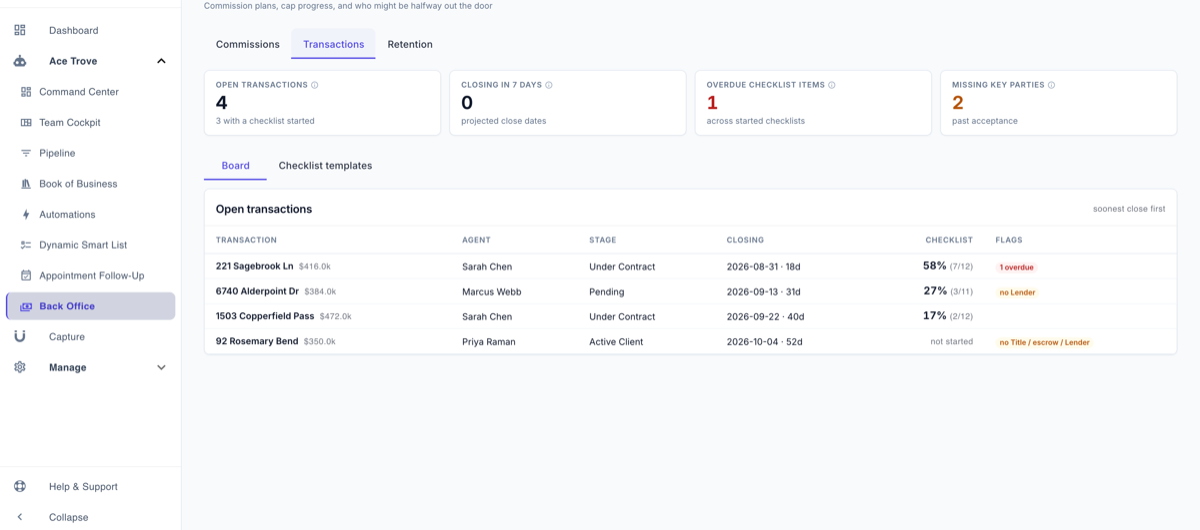
The Transactions tab is the contract-to-close layer on a deal: phases, a gate that tells you what's blocking, a checklist, the parties, documents, and a place to ask a question about the file. It got a major update in August 2026 — see Your Transactions in Ace: the Room, the Checklist, and Asking Questions for the full agent-facing walkthrough and Transaction Templates, Gates and Approvals for Team Leads/TCs for the builder side. The short version:
- Agents open My Transactions in the Companion and run a short guided start — side, checklist, dates, people — then work the checklist with a "next up" spotlight, and can ask Ace a grounded question about that one file.
- Admins and transaction coordinators work any deal's room from the Back Office board, review submitted approvals, and manage checklist templates including phases and gates.
- Saving back to Follow Up Boss is explicit. Press the button; nothing syncs silently. Only stage, price, projected close date, and commission are writable, and only the deal's primary agent may write them — a teammate's checklist and note edits still save on the Ace side.
Honest limits worth stating up front:
- Due dates are calendar-day arithmetic — no business days, no weekend or holiday shifting. Template dates are prompts, not legal deadlines. Your contract governs.
- A missing anchor date produces no due date at all, with the reason named. Ace never guesses a deadline from today's date.
- Documents are small evidence files, not a document vault or a state-form platform. You can link out to where a file already lives (Drive, Dotloop, FUB), upload a small PDF/PNG/JPEG (up to 700KB) directly for review, or request a signature on your team's own document or acknowledgment (signed electronically with an audit trail, right in the room). There is no zipForm/C.A.R./TREC form library, no notarization, and no long-term compliance archive, and an accepted document can't be deleted — only superseded by a new upload.
- Nothing auto-sends. No automatic client or agent emails come out of a transaction room; a grounded question you ask Ace never changes anything in the room, it only answers.
- You can't switch checklist templates mid-stream once any item is done or waived.
Retention and Recruiting
The Retention tab flags agents whose production, responsiveness, or activity is drifting: an action queue with a short weekly list, snoozable per agent, and a "prepare" drawer with talking points for a stay conversation. Missing data is named as missing rather than counted as zero — an agent with no recorded activity is not automatically "at risk." An admin-only weekly digest can flag the same list without ever reaching the agent in question.
The Recruiting tab is a lightweight pipeline board over contacts Ace already classified as other agents (the same classifier that keeps them out of your lead pipelines). Up to 15 active candidate cards are free on every account; past/closed cards don't count against that cap. With Ace Trove you also get outreach draft generation (never auto-sent — always a draft you review) and pipeline analytics. See The Recruiting Pipeline and Retention Check-Ins for the full picture.
Frequently asked questions
My ledger is empty.
Run Sync from FUB, and confirm a commission plan exists for that agent and year.
Why is a co-listed deal only on one agent's ledger?
By design — see above. Add a per-deal split override.
Why won't Ace generate my CDA?
Because the deal's commission is modeled, not recorded. Enter the actual commission on the deal in Follow Up Boss.
Can agents see each other's commissions?
No. Agents see only their own in the Companion; the full ledger is the admin surface.
Do agents need Ace Trove to use My Transactions or My Commissions?
Yes, as of the August 2026 update — the account needs Ace Trove for both the agent-facing Companion tools and the admin board. The account's admin also needs to leave the Transactions/Commissions toggle on in Back Office settings (it defaults on).
Does a candidate ever find out they're on the Recruiting board?
No. It's a private admin view built from contacts Ace already classified as agents in your own database — nothing is sent to them unless you draft and send it yourself.
Related articles
- What Is Ace Trove? Overview and Pricing
- Team Cockpit: Per-Agent Production and Coaching
- Your Transactions in Ace: the Room, the Checklist, and Asking Questions
- Transaction Templates, Gates and Approvals for Team Leads/TCs
- The Recruiting Pipeline and Retention Check-Ins
Last updated: August 2026
Thanks for the feedback — it helps us improve.