
Connecting Ace to Claude, ChatGPT & Other AI Tools (MCP)
Updated August 6, 2026
Follow Up Ace supports the Model Context Protocol (MCP) — the open standard for connecting AI assistants directly to external tools and data. Connect Claude, ChatGPT, or another MCP client and it can search your CRM, create tasks, send emails, pull market data, and more, all through natural conversation. This is an Ace Pro feature; an active Ace Pro seat is required, and Follow Up Boss must be connected to Ace.
What your AI can do once connected
With Follow Up Ace connected, you can ask your assistant things like:
- "Find all my hot buyers in Austin and create a follow-up task for each one."
- "Send a personalized text to leads who haven't been contacted in 30 days."
- "Pull today's mortgage rates and draft an email to my fence-sitter clients."
- "Give me a briefing on the five contacts most likely to transact this month."
- "Enroll all leads from Zillow in my nurture action plan."
You get 188 tools — the full Follow Up Boss CRM surface plus Ace's own intelligence layer — covering contacts, tasks, appointments, email, SMS, deals, pipelines, bulk operations, Zillow speed-to-lead workflows, Federal Reserve market data, and AI briefings.
Find your setup instructions in-app
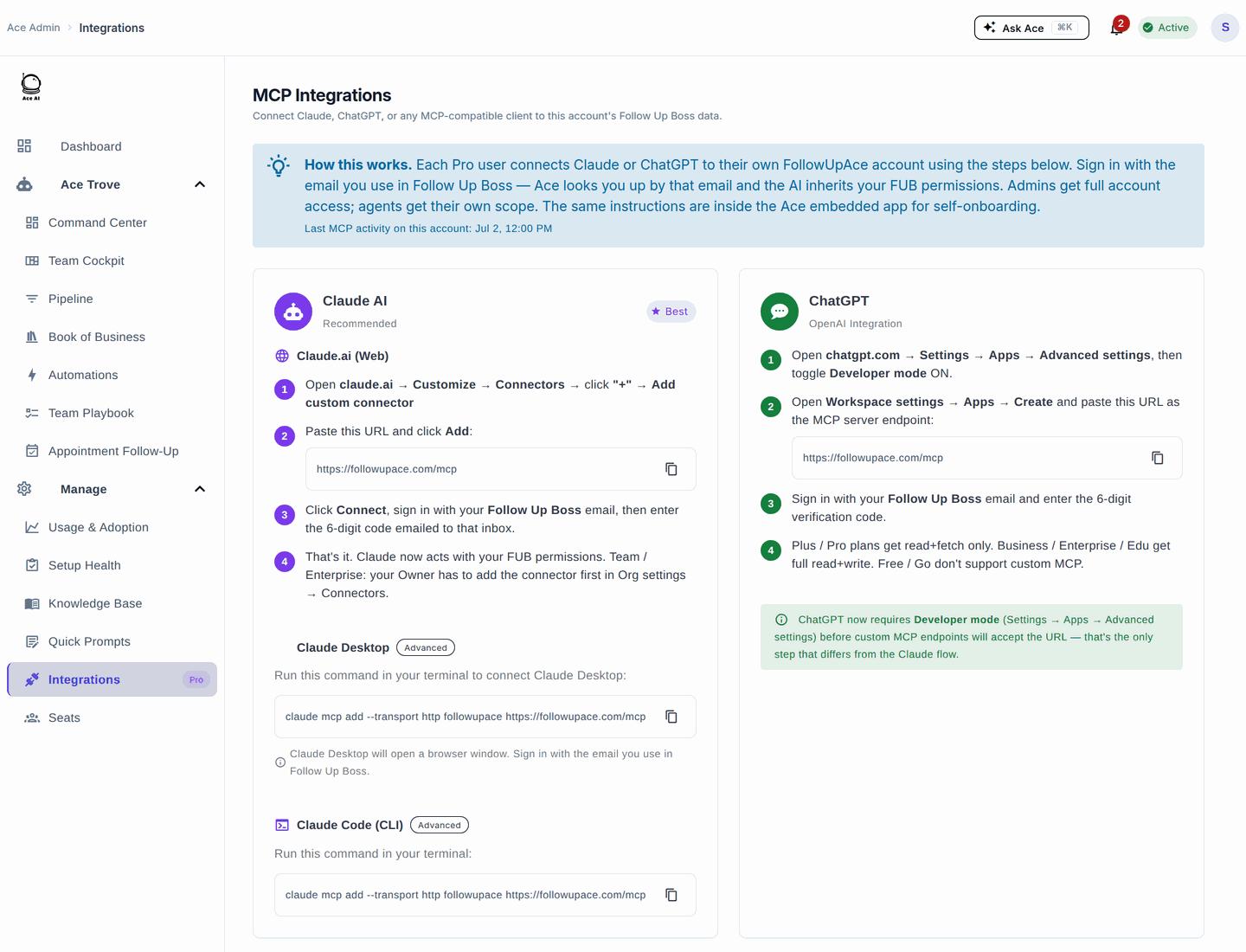
The fastest path is the built-in Integrations page — it shows your exact server URL, live connection status, and every tool. Go to Integrations in the left sidebar of the admin dashboard (agents reach the same instructions from the Ace embed). The steps below mirror what you'll see there.
Connect Claude
Claude connects through its Connectors feature. Server URL:
https://followupace.com/mcp
- Open claude.ai → Settings → Connectors → Add custom connector.
- Paste the URL above and click Add.
- Sign in with your Follow Up Boss email — a verification code is sent to that inbox.
- Enter the code. The tools Claude can see are scoped to your own Ace seat — team-wide tools appear only for admins and brokers. Actions in Follow Up Boss run through your team’s Follow Up Boss connection, so activity is recorded against the account connection rather than against each agent individually.
Enable the connector per conversation from the + menu → Connectors. On Team and Enterprise plans, an Owner adds the connector once under Organization settings → Connectors, then members connect individually with their own Follow Up Boss email. Claude Desktop uses the same remote URL — Anthropic brokers the connection from its cloud, so no local config file is needed.
Connect ChatGPT
ChatGPT connects through its custom MCP support. Server URL:
https://followupace.com/mcp?tools=full
- In ChatGPT, open Settings → Apps → Advanced settings and turn Developer mode on.
- Add a custom MCP connector and paste the URL above.
- Sign in with your Follow Up Boss email and enter the verification code.
Why the URL ends in ?tools=full
ChatGPT can connect to Follow Up Ace in two shapes, and the connector URL is what chooses between them:
https://followupace.com/mcp— the research shape: two actions,searchandfetch.searchlooks up contacts,fetchreturns one contact's full profile. This is the shape OpenAI's Deep Research expects, so it stays the default.https://followupace.com/mcp?tools=full— the full Ace toolset, the same one Claude gets: account-wide reads for tasks, deals and pipeline, appointments, calls/texts/emails and other activity, and Smart Lists, alongsidesearchandfetch.
If Settings → Apps → Follow Up Ace → Manage lists only two actions, your connector is on the first URL. Remove it, add it again with ?tools=full on the end, and re-authorize — ChatGPT reads the action list when the connector is added, so refreshing the existing one won't change it.
This switch only affects ChatGPT. Claude and other MCP clients always receive the full toolset.
Other MCP clients
Any MCP-compatible client — Cursor, VS Code, Cline, Windsurf, Zed, Continue, and others — can connect to Follow Up Ace using the same endpoint (https://followupace.com/mcp). The Integrations page includes one-click installers for common clients and a universal config snippet you can drop into your client's config file.
Authentication
Follow Up Ace uses a verification-code flow — no separate API key or password:
- Your assistant opens the Follow Up Ace authorization page.
- Enter your Follow Up Boss email and request a code.
- Enter the one-time code from your inbox to complete the connection.
You can revoke access any time from the Integrations page.
Available tools (188)
| Category | What you can do |
|---|---|
| Contacts & Leads | Search, create, update, tag, merge, bulk-manage; check duplicates; manage relationships |
| Bulk Operations | Tag, re-stage, assign, and enroll hundreds of contacts at once |
| Notes | Log call summaries, meeting notes, and AI briefings |
| Send via Gmail, draft with AI, manage templates | |
| SMS / Text | Send texts through your Follow Up Boss number, manage SMS templates |
| Tasks | Create, assign, and track all Follow Up Boss task types |
| Deals & Pipeline | Create deals, manage stages, track pipeline value |
| Appointments | Schedule showings and meetings; manage the calendar |
| Action Plans | Enroll in action plans, pause and resume them |
| Smart Lists | Run saved filters and process entire lists with AI |
| Team & Organization | Manage teams, ponds, and lead-routing rules |
| Zillow Speed-to-Lead | Qualify, score, and build follow-up sequences for Zillow leads |
| Federal Reserve Data | Mortgage rates, housing market, employment, affordability, forecasts |
| AI Intelligence | Briefings, timeline analysis, and AI message drafts |
| Custom Fields & Config | Manage custom fields, webhooks, and CRM configuration |
Troubleshooting
Can't see the Integrations page?
Integrations requires an active Ace Pro seat. Confirm your Pro seat is assigned and your subscription is active in Billing.
Verification code not arriving?
Check your spam folder. Codes expire after a few minutes — request a new one if needed.
Connected but the assistant isn't using it?
In Claude, enable the connector per conversation via the + menu → Connectors. In ChatGPT, confirm Developer mode is on.
Claude says "Authorization with the MCP server failed"?
Nine times out of ten this is the connector URL. Claude needs https://followupace.com/mcp. The /api/mcp/sse/ address is our ChatGPT transport — it accepts the connection, which is why Claude flashes “Connected,” but it doesn't run Claude's sign-in step, so authorization fails a moment later. Remove the connector and add it again with the correct URL; editing it in place won't help, because Claude only reads the server details when a connector is first added.
Entered the code and still denied?
We look your seat up by the email you type on the sign-in page, so it has to be the Follow Up Boss login your Ace Pro seat is on. If you originally signed up for Ace with a different personal address, that address has no seat attached and will be turned away.
Signed in successfully, but the connector still says authorization failed?
The connector needs two things: an active Ace Pro seat and a live Follow Up Boss connection. If nobody on your team has connected Follow Up Boss to Ace yet — or your own connection has lapsed — the sign-in step succeeds and the connector is then turned away when it reaches for your CRM, which the assistant reports as an authorization failure. Open Ace inside Follow Up Boss and look for a Connect Follow Up Boss prompt; completing it takes a few seconds and is enough on its own to unblock your connector. Then remove the connector in your assistant and add it again. A team-wide connection, which gives everyone CRM context, is a separate step done once by an admin, broker, or owner.
ChatGPT says "No app actions available yet"?
That connector is pointed at an endpoint ChatGPT can't read a tool list from. Use https://followupace.com/mcp?tools=full — the /api/mcp/sse/ address is a legacy transport and is not the one to give ChatGPT.
ChatGPT only offers "search" and "fetch"?
Expected on the plain https://followupace.com/mcp URL — see Why the URL ends in ?tools=full above.
"Server not reachable" error?
The Follow Up Ace MCP server is publicly hosted — no VPN or firewall setup is needed on your end. If it persists, contact support.
Related articles
- Understanding Your Ace Plan: Regular vs. Pro
- Ace Admin Configuration Reference
- Cheat Sheet: Ace MCP + Claude
Last updated: August 2026
Thanks for the feedback — it helps us improve.