
Automate Your SmartList Workflows with Quick Prompts
Updated July 3, 2026
Pair Follow Up Boss SmartLists with Ace Quick Prompts to work an entire list without researching and messaging each contact by hand. This guide shows the pattern and how to build a prompt for one of your SmartLists.
The pattern
You've built SmartLists for new leads, follow-ups, nurtures, and more. Working each contact manually — reading their history, writing a personalized message, updating the record — adds up to hours a day. A Quick Prompt configured for a SmartList's purpose collapses that into a single click per contact.
How it works
- Open your SmartList in Follow Up Boss (for example, Prospect Monthly or 7-Day Follow-up).
- Select a contact from the list.
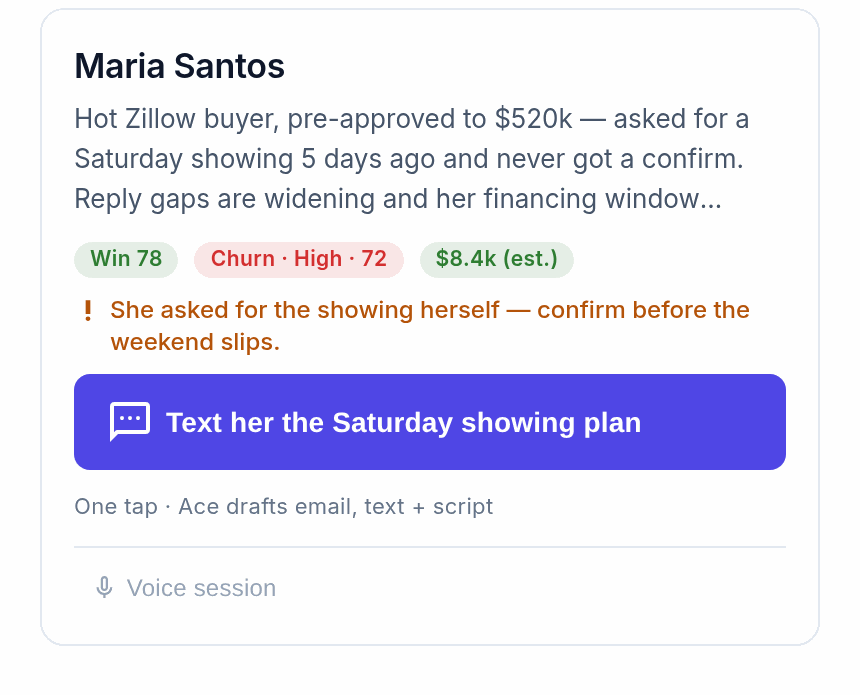
- Click your Quick Prompt for that list type in the Ace panel.
- Review what Ace prepares — it reads the contact's history and property interest, drafts a personalized email and text, suggests CRM updates and notes, and proposes follow-up tasks. Ace shows the draft and asks before it sends or changes anything.
Building a Quick Prompt for a SmartList
Quick Prompts are yours to shape. Agents create their own from Settings in the Ace embed; admins create team prompts from Quick Prompts in the admin dashboard. A good prompt names the situation, the actions Ace should take, and how to personalize the message.
Example — 7-day check-in prompt:
- Review properties viewed in the last 7 days.
- Draft a text referencing specific property interests.
- Draft an email that calls out their search criteria.
- Mention current interest rates if the contact has gone quiet.
- Suggest a follow-up task based on their activity level.
Getting started
- Pick your highest-value SmartList.
- Build one Quick Prompt tailored to that list's purpose.
- Test it on ten contacts to see the time saved.
- Expand to your other SmartLists once it's working.
Related articles
- Quick Prompts: Team, Personal & Custom Prompts
- Using Ace: The Complete Chat Guide
- Getting Started as an Ace User — Agent Quickstart
Last updated: July 2026
Thanks for the feedback — it helps us improve.