
Agent Quickstart: Your First Day with Ace
Updated July 3, 2026
This guide gets you productive with Ace in about ten minutes. Ace is your AI assistant inside Follow Up Boss — start at Step 1, run the example prompts, and you're up and running. It's for agents who've just been given a seat.
Step 1 — Open Ace in Follow Up Boss
- Log in to Follow Up Boss as usual.
- Find the Ace chat icon in the bottom-right corner of your screen.
- Click it — the Ace panel opens on the right.
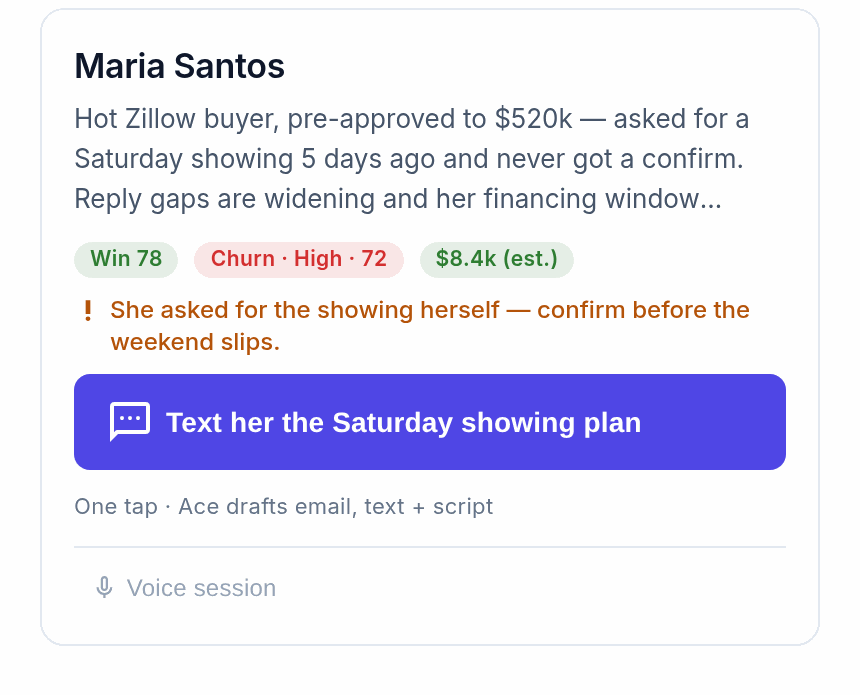
With a contact open, Ace already knows who you're looking at — ask "summarize this person" and you'll get their full profile without naming them. With no contact open, Ace still handles account-wide questions: your task list, pipeline questions, and contact searches.
Step 2 — If you see a connection prompt
A prompt to "Connect Follow Up Boss" just means your session token needs a one-click refresh — click it and you're reconnected in seconds, no password. If you see a message that your admin needs to finish setup, ask your account owner to assign you a seat.
Step 3 — Run these first
Open any contact, then type each of these into Ace:
- "Tell me about this person" — their full profile: contact info, source, stage, tags, last activity, recent notes, tasks, and deals. Your fastest pre-call prep.
- "What's their recent activity?" — the full timeline of calls, emails, texts, and property searches.
- "Draft a follow-up email" — a personalized email based on their history; review, edit, and send from Follow Up Boss.
- "What should I do next with this person?" — a recommended next action, with a short reason why.
- "Add a note: [your note]" — logs a note instantly. Ace confirms before saving.
How Ace works day to day
- Context-aware by default. With a contact open, every question is about that person; switch contacts and Ace's context switches too. To ask about someone else, just say their name.
- Always confirms before acting. When you ask Ace to create a task, send a message, or change a stage, it shows a draft and asks first. Nothing happens until you say yes.
- Fresh each session. Ace re-reads your live CRM every time you open it, so the data is current — but it won't remember a previous chat.
Prompts that work well
Looking up contacts
- "Who hasn't been contacted in the last 30 days?"
- "Show me my leads tagged 'hot buyer.'"
- "Find contacts in the Active Buyer stage under $400k."
Managing your day
- "What tasks do I have due today?"
- "What's overdue from this week?"
- "Create a call task for Thursday at 10am."
Drafting communications
- "Draft a follow-up email after our showing yesterday."
- "Write a re-engagement text for a lead who's been quiet for a month."
- "What did we last talk about?"
Working your pipeline
- "Show me my active deals."
- "Move this contact to the Active Client stage."
- "Apply the New Buyer action plan to this contact."
Quick tips
- Be specific about timing: "Create a task for next Monday at 9am" beats "schedule something."
- Use names naturally: "What's going on with the Martins?" works fine.
- Stack questions: "Summarize this contact and tell me what to do next" is one message.
- Cancel any action: say "stop" or "never mind."
Related articles
- Cheat Sheet: Using Ace in Follow Up Boss
- Using Ace: The Complete Chat Guide
- Understanding Your Ace Plan: Regular vs. Pro
Last updated: July 2026
Thanks for the feedback — it helps us improve.